0-Obtaining and Activating the Serial
Context and objective
This chapter concerns the setup of a new client with a Yooz X3 connector. The customer's Sage X3 integrator (VAR) is able, via a website, to retrieve the connector patches and also the installation procedure.
However, the Yooz X3 connector will only be functional if the dedicated serial number is installed in Sage X3. This serial number can only be generated by the connector's publisher. Furthermore, this serial number requires an input key, which is the serial number of the client's Sage X3 solution.
This chapter details the operating procedures for: - Retrieving the serial number of a Sage X3 solution - Serial integration for the Yooz X3 connector
This document addresses these phases of implementation:
| ▼ | ||||||
|---|---|---|---|---|---|---|
| Pre-sales | Initialization | Framing | Installation | Setting | Recipe | Production launch |
Operating procedure
1. Retrieving the serial number of a Sage X3 solution
Connect to the Sage X3 solution with an ADMIN user or a user who has an ERPDEV badge.
Open the function License details via the menu Administration > License data
Click on the Sage X3 product line. Copy the contents of the area Serial number
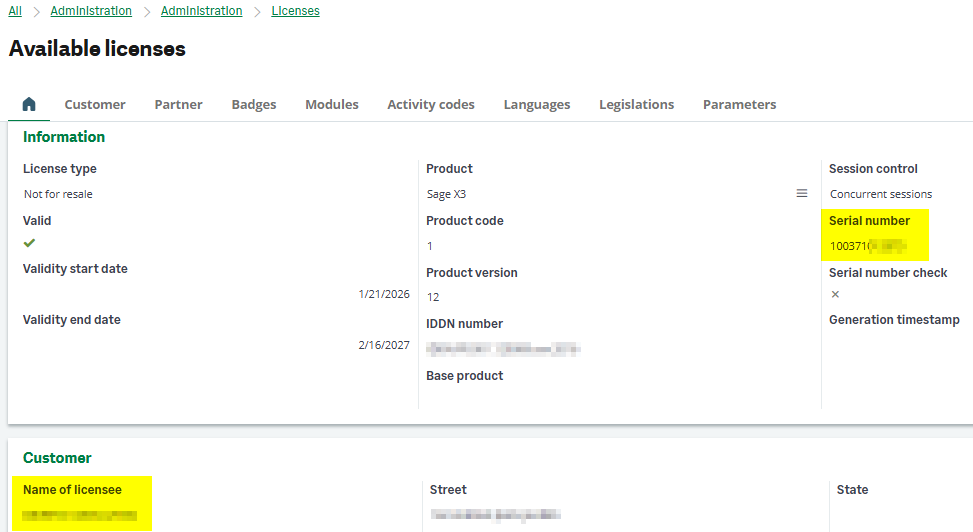
License Datas – 2026R1
This information must be sent to your contact Yooz commercial who will be able to send you the serial file. When sending this, please also specify the name of the end customer.
You must therefore provide your Yooz sales contact with:
- The serial number of the client's Sage X3 solution
- The name of the license holder
Internal note: Yooz requests for a serial file go through a Jira ticket.
2. Serial integration for the Yooz X3 connector
You have received the serial file (file <license-xxxxxxxxxxx-YOOZ-1-1-2-xxxxxxxxxxxxxx.json>), so you can integrate it into your client's Sage X3 solution.
Connect to the Sage X3 solution with an ADMIN user or a user who has an ERPDEV badge.
Open the function License upload via the menu
Administration > License upload
Click on the button Select the file
In the file selection window that opens, point to the serial file you received for the Yooz X3 connector.
Then click on the option Upload licence (or use the button Actions to find this option).
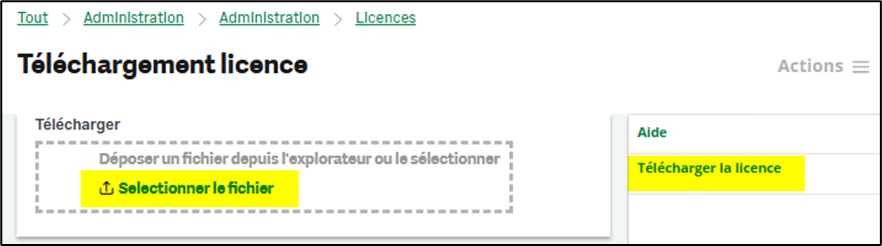
licenses – 2026R1
This will create a new YOOZ badge.
You must Add this badge to the roles users who use the Yooz X3 connector.
And don't forget to also add this badge to the service account used for the recurring task (XRJ31EXE) of the connector.
3. Serial update for the Yooz X3 connector
The serial number has an expiration date; the default validity period is one year. You will receive an extended serial number file to integrate into your client's X3 solution, at the same email address you registered for the first file. This update will be sent two weeks before the expiration date.
Internal note: extended serial files will be sent to Yooz via Jira ticket.