4-Synchronization of referentials
Context and objective
This chapter describes the functional configuration and operating procedure for initializing Yooz repositories from Sage X3, and then keeping these repositories up to date via the Yooz X3 connector.
The general principle is as follows: the reference data remains administered in Sage X3, the necessary Yooz organization codes are entered in the X3 functions, then the records are transmitted to Yooz by the connector's usage functions.
This chapter details the operating procedures for:
-
Check the prerequisites arising from the technical installation of the connector.
-
Configure the X3 functions that control the sending of the repositories.
-
Launch a massive migration of master data from X3 to Yooz.
-
Run the Yooz Web Service and check the generated interfaces.
This document addresses these phases of implementation:
| ▼ | ||||||
|---|---|---|---|---|---|---|
| Pre-sales | Initialization | Framing | Installation | Setting | Recipe | Production launch |
Prerequisites and preparation
Before starting the synchronization of the repositories, it is imperative to verify that the technical installation of the connector is complete on the relevant Sage X3 folder.
-
Required rights: connect to Sage X3 with an ADMIN account or a user with the necessary permissions on the configuration and use functions of the connector.
-
Yooz login: have access to the information provided by the Yooz project manager: application ID, client IDs, target URL, language, time zone and any technical options.
-
Yooz preparation: the expected organizations and analytical axes must be created or validated on the Yooz side before sending the corresponding repositories from X3.
-
Traceability: temporarily enable the generation of call files if a detailed analysis of the flows is required during setup.
The recurring task should only be activated after the initial restart has been validated. Before this validation, prioritize manual launches for each object to control volumes and potential errors.
Relevant reference frameworks
The table below summarizes the reference data to be prepared, the associated X3 functions, and the expected behavior on the Yooz side.
| Reference document | Function / Menu X3 | Interface object | Key settings |
|---|---|---|---|
| Companies / Websites | Setup > Organizational structure > Sites | Organisations Yooz | Enter the Yooz organization code on the X3 website; check the financial website and the purchase/sale codes. |
| Users | Setup > Users > Users | OUT OF | Select Yooz for the users to be transferred; verify the email address and associated rights. |
| Suppliers | Common Data > BPs > Suppliers | BPS | Configure the supplier category: Yooz organization code, optional formula and Yooz box. |
| Clients | Common Data > BPs > Clients | BPC | Configure the customer category: Yooz organization code, optional formula and Yooz box. |
| Chart of accounts / Accounts | Setup > Organizational structure > Chart of accounts | COA / GAC | Check Yooz on the plan; fill in the Yooz organizations and the filter formula if necessary. |
| Analytical axes / Sections | Common data > General accounting tables > Analytical > Analytical sections | CCE | Create the axis in Yooz, select Yooz for the dimension type and check the sections to send. |
| Tax rates | Common data > Common tables > Taxes > Tax rates | TVT | Check Yooz on the rates to be transmitted; verify the legislation, the type of tax and the tax rule. |
| Payment terms | Common data > BP tables > Payment terms | TPT | Check Yooz; enter the Yooz organisation code or the expected globalized repository (YZ_PAYMENT_METHOD). |
| Articles / Products Article category | Common data > Articles > Articles / Article category | ITM / ITG | Depending on the purchasing scope, configure the product category: Yooz organization code or global repository (YZ_ITEM), optional formula, and Yooz field. Only active products are transmitted. |
Noticed: Expense or service items can also be sent when the purchasing scope requires lines outside of the purchase reference in Yooz. This point needs to be validated according to the project workflow.
Operating procedure
1. Configure the general values
-
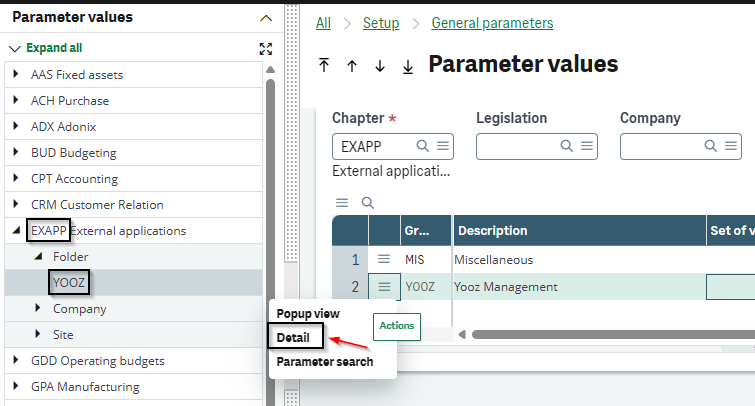
Open the Parameter Values function via the menu Setup > General parameters > Parameter Values (ADPVAL function)
-
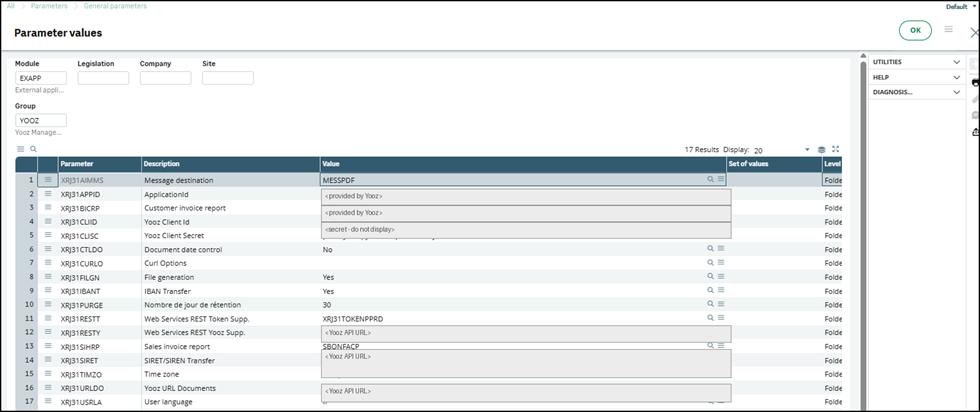
Complete the EXAPP chapter and the YOOZ group. Connection values are provided by the Yooz project manager and must be entered at the file level, unless otherwise instructed.
| Setting | Type | Value to be entered | Role / Use | Responsible / vigilance |
|---|---|---|---|---|
| XRJ31FILGN | Traceability | Yes in setup/recipe; No in production unless analysis is required | Generates JSON files sent to Yooz to facilitate stream analysis | Consultant X3 — temporarily recommended Disable this if file retention is no longer necessary. |
| XRJ31PURGE | Traceability | Number of days of retention desired.0= unlimited storage. | Defines the retention period for elements generated or stored by the connector. | Client / Consultant X3 — to be defined according to the retention policy. Avoid 0 in production unless explicitly needed (or for accumulation of traces). |
  |
|---|
2. Configure Yooz companies/sites and organizations
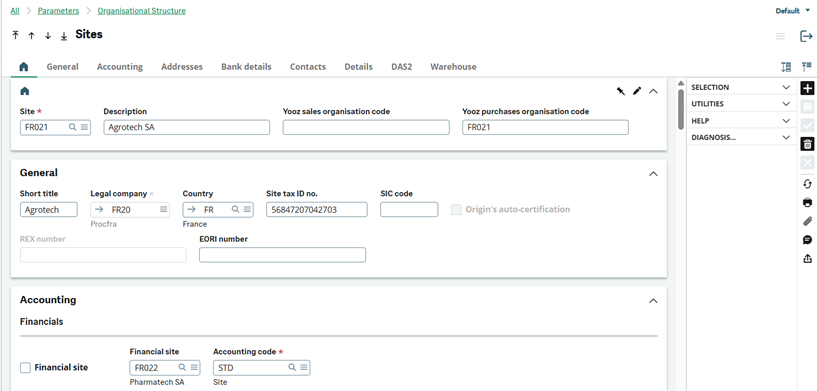
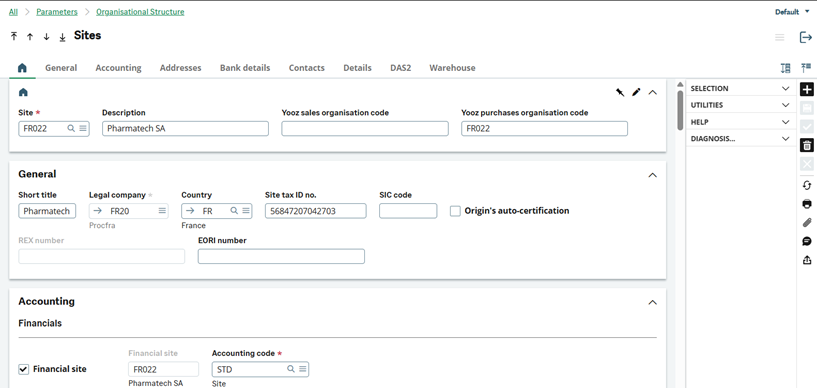
In the connector, the X3 site is the operational link to the Yooz organization. X3 financial sites generally correspond to Yooz organizations; non-financial sites can be linked to a Yooz organization when exports are performed via the financial site.
1. Open the Sites function: Setup > Organizational Structure > Sites (GESFCY function)
2. Check the website, legal company, country, tax number and financial site status.
3. Enter the corresponding Yooz organization code. Depending on the scope, distinguish between the purchasing organization code and the sales organization code.
4. Verify that the entered code exists on Yooz's side and that it respects the expected case and format.
Case 1: Non-financial site linked to a financial site
Case 2: Direct financial website
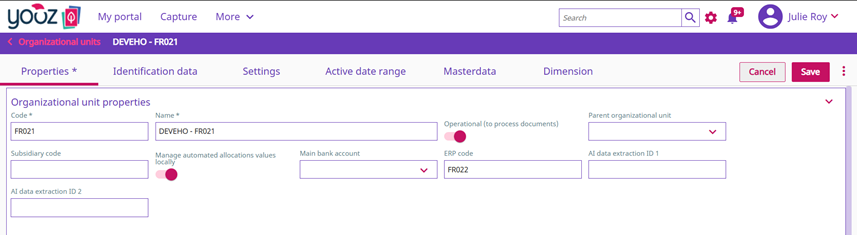
The Yooz organization code is a reconciliation identifier. It must be stable and identical between Sage X3 and Yooz; any discrepancy will generate synchronization errors or data will be attached to the wrong organization.
3. Configure the X3 users to send to Yooz
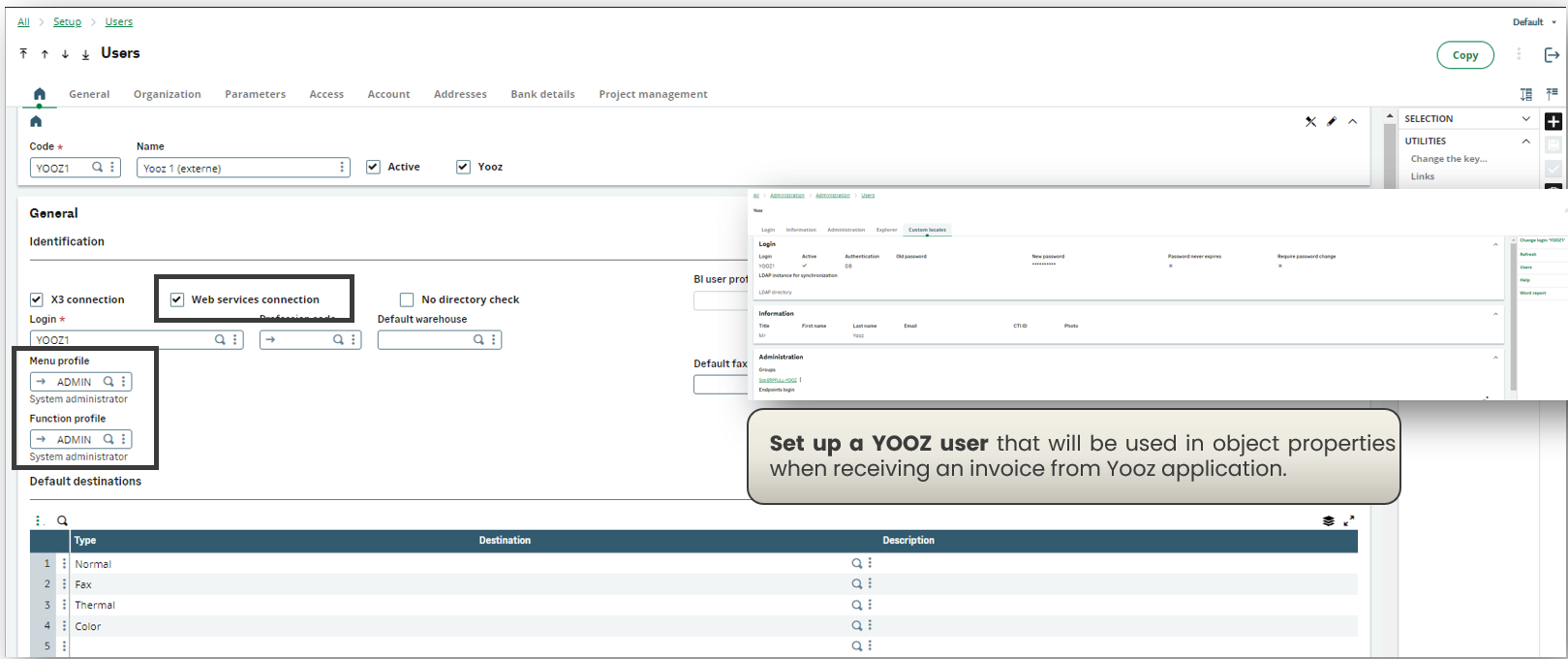
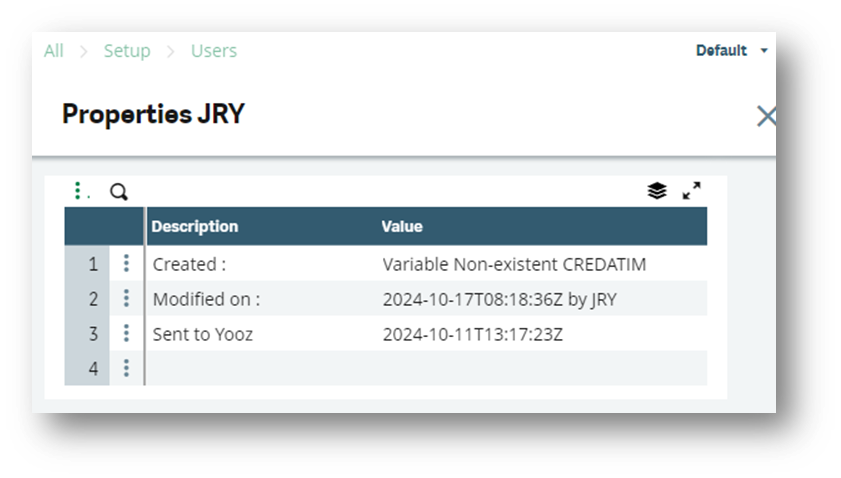
X3 users can be passed to Yooz for creation or updates on the Yooz side. A Yooz technical user must also be prepared for use in object properties during returns or imports from Yooz.
-
Open Setup > Users > Users (GESAUS function).
-
Create or control the YOOZ technical user used by the connector.
-
Check the workflow email address if it is required by the project.
-
Check Yooz on the X3 users to transfer to Yooz.
-
Verify that each transmitted user has a valid email address and consistent rights.
-
In Syracuse administration, check the endpoints and groups associated with the technical user.

⚙️USEFUL PARAMETER VALUES
XRJ31USRLA: language transmitted during Yooz user creation/update.
XRJ31TIMZO: Time zone transmitted for the Yooz user
The Yooz checkbox controls the sending of the user to Yooz. Checking the box creates or updates the user on the Yooz side; unchecking it may result in deletion or deactivation depending on the connector's behavior. Confirm the expected effect before making any bulk changes.
4. Configure the analytical axes and sections
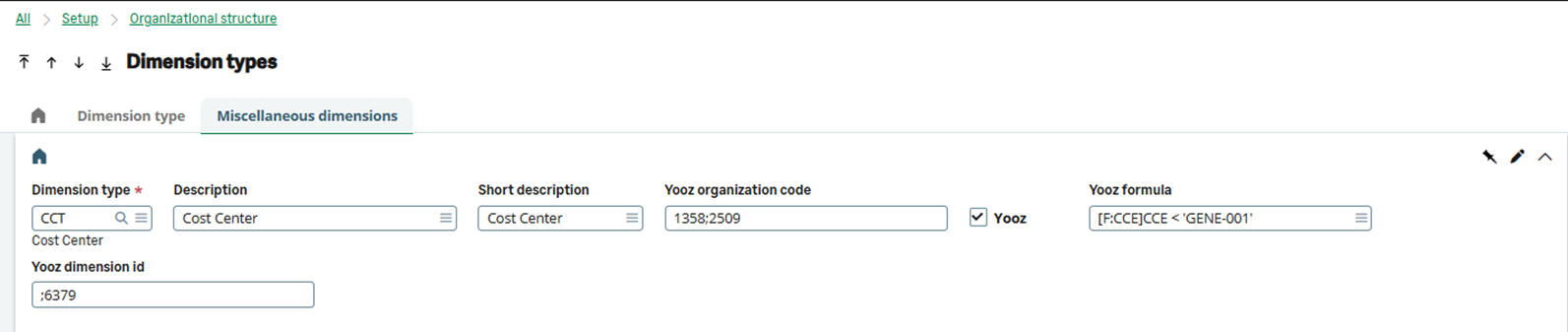
X3 analytical axes are sent to Yooz as dimensions. Creating or validating the axis on the Yooz side is a prerequisite before importing the analytical sections.
-
Open Setup > Organizational Structure > Dimension Types (GESDIE function).
-
Check the “Yooz” box for the desired dimensions.
-
Enter the Yooz code for the axis when the axis needs to be sent.
-
Add a Yooz formula if only certain sections need to be included or excluded.
-
Enter the Yooz dimension set code when multiple axes or dimension sets are managed.
- Control the sections in Common Data > General accounting tables > Analytical > Dimensions (GESCCE function).
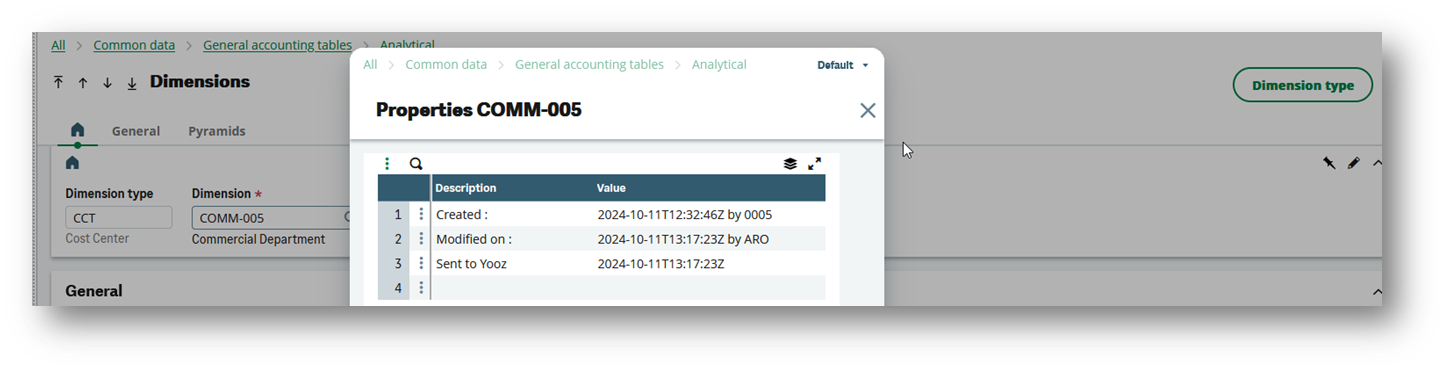
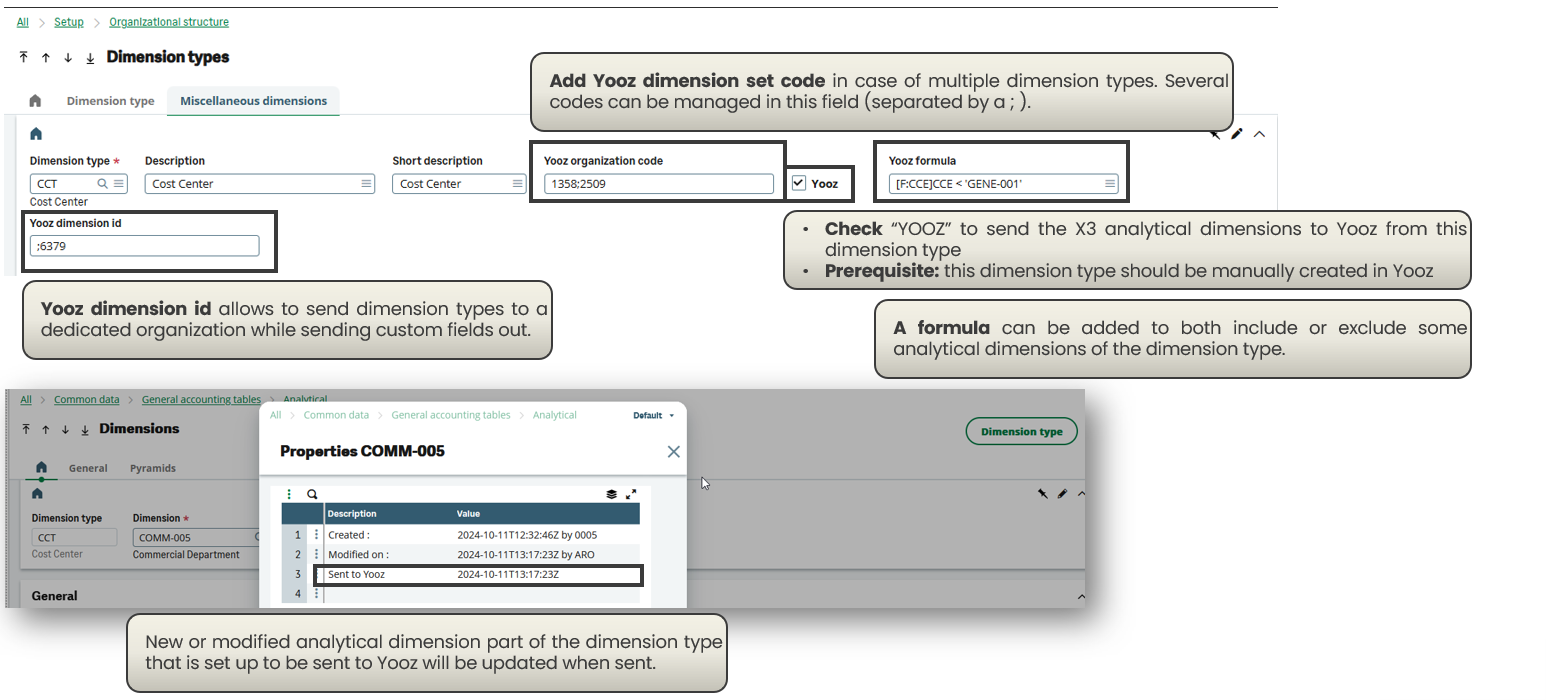
Do not initiate the CCE migration at this stage if the axis configuration has not yet been validated. The CCE migration sends the analytical sections to Yooz. Therefore, it should only be executed after validation of the analytical dimensions type and the expected mapping on the Yooz side.
5. Configure the chart of accounts and accounting accounts
The X3 account plan manages the sending of accounts to Yooz. When multiple plans are present, the mapping of Yooz organizations and the propagation rules between plans must be clarified during setup.
-
Open Setup > Organizational Structure > Chart of Accounts (GESCOA function).
-
Select Yooz on the relevant account plan(s).
-
Enter the Yooz organization codes if multiple organizations or repositories are used.
-
Separate multiple codes with a semicolon when the project settings allow it.
-
Add a Yooz formula if only certain accounts need to be sent.
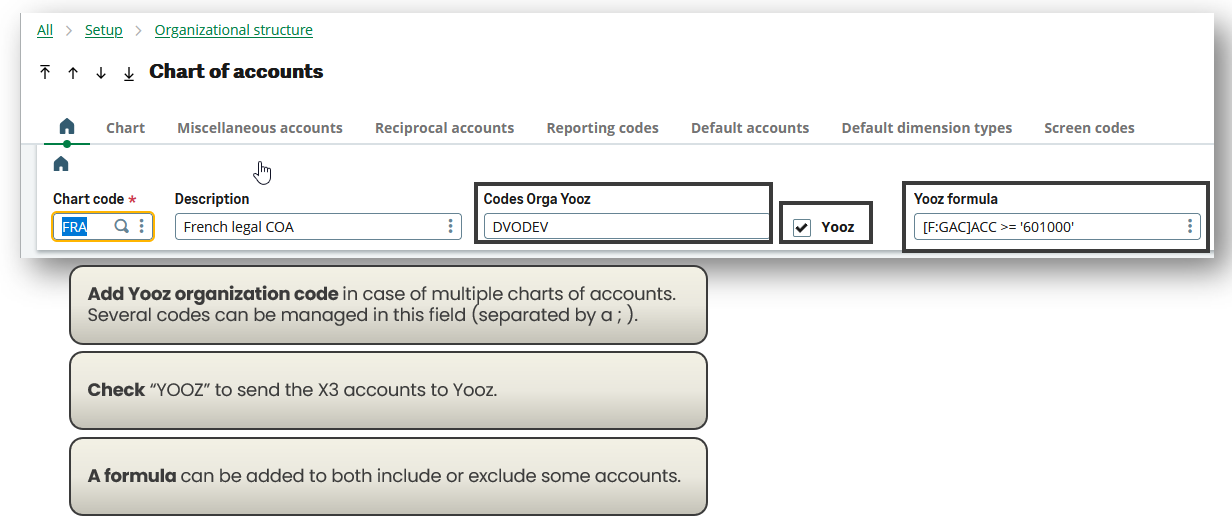
- Check the accounts in Common Data > General accounting tables > General > Accounts (GESGAC function).
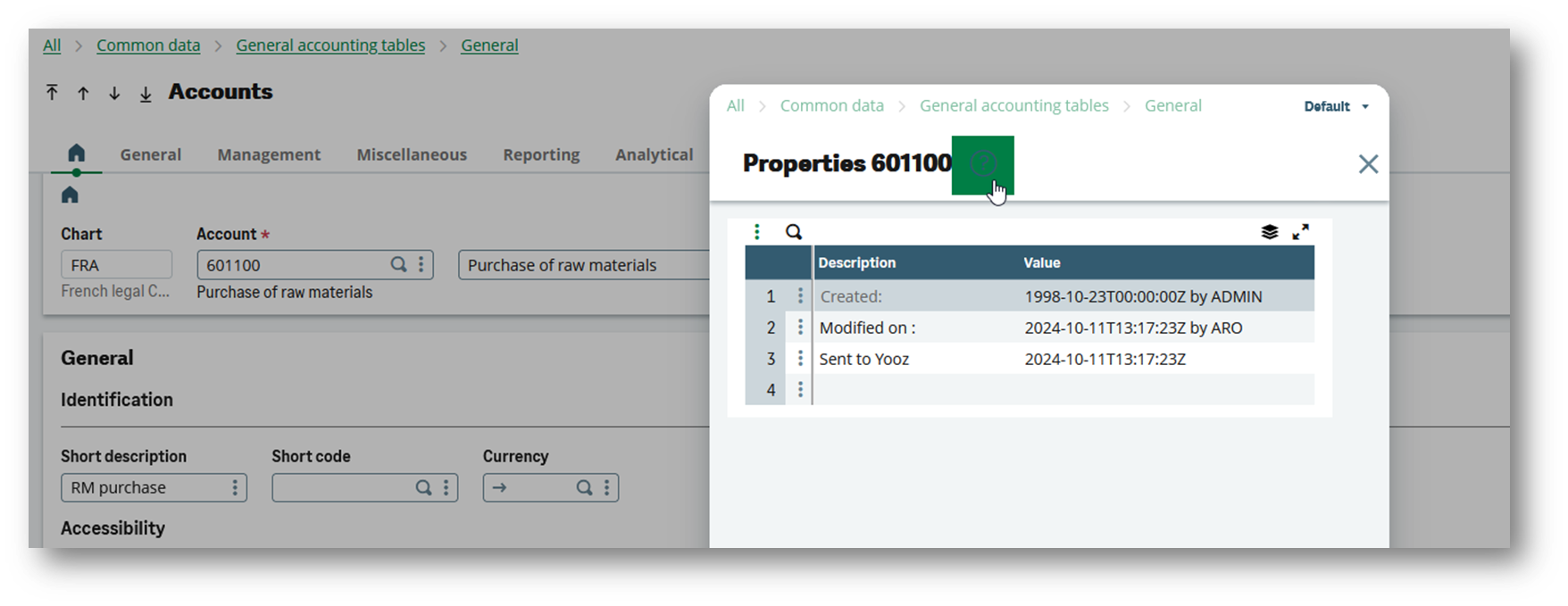
Example: A formula can be used to exclude account classes not used in Yooz or to limit sending to the purchase/sale scope defined during scoping.
6. Configure tax rates and payment terms
Tax rates and payment terms are reference data used by invoice flows. They must be consistent between Sage X3 and Yooz before testing purchasing, finance, or sales flows.
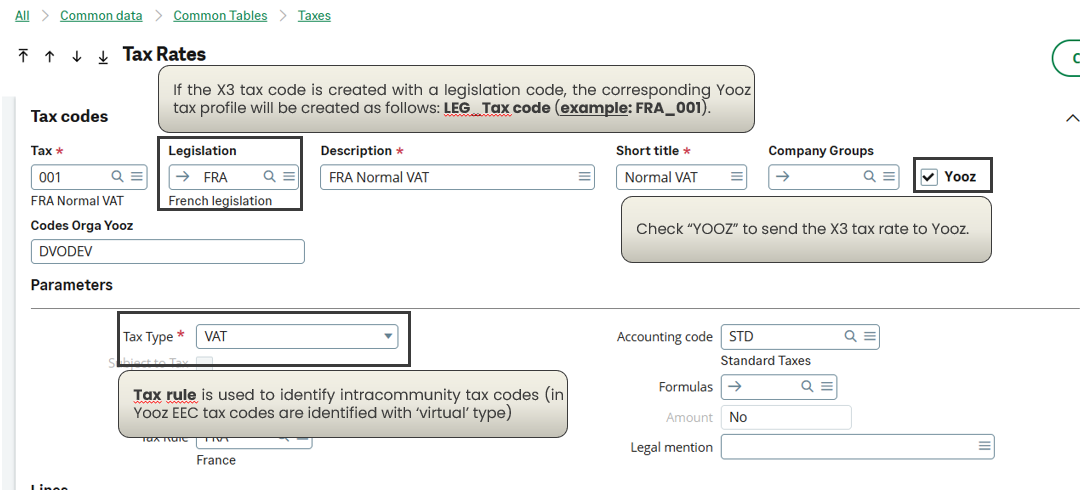
Tax rates
-
Open Common data > Common tables > Taxes > Tax Rates (function GESTVT).
-
Check Yooz on the rates to be transmitted.
-
Check the legislation and the tax code. The code transmitted to Yooz is usually in the form LEG_TAXE.
-
Check for cases of self-assessment / intra-community tax: these can be materialized on the Yooz side with a specific type of tax.
-
Controlling negative rates: the rate can be sent as a positive value with a negative tax indicator.
-
Validate the percentage of recoverable VAT when the scope requires it.
Payment terms
-
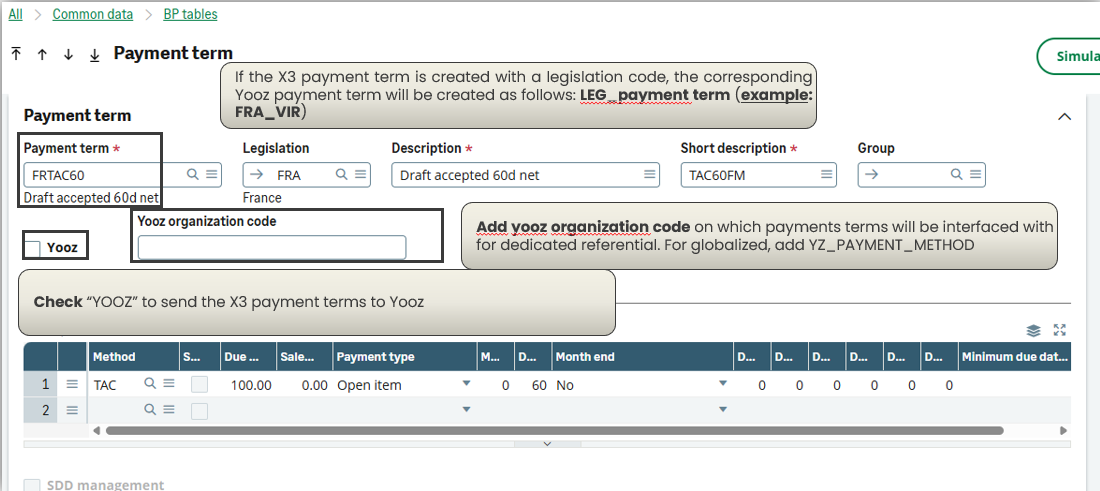
Open Common Data > BP tables > Payment Terms (GESTPT function).
-
Check Yooz for the payment terms to be submitted.
-
Enter the Yooz organization codes if the repository is not global.
-
If the legislation is informed, check the expected restriction on Yooz organizations corresponding to the companies and financial sites concerned.
-
Verify that historical payment methods are not confused with payment terms: the standard flow uses GESTPT.
7. Configure suppliers and customers
Third parties are managed by their category. The category defines Yooz activation, the target Yooz organizations, the filtering formula and, where applicable, the dedicated or globalized repository mode.
⚙️USEFUL PARAMETER VALUES
XRJ31SIRET: activates the sending of the SIRET / SIREN to Yooz when the project requests it.
XRJ31IBANT: Determines whether supplier IBANs should be sent to Yooz. Enable only if the scope justifies it, as this is sensitive data.
XRJ31BPSAC: determines the chart of accounts to be used for sending the control account to Yooz.
Suppliers
-
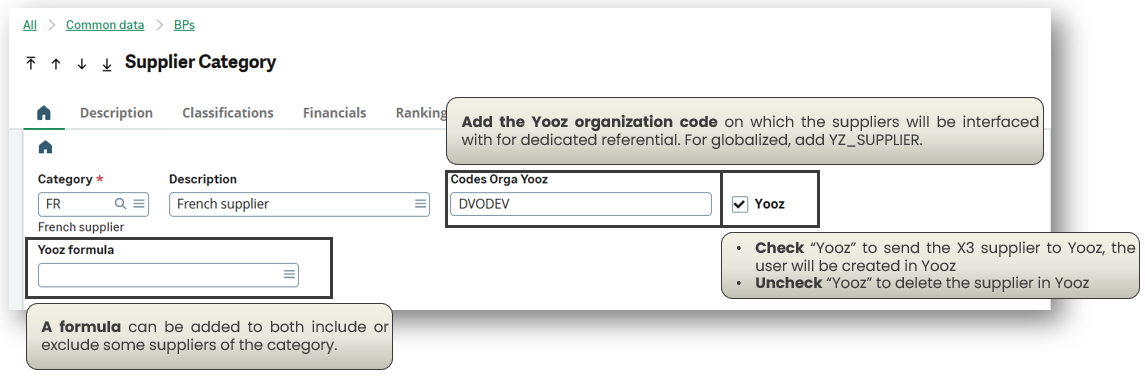
Open Common Data > BPs > Supplier Categories (GESBSG function).
-
Select Yooz for the supplier categories to be transmitted.
-
Enter the Yooz organization codes or the planned global repository (YZ_SUPPLIER)
-
Add a Yooz formula if certain suppliers in the category need to be excluded.
-
Specify the dedicated reference behavior if the supplier scope is managed by organization.
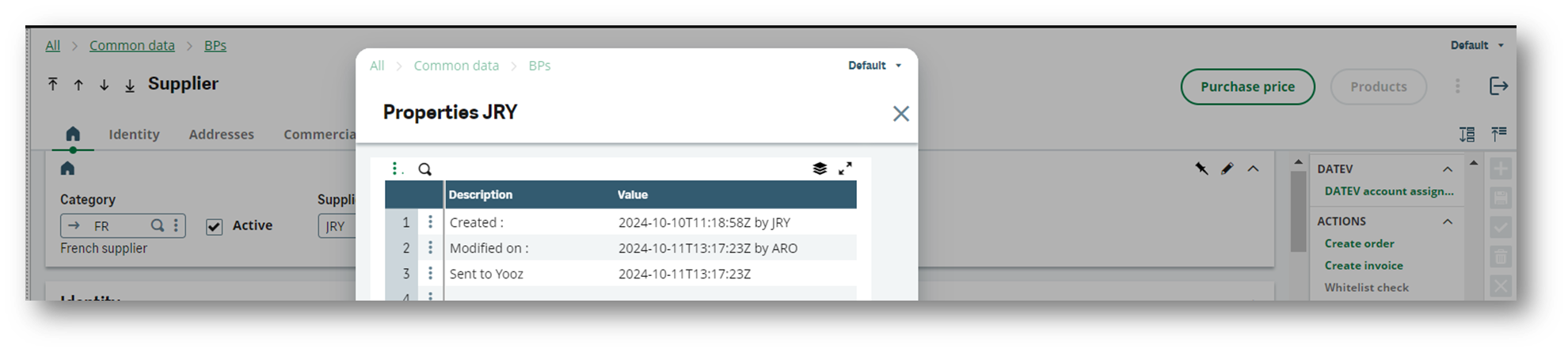
- Check the records in Common Data > BPs > Suppliers (GESBPS function).
Special case Third-Party/Company Exceptions (GESBPR)
When the supplier scope is managed by organization and exceptions exist, the connector adapts automatically.
-
Rocking mechanism: As soon as a Third Party/Company exception is detected, the system ignores the standard data from the Supplier record (GESBPS) to favor the data from the Third Party record (GESBPR - BPEXCEPT table).
-
Multiple creation: The connector generates as many supplier records in Yooz as there are exceptions.
-
Substituted data: For each mapped site, the values transmitted to Yooz come from the exception (tax regime, payment condition, discount, accounting code).
Rigorous control of multi-company suppliers in GESBPR is imperative before launching the initial data migration.
Clients
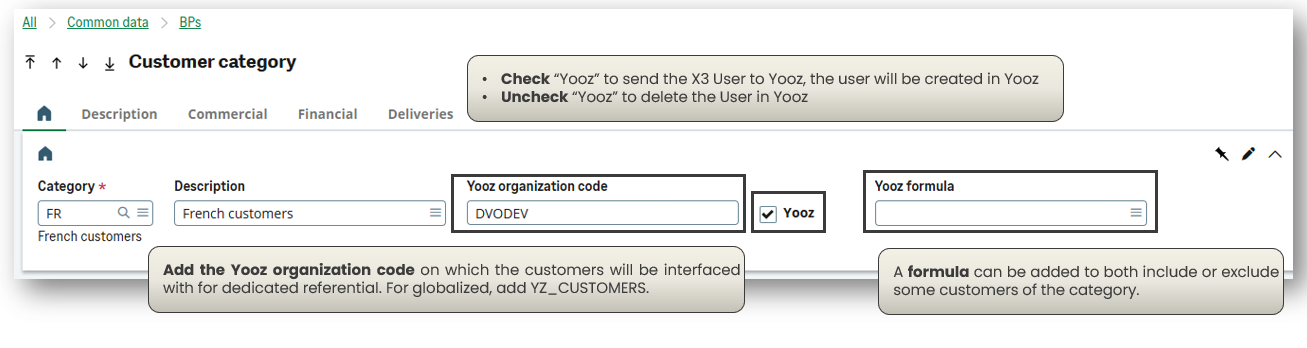
-
Open Common Data > BPs > Customer Categories (GESBCG function).
-
Enter the Yooz organization code or the planned globalized repository (YZ_CUSTOMER).
-
Add a Yooz formula if certain customers need to be excluded.
-
Check Yooz on the categories to be transmitted.
- Next, check the records in Common Data > BPs > Customers (GESBPC function).
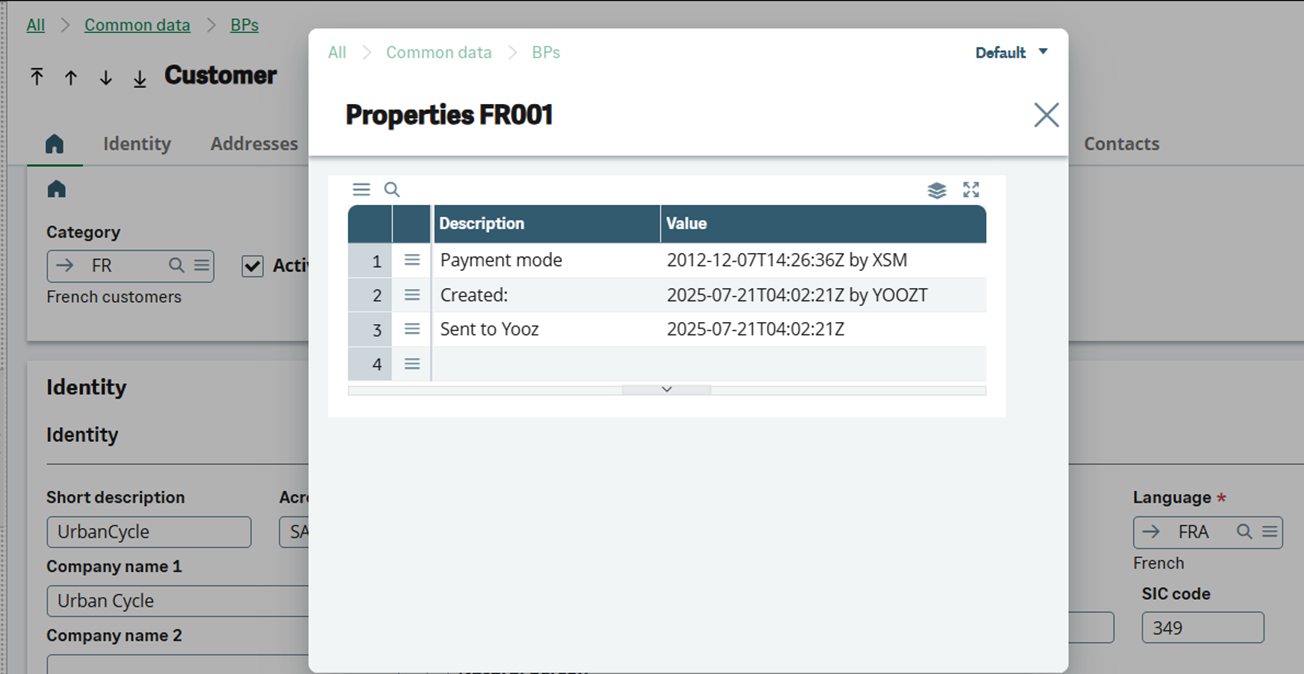
Deactivating a category or third party that has already been transmitted may trigger a deletion or inactivation request on the Yooz side, depending on the connector's behavior. Validate the expected effect before making any bulk changes.
8. Configure the products (useful within the context of the purchase flow)
The articles/products are only necessary when the purchasing scope includes sending products to Yooz, for example to manage lines outside the purchase reference or items of expense/service.
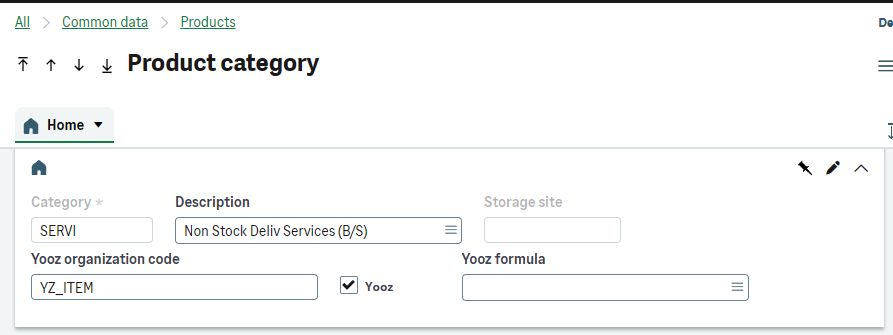
-
Open Common Data > Products > Product Categories (GESITG function).
-
Enter the target Yooz organisation code for a dedicated repository, or the globalised code provided by the project.
-
Add a Yooz formula to include or exclude certain items from the category.
-
Select Yooz for the categories of items to be submitted.
- Check the product sheets: only active products should be sent.
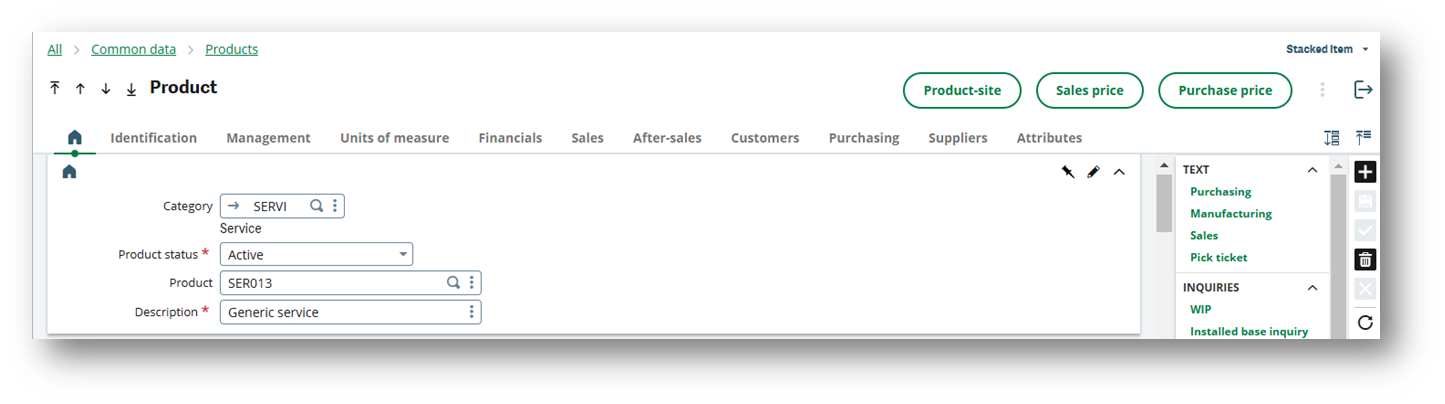
Do not include items in the scope if the project's purchasing flows do not require them.
9. Launch the initial recovery and check the interfaces
The initial recovery is used to send to Yooz the repositories already existing in X3 and which meet the configured criteria.
It must be used After manual configuration of the reference data, and Before the activation of recurrent treatments.
| 💡 Important to know: Principle of recovery The data migration feature is not a configuration tool. It simply sends the ERP data that is already eligible based on the selected Yooz boxes, organization codes, formulas, and active statuses. An incorrect formula or organization code will immediately affect the volume of data sent. |
|---|
An important initialization utility is the function to force the timestamp (XRJ31YOOZFLG): This function is used exclusively for clients already using the Yooz application before installing the connector. It simulates an initial transmission to prevent the mass resending of historical data and avoid duplicates.
⚙️USEFUL PARAMETER VALUES
XRJ31FILGN: Set to Yes during testing if JSON files need to be downloaded for analysis.
XRJ31PURGE: controls the retention of tracking elements when purging is enabled.
XRJ31RESTT / XRJ31RESTY: Check before resuming if two Yooz applications are loaded from the same X3 folder.
XRJ31LANG: List of languages, in order of priority, for retrieving the translated descriptions for accounts, sections, tax rates, and payment methods. This list is necessary if translations do not exist for certain objects in the default language of the Sage X3 folder.
-
Verify that the expected Yooz organizations, axes and reference frameworks exist on the Yooz side.
-
Check the Yooz boxes, formulas and organization codes on each relevant X3 function.
-
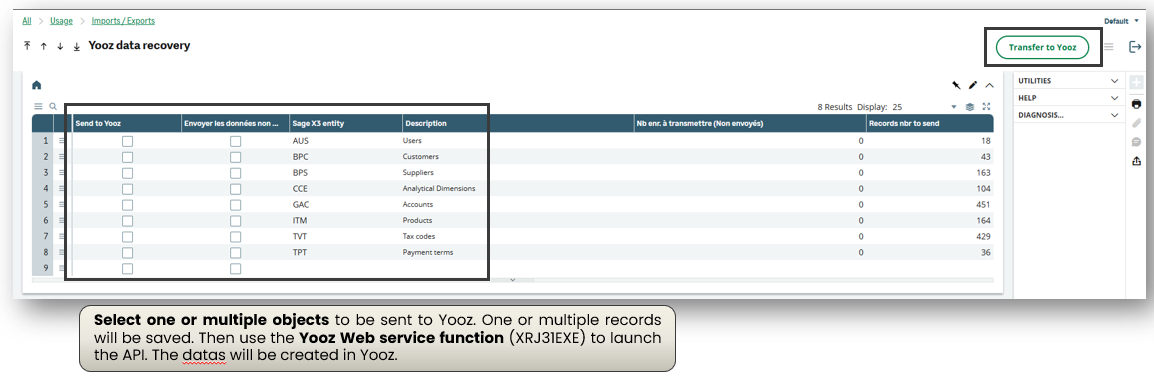
Open Usage > Imports/Exports > Retrieve Yooz reference data (function XRJ31YOOZREP).
-
Start the recovery only on objects validated during setup
-
Execute the Yooz Web Service via the XRJ31EXE function or the intended processing.
-
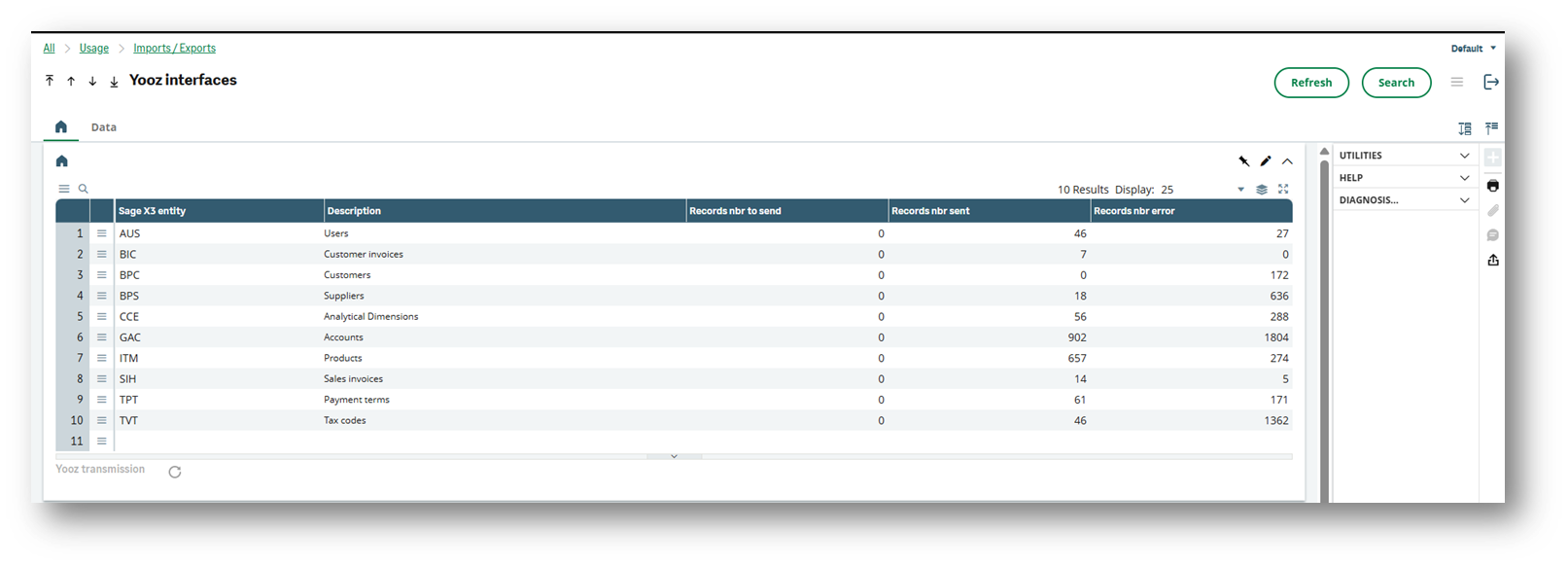
Control the interfaces in Usage > Imports/Exports > Yooz Interfaces (XRJ31YOOZINT function).
- The Yooz Interfaces function allows you to track the records in the XRJ31YOOZSUI table. It should allow you to filter by object, event, and date, view errors, download call files when XRJ31FILGN is active, and retry queries that have failed or are pending.
-
Analyze the errors, correct the source settings, then replay the affected recordings.

the recovery is not a configuration tool. It sends data that is already eligible according to Yooz criteria, organization codes, formulas, and active statuses. An incorrect formula or organization code immediately impacts the volume sent.
Detailed case study
Here is a detailed, point-by-point description of an initial data migration. We will use the case of an initial data migration from suppliers for this procedure; it should be noted that what is specified for this case applies to all others.
Settings check
You should always start by checking the settings for the entity in question. Refer to the previous paragraphs; the information is broken down by entity. For suppliers, this is the section Configure Suppliers and Customers.
Launch the reference data recovery function
This is the XRJ31YOOZREP function in the menu Usage > Imports/Exports > Retrieval of Yooz reference data.
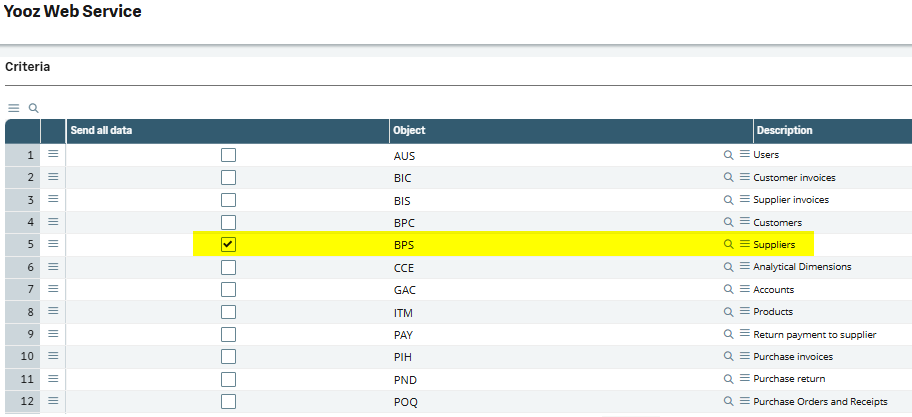
For the “BPS” line, which concerns suppliers, the first step will be to check the box Send all data. And if it is a new instance of recovery following correction of data errors, it will be possible to check Send the unsent data in order to avoid submitting all the data, but only the data that has not yet been sent.
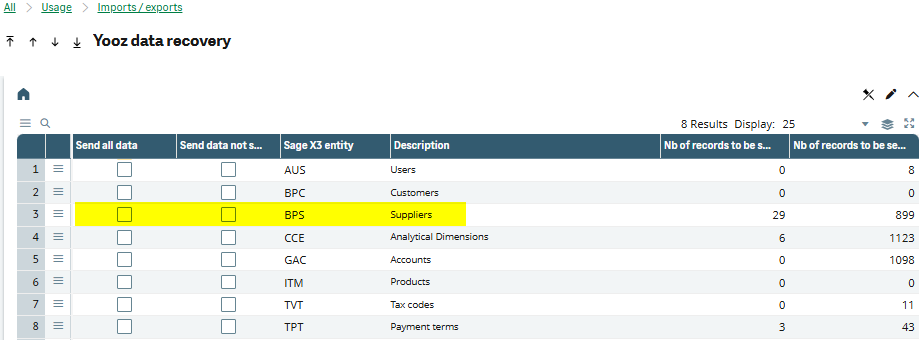
Then click on the button Forward to Yooz.
A trace will then be displayed specifying the number of records inserted into the tracking table, intended for processing in the next step.
Launch the Yooz interface function
This is the XRJ31YOOZINT function in the menu Usage > Imports/Exports > Yooz Interfaces.
You must have a Number of records to transmit greater than 0. If not, you must repeat the previous step. It is also possible that the subscription on task XRJ31EXE is active; this is illogical if you are still in initial recovery mode. You can disable this subscription and verify that there are no more requests on task XRJ31EXE.
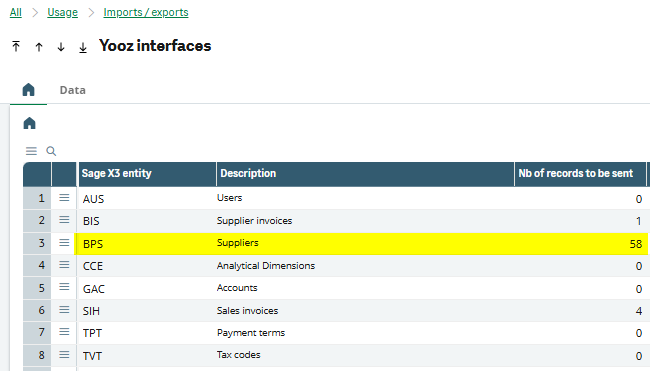
Click on the circular gear button Transmission Yooz.

The screen that appears next allows you to specify the entities to transmit; it is advisable to uncheck the boxes to keep only that of the entity concerned, here “BPS”.
However, you can also leave all the boxes checked; normally there is no other data to transmit.
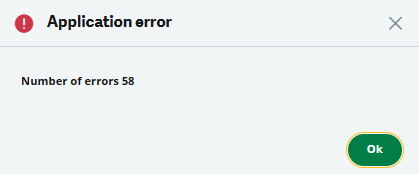
If some exports contain errors, you will see a message indicating the number of occurrences. These errors correspond to checks performed by Yooz because the transmitted data is not acceptable to the Yooz application.
You can click on OK. A log is displayed with details of the errors. The button Copy in the right side of the screen allows you to retrieve a file locally on your computer.
However, and this is a limitation of X3, the error messages in this trace are limited to 250 characters. Therefore, it is not always the best solution for analyzing errors.
The most suitable solution to obtain the complete error message is as follows.
In this same XRJ31YOOZINT Yooz Interfaces function, use the lower part of the screen.
Enter the entity, here “BPS”, the event “Creation”, the status “Error” and today’s date.
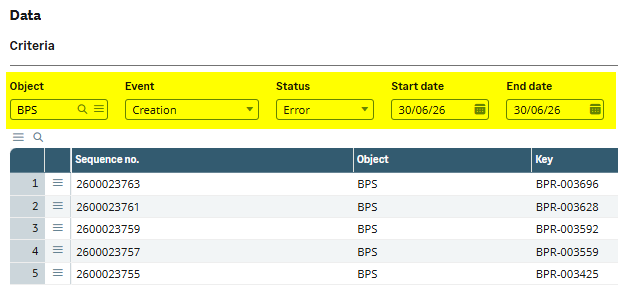
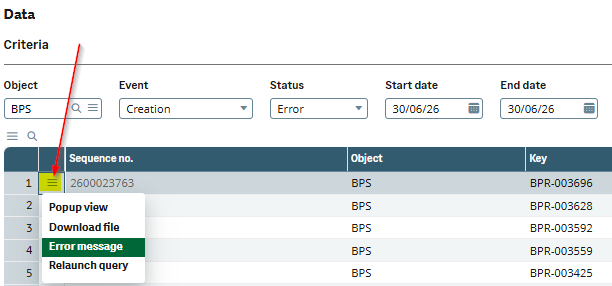
You can then, for each line, click on the option Error message.
Example of the details of an error message.
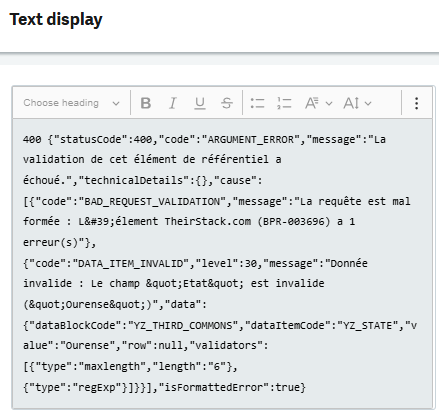
This is not always very explicit and easy to decipher, it is the error returned by the Yooz API.
In this case, the content of the STATE field is invalid; it corresponds to the region. In X3, these are the subdivisions by country.
The data in X3 (in this case, the SAT region) therefore needs to be corrected. Yooz's checks on suppliers are stricter than those of Sage X3.
Another example of an error
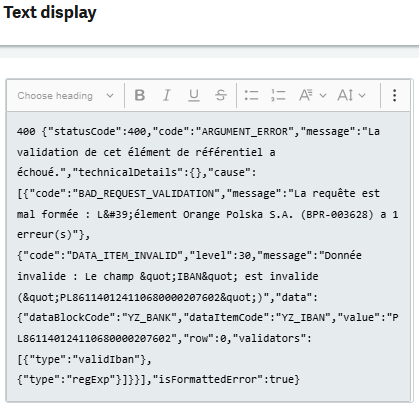
In this case, the IBAN is the problem.
The option Download all errors in the function Interfaces Yooz (XRJ31YOOZINT) allows you to retrieve all export errors to Yooz. This generates a <YOOZErrors.zip> file. Within the ZIP archive, there is a subdirectory for each entity, containing a file for each errored record. At the root, there is an <AllErrors.txt> file with a consolidated summary. This feature is available in versions after 80.
10 Validation Checklist before Recipe
| Control | Expected result | Responsible |
|---|---|---|
| Yooz Login | The identifiers, URL, language, and time zone point to the correct environment. | Consultant X3 / CP Yooz |
| Organisations | Each financial site or mapped site has the correct Yooz organization code. | X3 Consultant / Profession |
| Users | Users marked as Yooz have a valid email address and are visible on Yooz's side after submission. | Consultant X3 / Client |
| Analytical axes | The axes exist on the Yooz side and the active sections are created or updated. | Consultant X3 / Profession |
| Accounts | The expected accounts are transmitted according to the formula of the chart of accounts. | Consultant Finance |
| Taxes and payment terms | Yooz codes are consistent with organizational laws and restrictions. | Consultant Finance |
| Suppliers / Customers | BP/Company categories, formulas, organizations and exceptions are controlled. | Finance/Business Consultant |
| Articles / Products | Only active and useful items relevant to the purchasing scope are sent. | Purchasing Consultant |
| Interface monitoring | No unanalyzed error lines in XRJ31YOOZINT; the logs are usable. | Consultant X3 |
The initial migration is considered successful when the scope repositories are visible in Yooz, the volumes are consistent with the filter criteria, and no blocking errors remain in the interface monitoring. It is strongly recommended to complete this initial migration step before proceeding to the following steps.