5-Purchasing and Finance Flows
Context and objective
Purchases: Orders and Receipts (managed in X3 or Yooz). Invoices: Integration of purchase invoices on orders (PIH).
Finance: Invoices outside of orders / general expenses (BIS). Management of payment vouchers (BAP) and payment returns (PAY item / feedback).
This document covers the Purchasing and Finance flow of the Yooz connector for Sage X3. It describes the expected operation of orders and receipts, whether managed in Sage X3 or in Yooz, as well as the integration of supplier invoices into X3.
The functional scope of the chapter is as follows:
-
Purchases: purchase orders and receipts, with sending from X3 to Yooz or importing from Yooz to X3 depending on the scenario chosen.
-
Order/receipt invoices: integration of purchase invoices into X3 via the object PIH and the function GESPIH.
-
Finance: integration of non-order invoices and overhead costs into X3 via the object BIS and the function GESBIS.
-
Payment approved: update of payment approval status in X3 from Yooz validation.
-
Feedbacks: accounting feedback and payment feedback to Yooz in order to track the progress of the invoice until payment.
This document addresses these phases of implementation:
| ▼ | ▼ | |||||
|---|---|---|---|---|---|---|
| Pre-sales | Initialization | Framing | Installation | Setup | Recipe | Production launch |
Scope covered and reading prerequisites
Before continuing with this chapter, ensure that the others have been completed in their entirety, up to and including the synchronization of the repositories. Specifically, this includes Yooz organizations, users, suppliers, accounts, analytical axes, taxes, payment terms, and, if necessary, items, must be available on the Yooz side before performing the billing tests.
X3 functions concerned:
| Usage | Access path in English US | Function / object |
|---|---|---|
| Purchase orders | Purchasing > Orders > Orders | GESPOH / POH |
| Purchase receipts | Purchasing > Receipts > Receipts | GESPTH or GESPTH2 / PTH |
| Purchase invoices | Purchasing > Invoices > Invoices | GESPIH / PIH |
| Third-party supplier invoices | A/P-A/R accounting > Invoicing > Supplier BP invoices | GESBIS |
| Supplier regulations | A/P-A/R accounting > Payments > Payment entry | GESPAY |
| Yooz Web Services Execution | Usage > Imports/Exports > Yooz Web Services | XRJ31EXE |
| Interface monitoring | Usage > Imports/Exports > Interfaces Yooz | XRJ31YOOZINT |
⚙️USEFUL PARAMETER VALUES
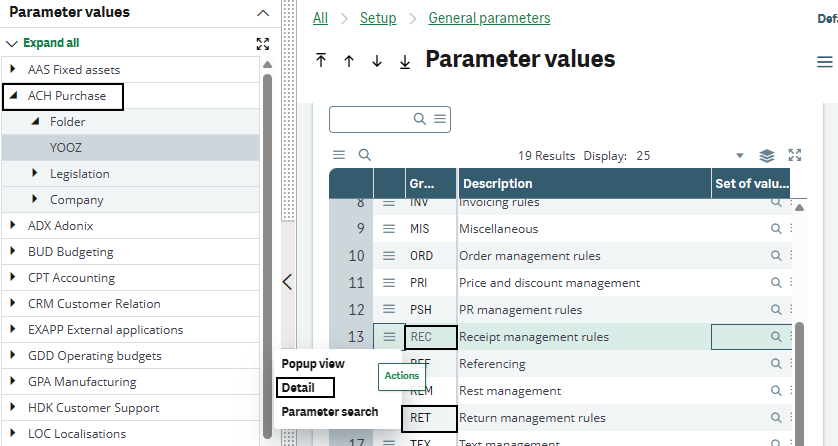
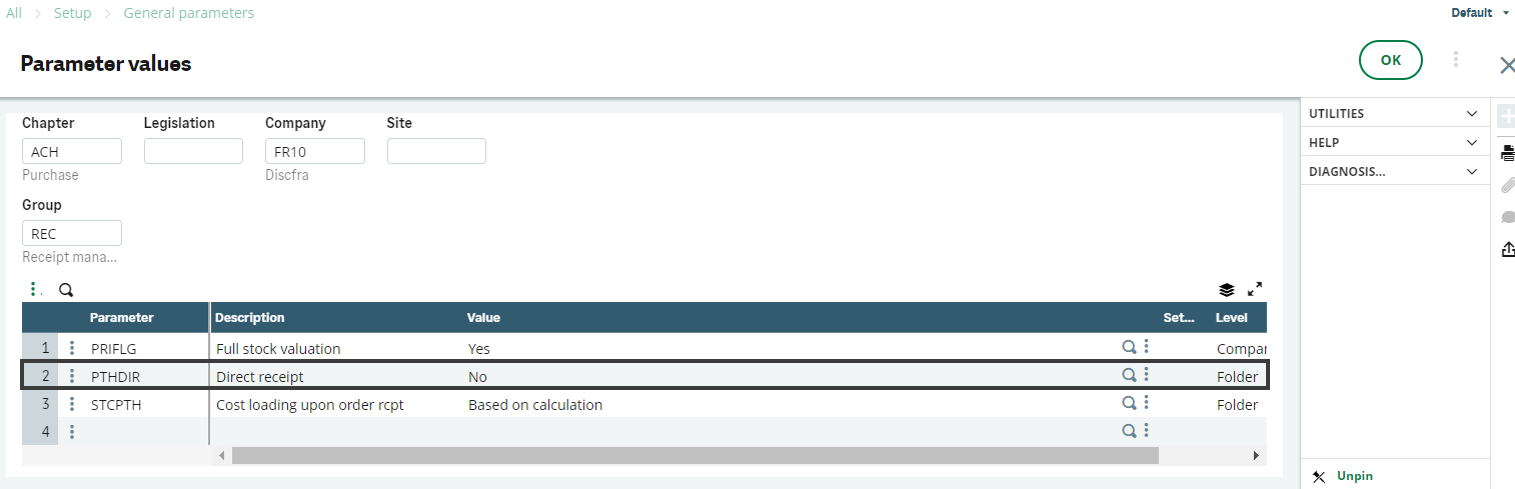
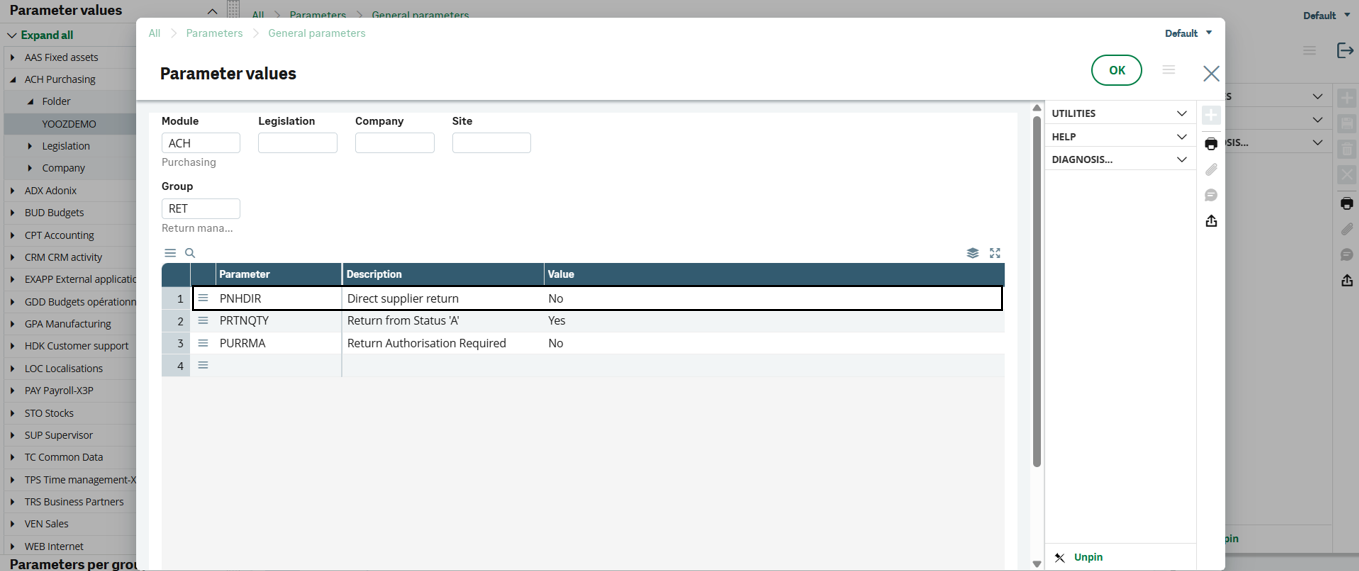
The Yooz connector only handles flows linked to a purchase order. Therefore, the entry of isolated documents must be blocked in the Sage X3 parameter values (Setup > General parameters > Parameter Values (function ADPVAL):
-
PTHDIR (ACH / REC): Set to "No" (receipt must be made on order).
-
PNHDIR (ACH / RET): Set to "Yes" in the settings (in order not to block the client's inter-site return flows). Technical note: The connector will dynamically force this value to "No" on X3 input screens if the user attempts to make a direct return to an external provider.
Flow of Procure-to-Pay
The connector covers two main modes of operation. In the first, purchases are created in Sage X3 and then sent to Yooz for reconciliation and invoice processing. In the second, the order and/or receipt is initiated in Yooz and then imported into Sage X3 so that X3 can generate the journal entries, store the supporting documents, and ensure accounting follow-up.
Case A: Purchase flows are managed in Sage X3
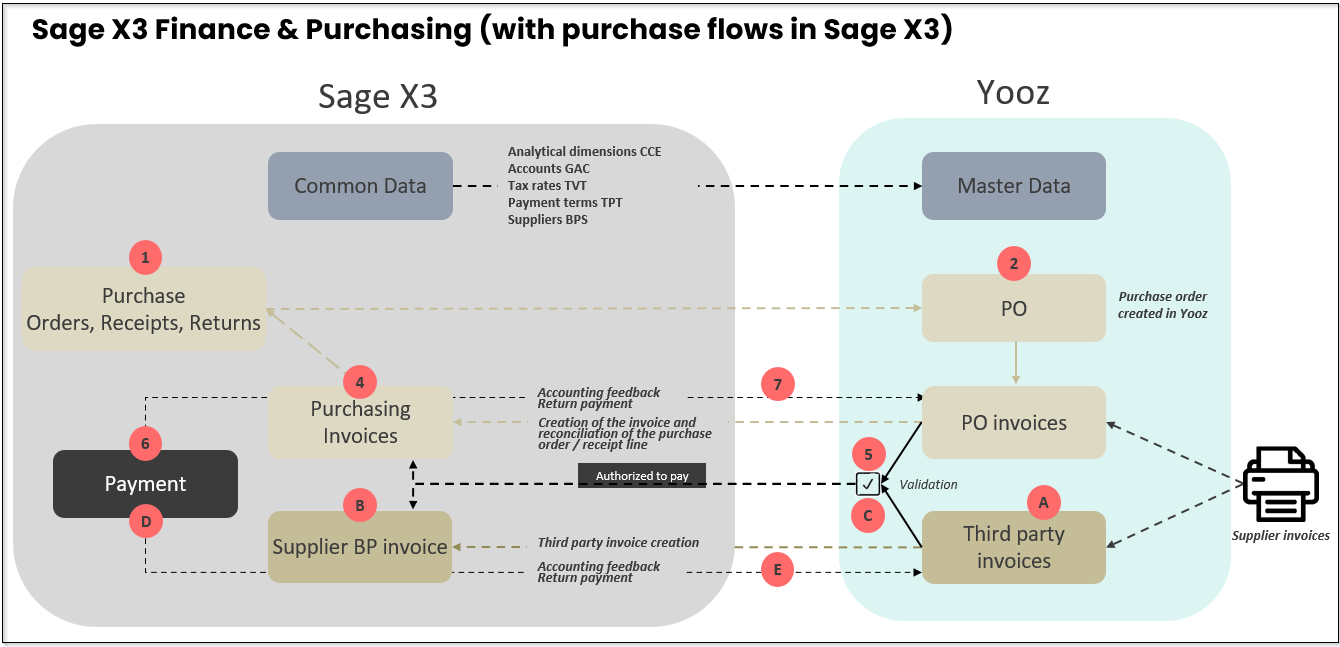
Case B: Purchase flows are managed in Yooz
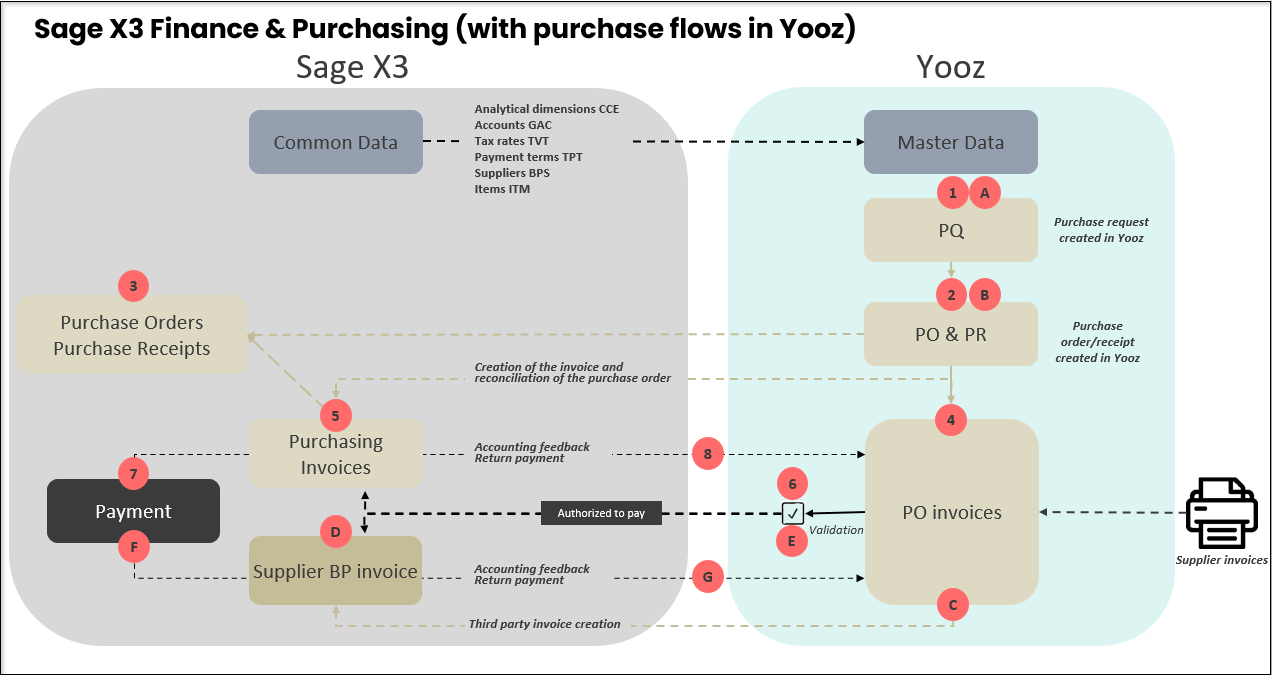
The purchasing flow segmentation is not arbitrary; it depends directly on the type of items. A hybrid approach is possible by applying the following distribution: Case where Sage X3 pilot: Purchases in stock, items with traceability or goods subject to strict logistical reception. Case where Yooz pilots: Non-stocked purchases, overheads, investments or services (when the purchase request and business receipt are managed in the Yooz workflow).
1 - Case A: Purchases managed in Sage X3
In this scenario, Sage X3 is the master application for creating and updating purchase orders, receipts, and supplier returns. Yooz then receives the necessary data to enable the capture of the supplier invoice, its reconciliation with the purchase order or receipt, and its validation before import into Sage X3.
The Yooz application functionally combines purchase orders and receipts into a single purchasing workflow. Sage X3, on the other hand, separates the purchase order, which is managed within the function GESPOH and the purchase receipt, managed within the function GESPTH The connector therefore ensures the correspondence between these two logics, without requiring the user to re-enter the information in Yooz.
The expected Yooz invoice type for this case is a purchase order invoice. After the invoice is validated in Yooz, it is integrated into Sage X3 as a purchase invoice via the object PIH and the function GESPIH.
1.1 - General logic of the flow
The workflow should be viewed as a single chain, from the purchase in Sage X3 to the invoice payment. In case A, orders and receipts are not created in Yooz; they are created in Sage X3 and then transmitted to Yooz so that the supplier invoice can be matched with the corresponding purchase order.
Here are the functions used in the flows for case A:
| Stage | Master application | Function / Object | Role in the flow |
|---|---|---|---|
| 1 | Sage X3 | GESPOH / POH | Creation of the purchase order. The order may contain lines subject to receipt and lines not subject to receipt. |
| 2 | Sage X3 | GESPTH / PTH | The receipt is created when the item is submitted for receipt. The receipt then becomes the basis for invoice reconciliation on Yooz's side. |
| 3 | Sage X3 | XRJ31YOOZSUI then XRJ31EXE | Queuing in the XRJ31YOOZSUI table and then sending, receiving or returning orders to Yooz via the XRJ31EXE batch task. |
| 4 | Yooz | PO / PO invoices | Matching the supplier invoice with the order or receipt transmitted by Sage X3. |
| 5 | Sage X3 | GESPIH / PIH | Import the validated purchase invoice into Yooz using the XRJ31PIH import template. The invoice remains linked to the original order or receipt. |
| 6 | Sage X3 then Yooz | Feedbacks / PAY | Accounting return after invoice validation in X3, then payment return after settlement. |
1.2 - Step 1: Creating purchase orders in X3 and exporting them to Yooz
Here is a simple description of the flow:
-
The command is created in Sage X3 via GESPOH.
-
The order must be in a sufficiently advanced state to be transmitted to Yooz: depending on the configuration and the customer process, this generally corresponds to a signed and/or printed order.
-
The connector generates a record in the tracking table XRJ31YOOZSUI, the "Yooz Interfaces" function allows you to view these elements awaiting transmission before the task is executed XRJ31EXE.
![][image6] -
The object sent to Yooz from X3 is not the command header (POH), but rather the lines (POQ). Indeed, a single order can contain lines of different types. Billable lines are sent, non-billable lines are excluded.
Here is an example of how the flow works:
- Order creation
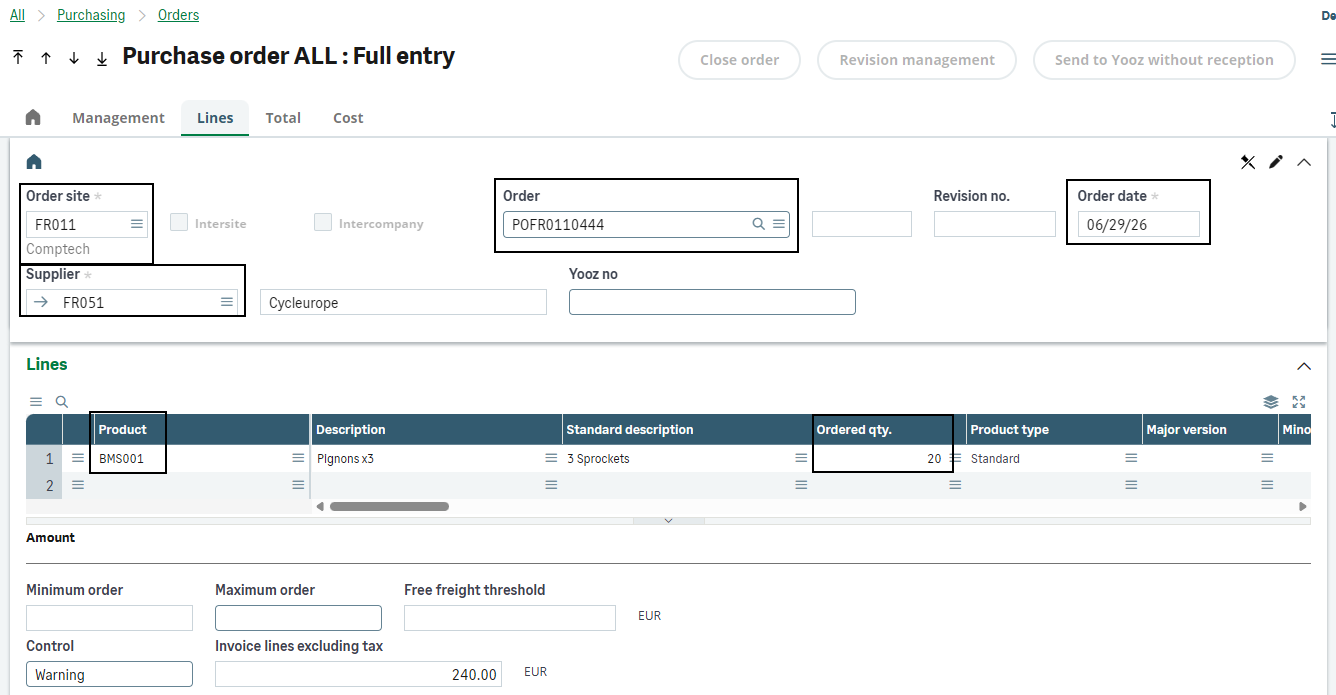
- Order signature
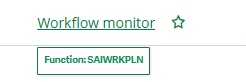
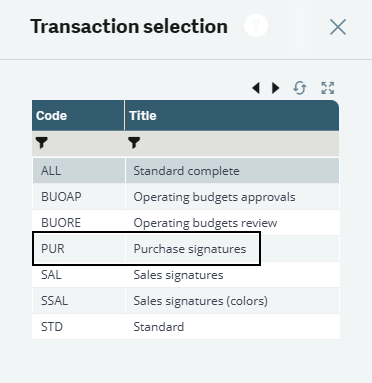
Go to the workflow monitor (function SAIWRKPLN, transaction “ALL”), to sign the purchase order. It is possible to check the order status in the purchase orders function (GESPOH).
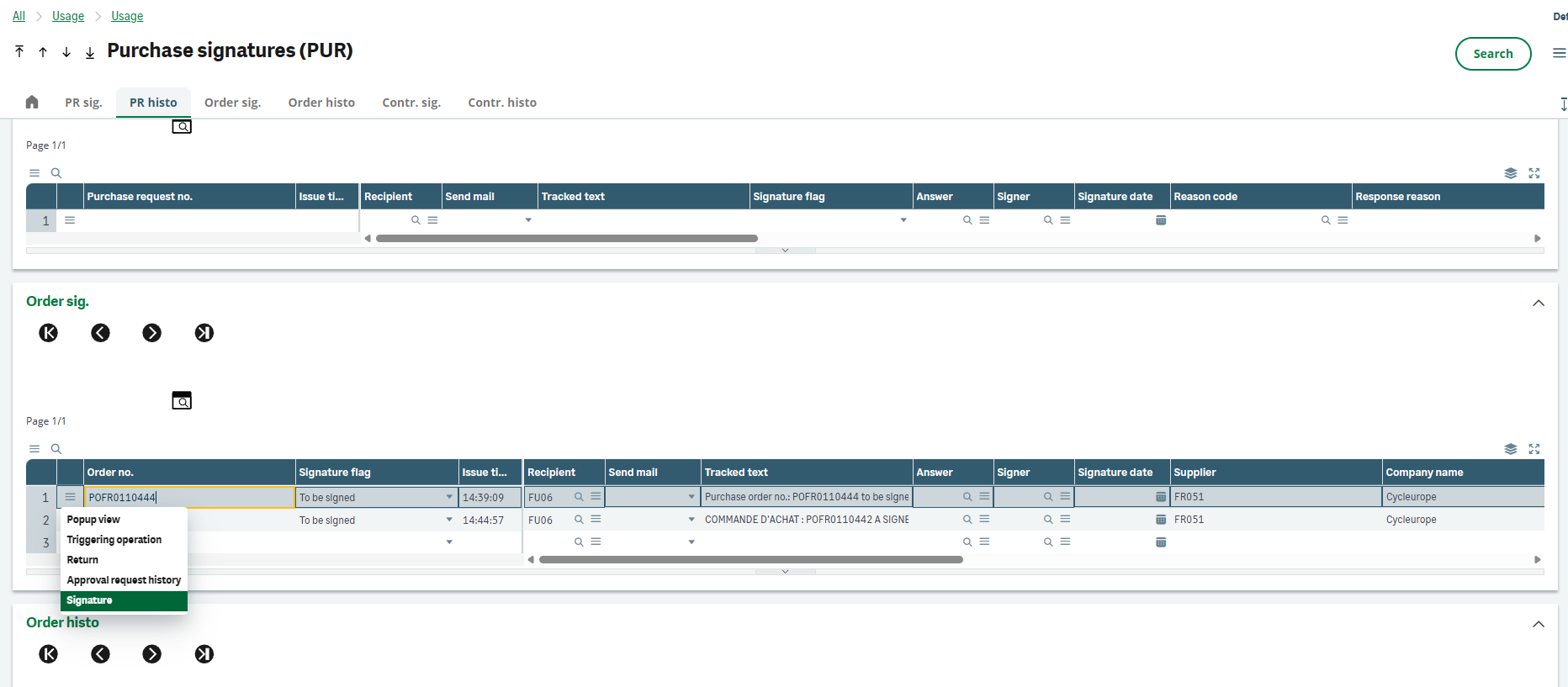
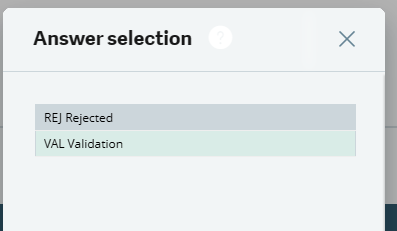
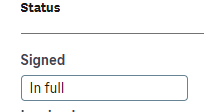
Additional costs: The transmission of billing elements (shipping costs, customs, discounts) to Yooz is done via the addition of outgoing customs fields on purchase orders (line 18). Prerequisite: the code for element X3 must exist in the Yooz repository. Analytics: The analytical dimensions entered on the X3 order are transmitted to Yooz. Any subsequent manual modification directly in Yooz risks desynchronizing the original data with X3.
1.3 - Step 2: Reception Management (Conditional)
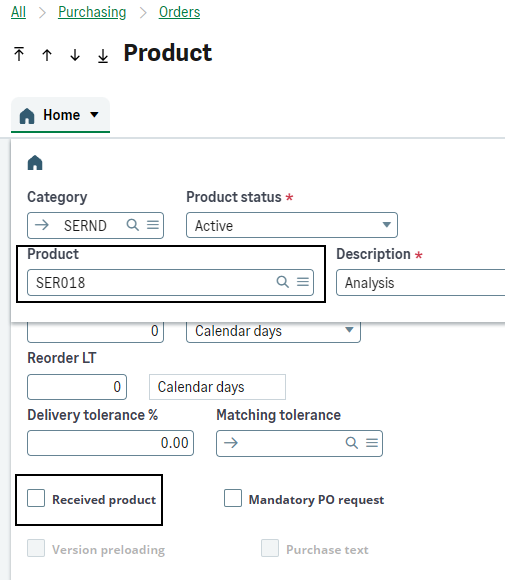
For receipts, the main rule is indicated by the "Received product" box in the product record, corresponding to the field ITMMASTER.RCPFLG. This rule determines whether Yooz should match the invoice with the order or with the receipt.
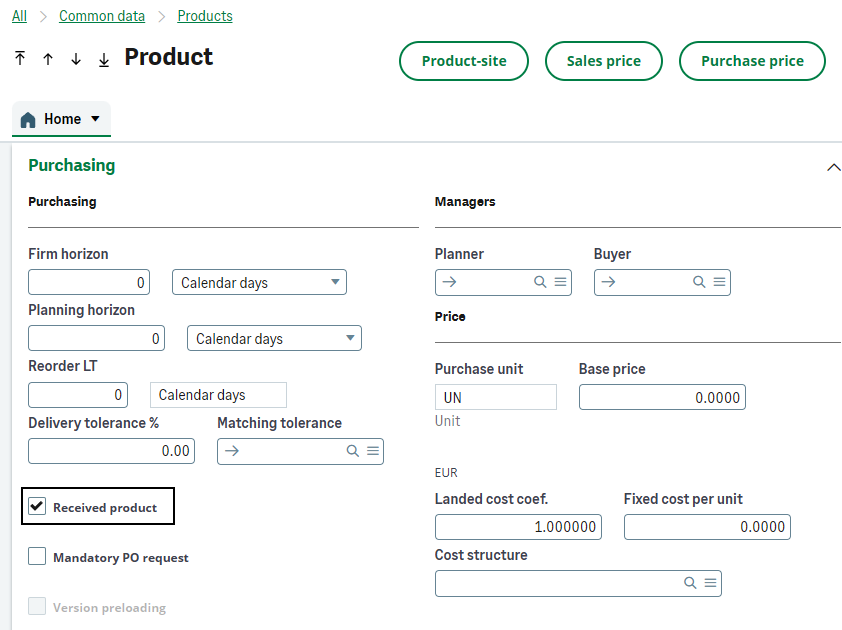
| Case | Sage X3 Rule | Sending time to Yooz |
|---|---|---|
| 1 - Product not subject to receipt | The "Received product" box is not checked. The purchase does not wait for physical receipt in X3. | The command line is sent to Yooz as soon as the order is broadcastable according to the X3 process, including after editing/printing if this control is used. |
| 2 - Product subject to receipt | The "Received product" box is checked. The purchase must go through an X3 receipt. | The line is normally only sent to Yooz after the X3 reception has been created. |
| 3 - Order sent before receipt | Exceptional case for a line normally subject to receipt, for example when the invoice must be processed before physical receipt. | A manual send button allows you to send the order without waiting for receipt, if the order has not already been sent to Yooz. This button is only clickable if the order is signed and printed. |
Order lines with the Billed Line field (PORDERQ.LININVFLG= 1) are sent to Yooz. The lines PORDERQ.LININVFLG= 2 are excluded. The same logic applies to receptions: the lines PRECEIPTD.LININVFLG= 1 are sent, while the lines PRECEIPTD.LININVFLG= 2 are not.
This rule prevents Yooz from sending invoices to the reconciliation system for items that should not be invoiced. It is particularly important for mixed orders, partially paid orders, or modified receipts.
Case 1: Purchase not subject to receipt
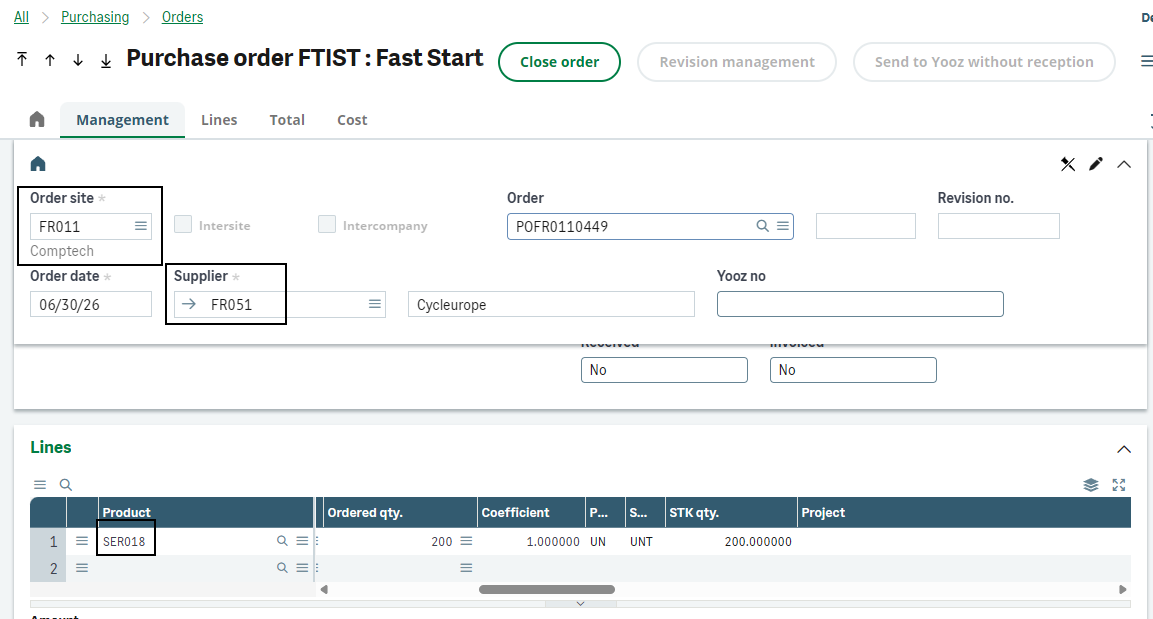
When a product is not subject to receipt, the Sage X3 order can be used directly as a reconciliation tool in Yooz. This applies to purchases for which there is no stock entry or physical receipt expected in X3 (item parameter RCPFLG= 1).
Yooz receives a purchase line item that allows it to match the supplier invoice with the order. The analytical dimensions transmitted to Yooz are those carried by the order lines, supplemented where applicable by the outgoing custom fields.
In this case, Yooz does not need to wait for a receipt. If the supplier invoice arrives, it can be processed and immediately matched with the order transmitted by X3.
(This section covers the case of products not subject to receipt but linked to an order. A purchase not subject to receipt can also be treated as in section 3.1.2 - Case of overhead invoices without order (BIS) if you need a service not linked to a purchase order).
- Order creation based on a product not subject to receipt:
- The trigger (Signature and Print):
Once the order is created, two standard actions must be performed to unlock the shipment:
-
Signer the order (if a signature workflow is set up on your file for this buyer).
-
Print the command (via the printer icon in the top right corner of the screen).
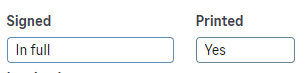
- Send to Yooz Once the order is signed and printed, it is ready to be sent to Yooz. It is automatically inserted into the interface tracking table to be processed by the connector's recurring subscription (XRJ31EXE) It can therefore be found in Yooz:
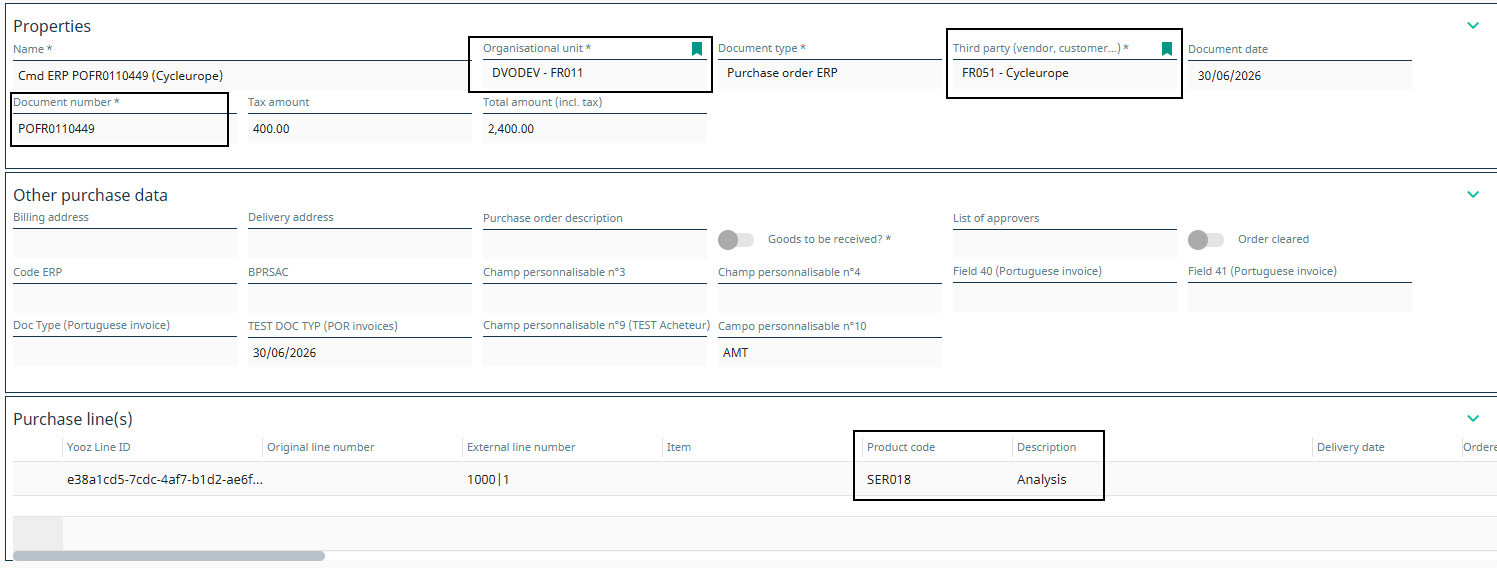
The order is added to the mailing queue with each new print job. If an order is modified, it must be reprinted for the update to be sent to Yooz!
Case 2: Purchase subject to receipt
For a product requiring stock entry or physical receipt (field ITMMASTER.RCPFLG positioned at 2), invoicing is based exclusively on the quantities actually delivered. The initial purchase order is therefore not transmitted to Yooz in isolation.
Receipt is mandatory to trigger transmission. The data sent to Yooz then combines the original order references and the actual receipt lines, allowing for an exact match with the supplier invoice.
Reception management prerequisites
For the flow to run correctly, the following rules apply:
-
Sites: The receiving site must belong to a company for which at least one Yooz organization is registered.
-
Batch-managed items: The breakdown of quantities must be done in the detailed quantity breakdown of the X3 receipt, and not just at the receipt line level. This prevents discrepancies between what X3 knows and what the supplier invoice can actually show.
-
Non-billable lines: They are natively excluded from being sent to Yooz.
The connector requires that a receipt originate from an order. If a user attempts to create a direct receipt while the connector is active, X3 automatically enforces the parameter PTHDIR (Direct Receipt) that is set to "No" and displays an alert: "The Yooz connector is activated, so the setting PTHDIR which allows direct receptions is forced to No”. Update on this point: an XRJ31PTHDIR parameter value allows this check to be bypassed and direct receptions to be permitted. These will not be forwarded to Yooz.
Nominal receiving flow
- Creating the purchase order
The buyer creates and signs their order. At this stage, the order has not yet been sent to Yooz; the connector is waiting for receipt.
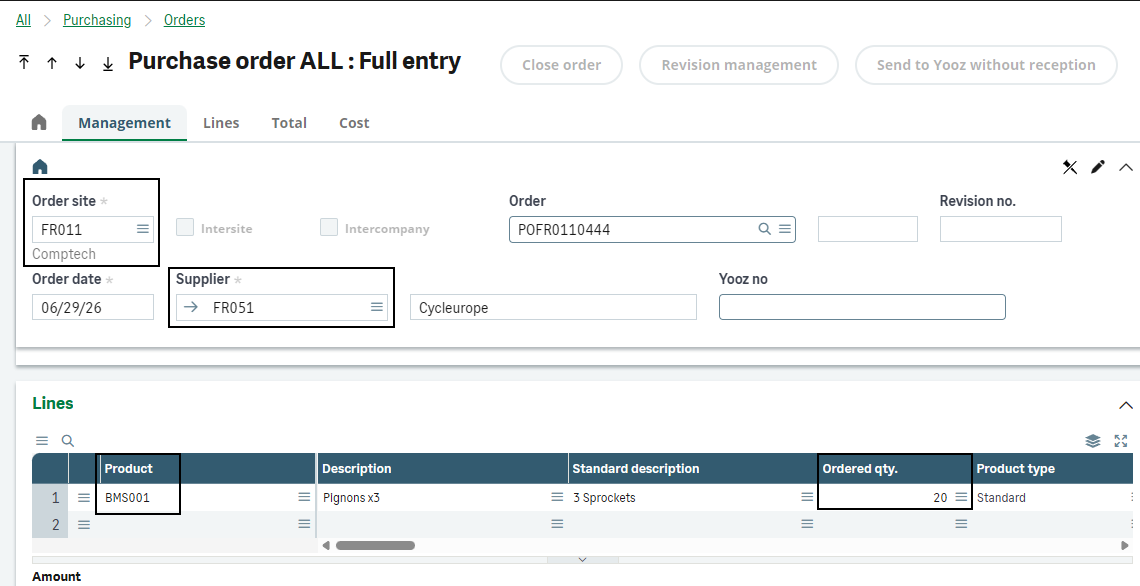
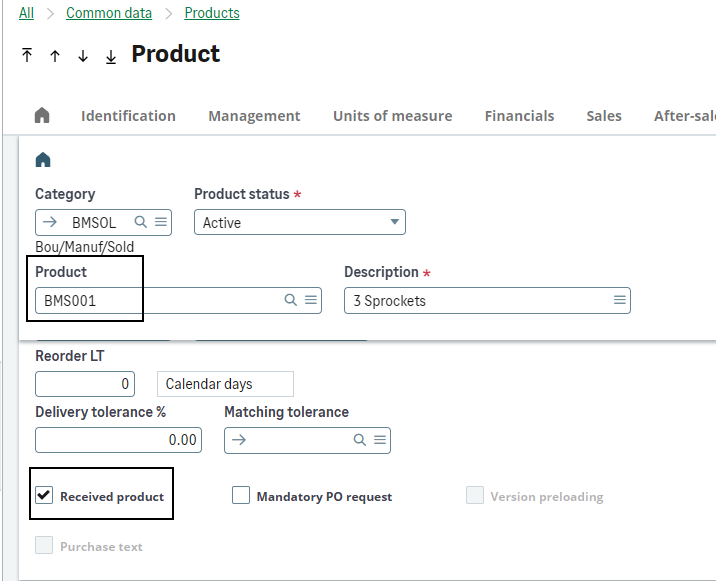
- Reception setup
Upon delivery, the receiver creates the receipt by linking it to the original order by picking (after specifying the receiving site).
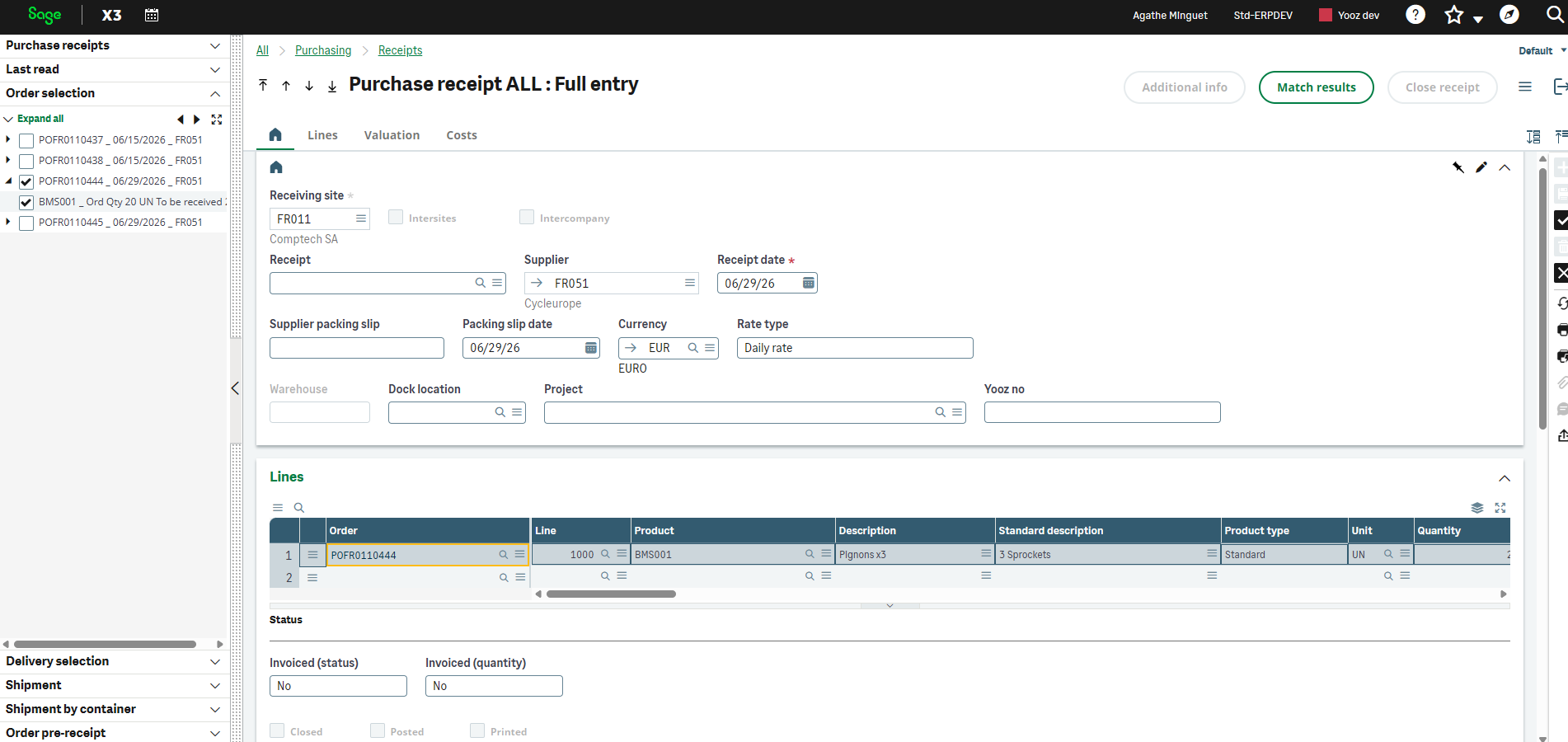
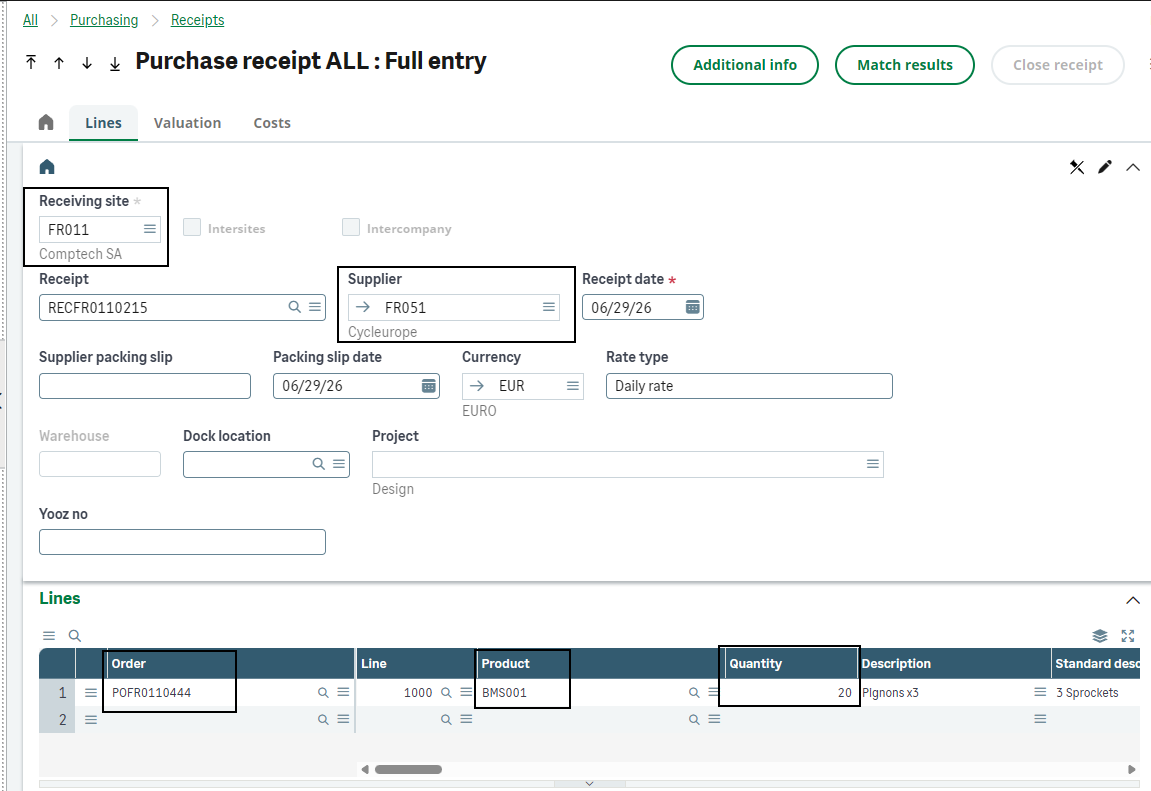
- Transmission to Yooz
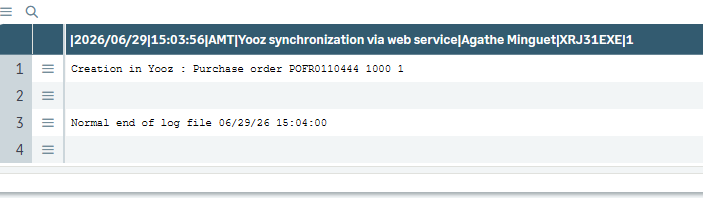
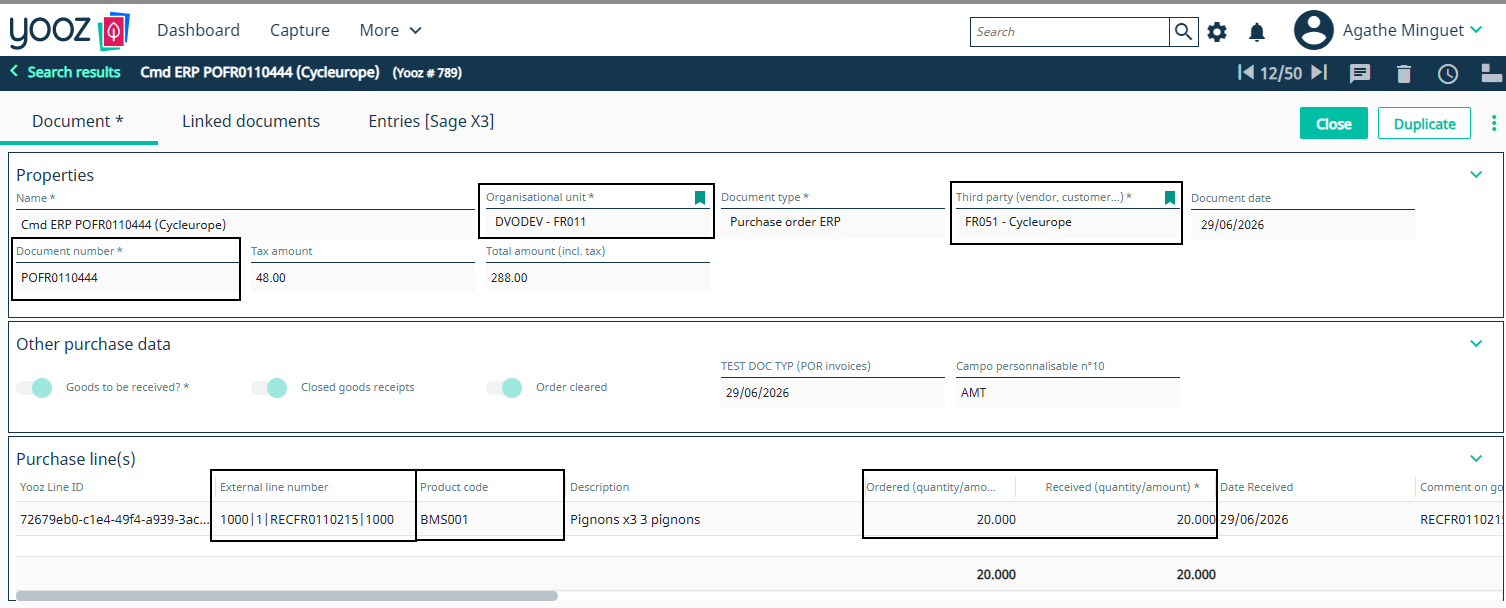
After the receipt is created, the connector transmits the initial order data to Yooz via the subscription *XRJ31EXE. Updates are provided with the actual quantities received. The order linked to the receipt can be found using the order number in Yooz.
Case of multiple receptions
Standard X3 logistics scenarios are supported. A single order line can be received in multiple shipments (backorders), a single order can result in multiple receipts, and multiple orders can be grouped into a single receiving slip. In all cases, the Yooz reconciliation remains consistent with the quantities actually received.
1.4 - Special case: Forcing the shipment of an order before receipt
This mechanism is not a standard parallel flow. It is a strict exception to the basic rule, used only when the schedule requires it (typically the "large import", where the supplier invoice arrives and must be paid before the goods reach the dock).
In this scenario, a specific "Send to Yooz without receipt" button allows the order to be sent to Yooz for immediate invoice reconciliation, even if the item is subject to receipt. To make the "Send to Yooz without receipt" button clickable on the order (GESPOH), three cumulative conditions are required:
-
Not transmitted: The order must not have already been sent to Yooz (empty Yooz timestamp).
-
Signed: The X3 signature process must be completed (if configured).
-
Printed: The order must have been printed at least once.
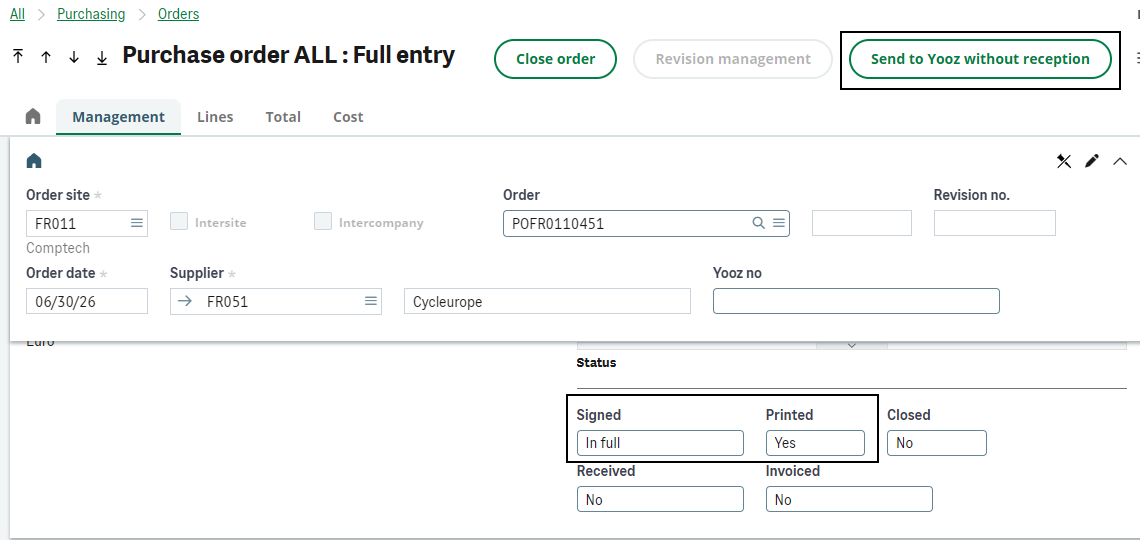
Once the button is pressed, the order is added to the list of items to be sent to Yooz, and the subscription XRJ31EXE then sends the order to Yooz.
The functional consequences of this button are:
-
In Yooz The invoice will be linked directly to the order, and not to a receipt.
-
In Sage X3 The invoice imported from Yooz will be linked to the purchase order. The physical receipt of the goods can still be entered later in X3 to update the inventory.
Reversing the natural chronological order (Invoice before Receipt) has direct impacts on accounting and inventory management. This forces finance teams to perform manual adjustments such as inventory valuation or month-end closings.
1.5 - Modifications, cancellations and balance management
The connector's role is to keep Yooz aligned with the state of Sage X3. Functional changes must therefore be reflected as soon as they concern a document already sent to Yooz.
Where is the correction performed in Sage X3?
-
Purchases not subject to receipt (Case 1): Corrections (update / deletion) are made directly on the purchase order (GESPOH).
-
Purchases subject to receipt (Case 2): It is not possible to modify the receipt or the order manually, but the deletion is processed correctly.
Here is how the interface behaves according to business events:
| X3 Event | Expected interface behavior | Stage & Location of Correction (where and until when to correct?) |
|---|---|---|
| QUANTITY MANAGEMENT - CASE 2 | ||
| Upward quantity adjustment | The new quantity is updated in Yooz (new line). | Logistics action: Create a new reception (GESPTH2) on the initial order. |
| Quantity adjustment downwards | The connector transmits the cancelled quantities as lines with negative amounts to Yooz. | Logistics action: Create a supplier return (GESPENH). It is impossible to modify the initial X3 reception; it is necessary to go through the return flow. |
| DATA MANAGEMENT / MODIFICATION | ||
| Modifying a field on the order (account, analytical data, etc.) | Simply modifying the order does not trigger any shipment. The data is only updated in Yooz when the next delivery is recorded. | Direct correction: If partial receipt: Correction to the order (GESPOH). The information will be sent when the backorder receipt is created. If the receipt is complete: Order closed. No further changes are possible. |
| Entering or modifying a field on the Reception | The data specific to the receiving line takes precedence over the order data. It is perfectly possible to have multiple receiving lines with distinct data for the same item from the same order. | Direct correction: Correction to be made to the reception (GESPTH2) before the invoice is recorded. |
| Non-billable line | The line is not sent to Yooz. | N/A (handled natively in the article settings). |
| SALES AND CLEARANCES | ||
| Full balance of the order (PORDER.CLEFLG = 2) | Case 1: All lines are sent to Yooz for deletion (DELETE). Case 2: No impact if the data was not received (Yooz is unaware of the command). | Functional action: To be done on the order (GESPOH). Used to purge the order portfolio of unsuccessful orders. |
| Balance of an order line (PORDER.CLEFLG = 1 and PORDERQ.LINCLEFLG = 2) | Case 1: The paid-off line is sent to Yooz for deletion (DELETE). Case 2: No impact if the line has not been received. | Functional action: To be done on the order (GESPOH). |
| Deleting (Cancelling) a Reception (Case 2) | Physically deleting a receipt in X3 triggers the sending of a DELETE instruction to Yooz. | Direct correction: Only if receipt X3 was created in error and is neither validated nor invoiced. The document is deleted in GESPTH2. |
If the order balance is settled naturally through invoicing (the order is settled in X3 because an invoice has been issued and reconciled to 100%), this does not trigger any deletion in Yooz. The lifecycle is simply considered complete.
1.6 - Physical returns to suppliers (PNH/PRT)
Supplier returns only concern the flow based on receipts (case 2). A supplier return is necessarily created from a Sage X3 purchase receipt; it therefore does not concern orders sent to Yooz without a receipt.
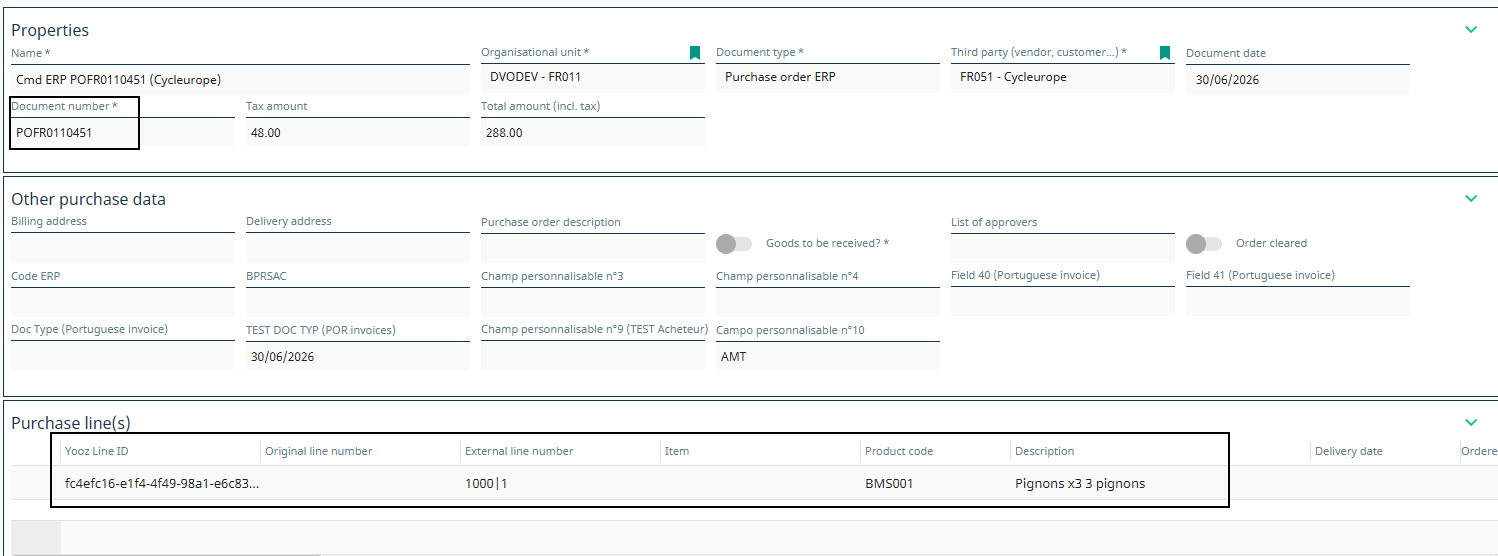
The return does not create a separate "return document" in Yooz. The connector retrieves the original order from Yooz and completes the existing purchase flow by adding extra lines with negative amounts (the quantity remains positive, but the unit price and amount are reversed). For this flow to be triggered, the return must be validated in Sage X3. (Note: this return flow to Yooz is relevant when the order and receipt in question have already been invoiced).
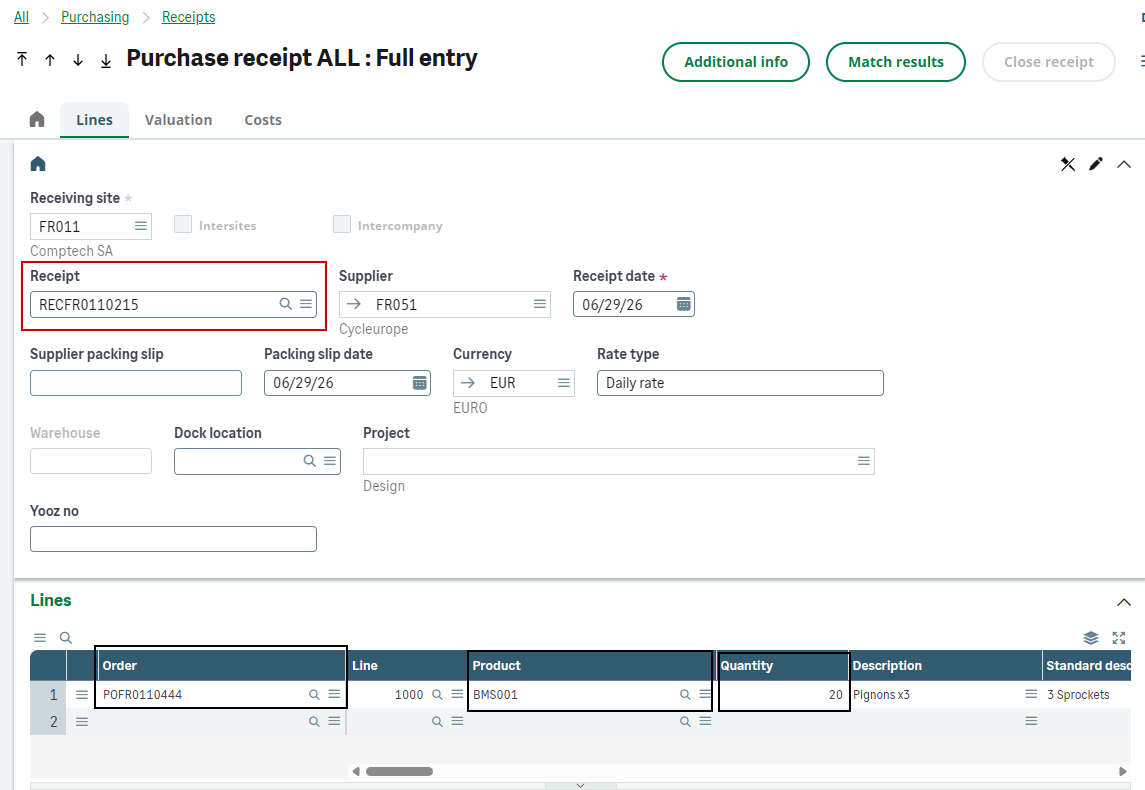
All you need to do is go to the purchase returns function, and pick the relevant receipt.
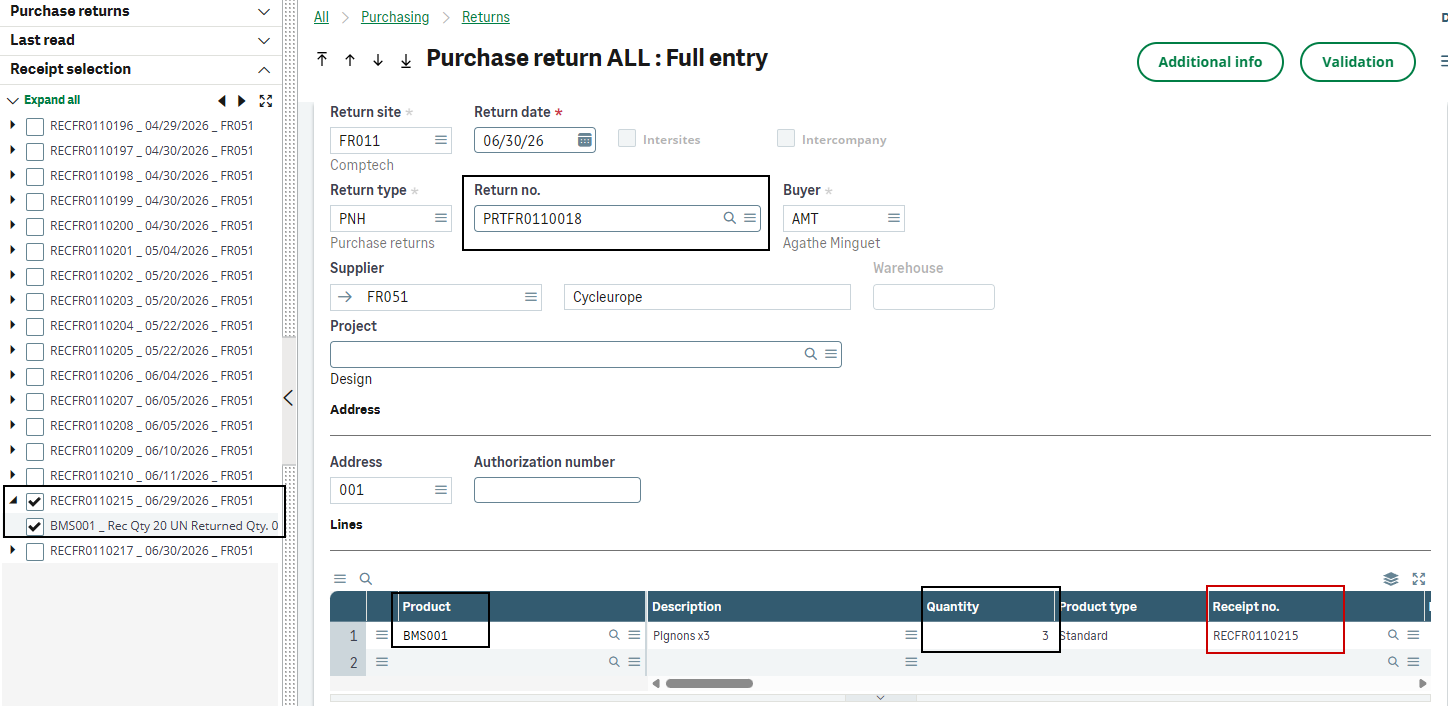
Next, you need to confirm the return in X3, then let the interface run (or manually restart XRJ31EXE). On the Yooz side, an additional line with a negative amount is added to the original order.
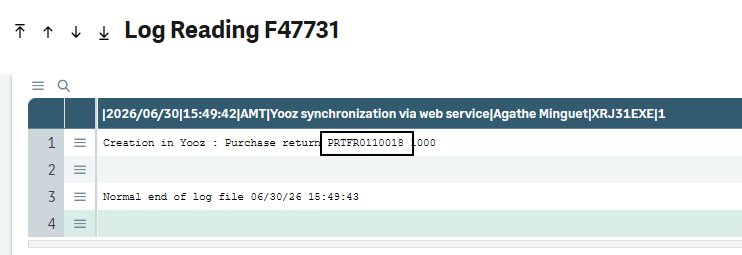
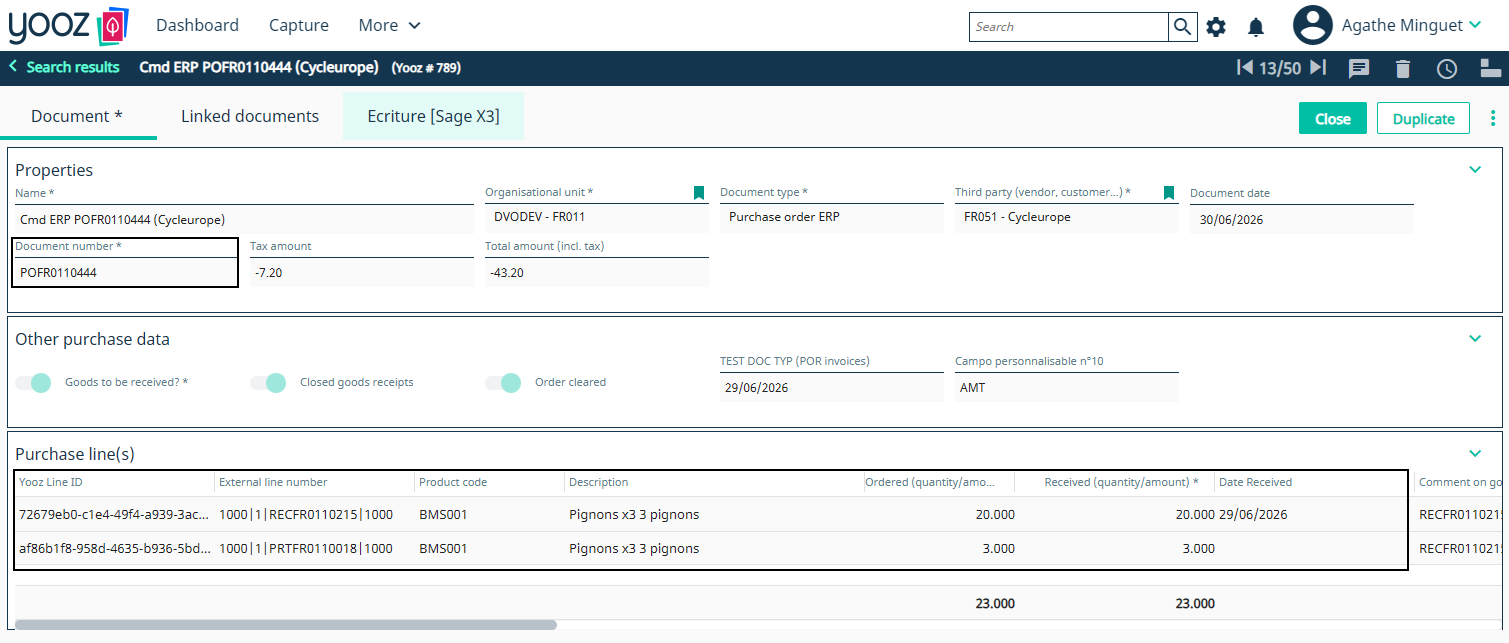
💡 Why does the return add up as a positive amount with a negative total?
This is normal technical behavior. The connector doesn't "subtract" the quantity from the initial receiving line; it creates a new, separate line dedicated to this return. This may seem counterintuitive for inventory management, but it's essential for accounting.
-
The quantity is positive (3): This allows the accountant to easily reconcile this line with the future credit note from the supplier (which will clearly indicate 3 items returned).
-
The price and total amount are negative: This "-" sign acts as a trigger for the connector. It formally indicates to the system that this is a reverse transaction and will automatically generate a valid credit note (AVR) upon return to Sage X3.
natively the Yooz application cannot link a "Purchase Credit Note" document to a purchase order. To work around this, the procedure requires treating the supplier credit note in Yooz as a standard "Purchase Order Invoice," but with negative amounts entered (header and lines). It is thanks to these negative amounts that the Sage X3 import template (XRJ31PIH) will understand the process and automatically generate a valid credit note (AVO or AVR type) during final integration into the ERP system.
(See asset management in section 3.5 - Importing assets)
1.7 - Standard Acceptance Cases
| Case | Objective | Synthetic roll | Expected result |
|---|---|---|---|
| A1 - Order without receipt | Confirm the sending of an X3 order to Yooz for a product not subject to receipt. | Create a purchase order (GESPOH) with a non-receiptable (RCPFLG=1) and invoiceable item. Sign and print the order. Run XRJ31EXE. | The order is immediately available in Yooz for invoice matching. No receipt is expected (2-way matching). |
| A2 - Order with receipt | Confirm the order shipment after physical receipt. | Create an order with a receivable product (RCPFLG=2). Validate the order. Create the receipt (GESPTH). Run XRJ31EXE. | The receipt is available in Yooz (along with the original order details). Yooz offers a comparison based on the quantity received (3-way match). |
| A3 - Mixed order | Control the filtering of billable and non-billable lines. | Create an order containing at least one billable line (LININVFLG= 1) and one non-billable line (LININVFLG= 2), then receive and send to Yooz. | Only billable lines (1) are pushed and offered for reconciliation in Yooz. Non-billable lines (2) are ignored. |
| A4 - Partial/Multiple Receipts | Validate the behavior on delivery backorders. | Complete a first partial receipt and send it. Complete a second receipt for the same order and send it. Reconcile the invoice in Yooz. | Yooz aggregates and displays the actual quantities received. The PIH invoice imported into X3 correctly settles the corresponding receipt lines. |
| A5 - Forced delivery | Test the exceptional case (large import / FOB) where the invoice arrives before physical receipt. | Create an order with a deliverable product. Sign and print it (required to activate the button). Click on "Send to Yooz without delivery". | The order is sent to Yooz without waiting for the delivery receipt. The invoice can be reconciled in Yooz and imported into PIH, linked to order X3. |
| A6 - Balance / modification | Verify that Yooz remains aligned with the X3 deletions. | Manually settle an unbilled line or the entire order in X3, then run the interface. | The connector transmits a DELETE action to Yooz. The lines where the command disappears from the Yooz reconciliation list (Note: a balance due on billing does not trigger deletion). |
| A7 - Supplier Return | Confirm that the returns have been properly transmitted for asset management. | Create a validated return (GESPND) attached to a receipt that has already been invoiced, then send it to Yooz. | Yooz receives a new line item linked to the original order. The quantity is positive, but the price and amount are negative. The credit note can be applied to this line item. |
| A8 - Managing discrepancies | Validate the triggering of the approval process in case of a price/quantity dispute. | Reconciling in Yooz an invoice whose amount or quantity differs from the order/receipt X3, beyond the tolerance thresholds. | Yooz blocks automatic reconciliation and triggers the discrepancy/dispute workflow to the requester. The invoice is only exported to X3 after approval in Yooz. |
1.8 - Invoicing elements management
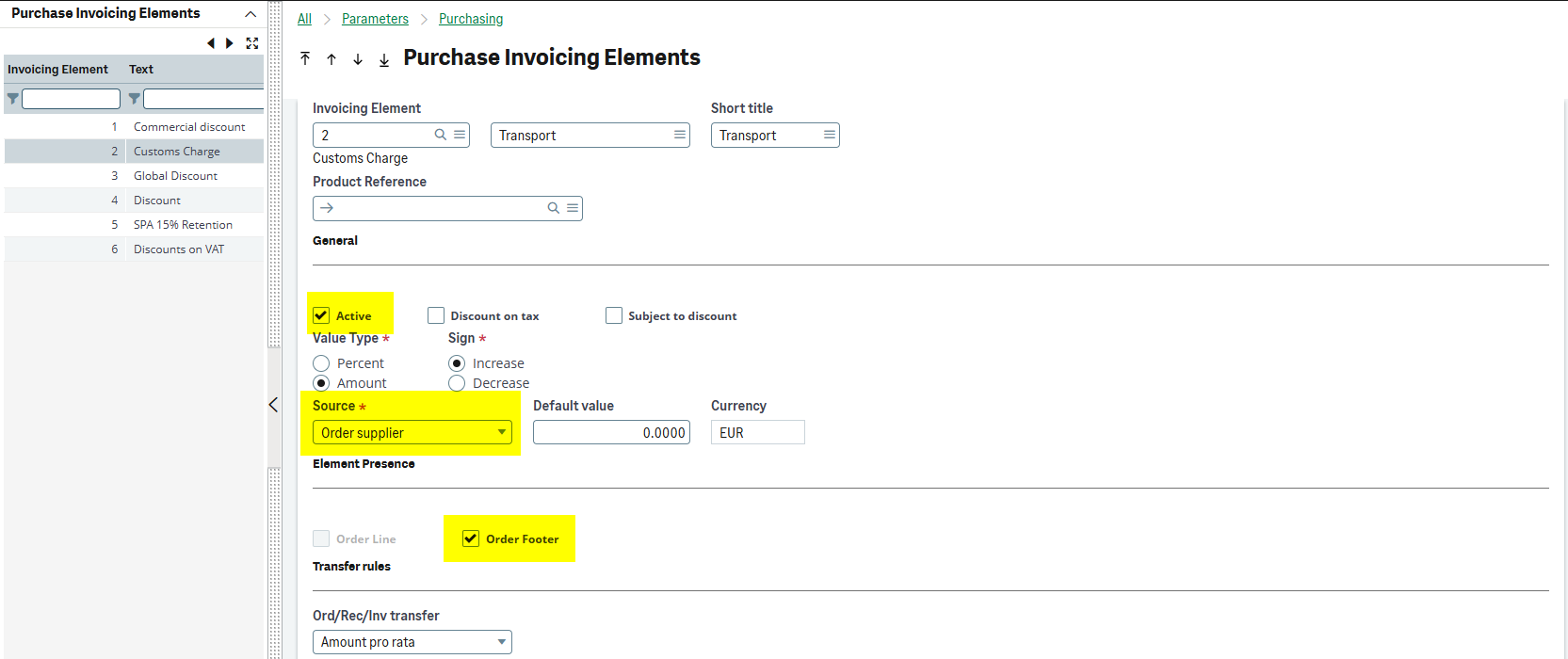
This section covers the configuration of invoicing elements in Sage X3.
These settings consist of:
- creating an outgoing custom field
- creating a purchase item in Yooz
- enabling a custom field in Yooz
- modifying the X3 API export
Details on the steps to follow are provided below.
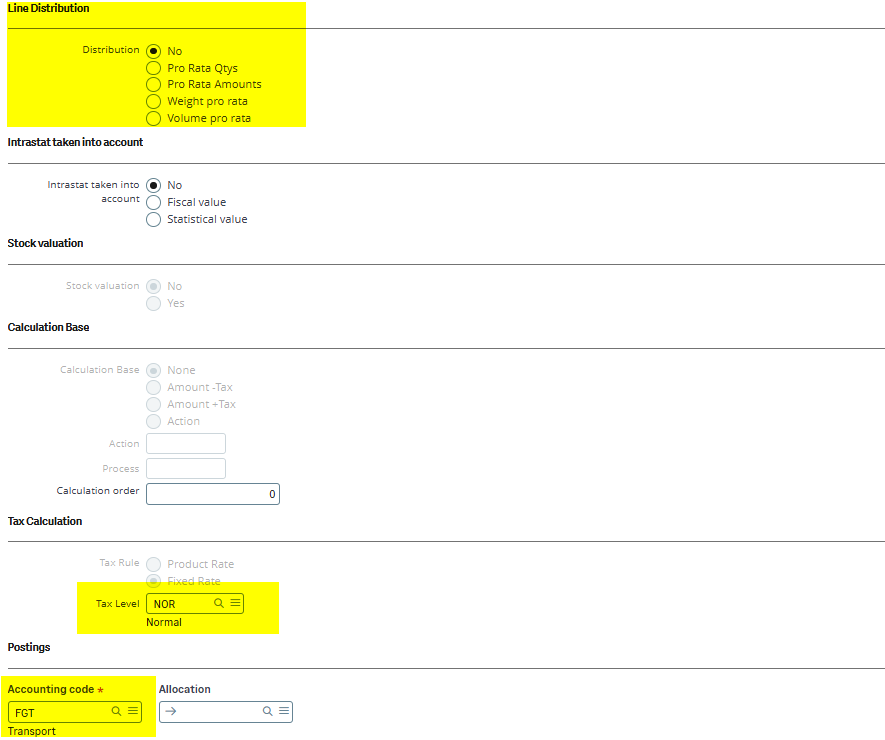
- If the VATRUL field = fixed rate, then the value may be taken from Yooz if the tax rate differs from X3
- If the VATRUL field = product rate, then the value will automatically be set to the one configured in X3
- Accounting sections are managed on billing items and can be modified in Yooz
For sending invoicing elements related to orders and receipts:
- Addition of an outgoing custom field on the POQ object, linked to the customizable field LINE_CUSTOM_9 using the following formula: func XRJ31YOOZLIB.IIF(“[F:XRJ31YS]OBJKEY(4)=‘PVF’”,‘1’,“0”)

Configuring Invoicing elements in Yooz:
- Invoicing element items must be created manually in the purchase items in Yooz (no referential interface):
- The ERP code must match the X3 invoice line item code
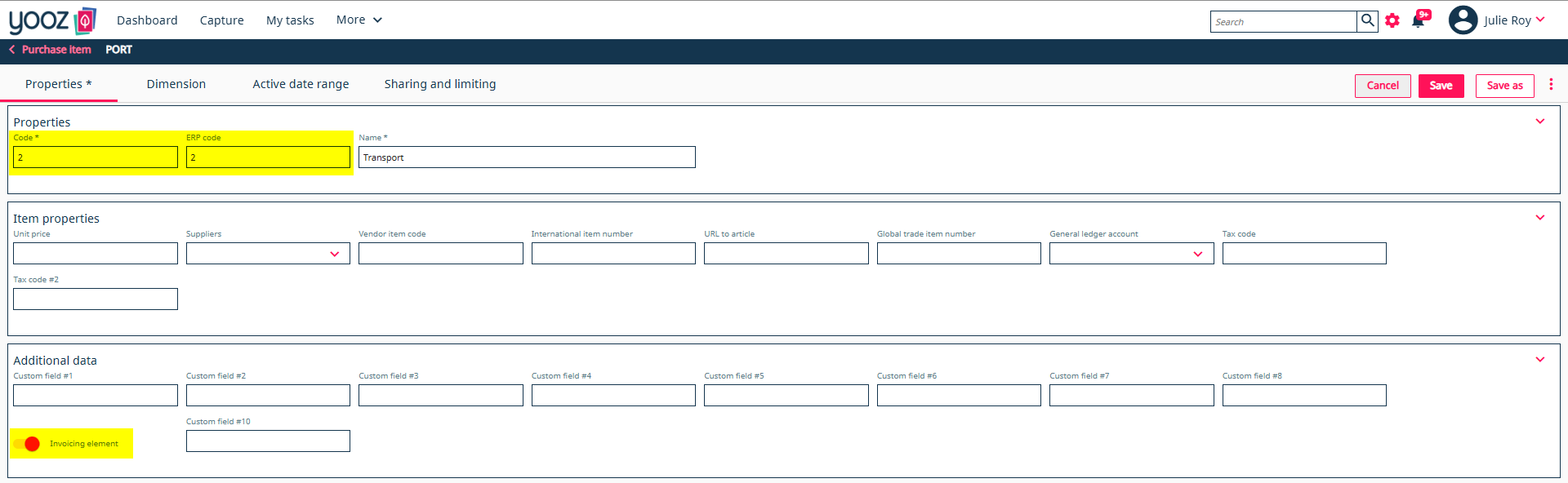
- Customizable field No. 9 must be configured as follows and checked so that the export recognizes that this item should be placed in the rows of the billing items table
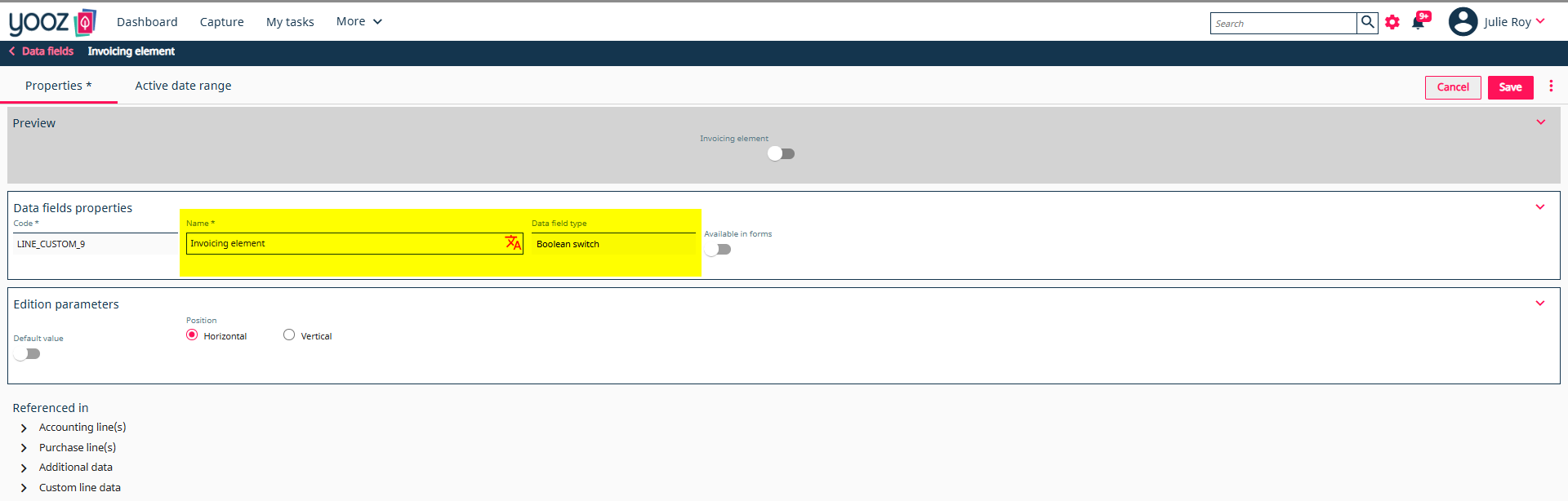
- The X3 API export must also specify that the customizable field that identifies invoicing element items is LINE_CUSTOM_9
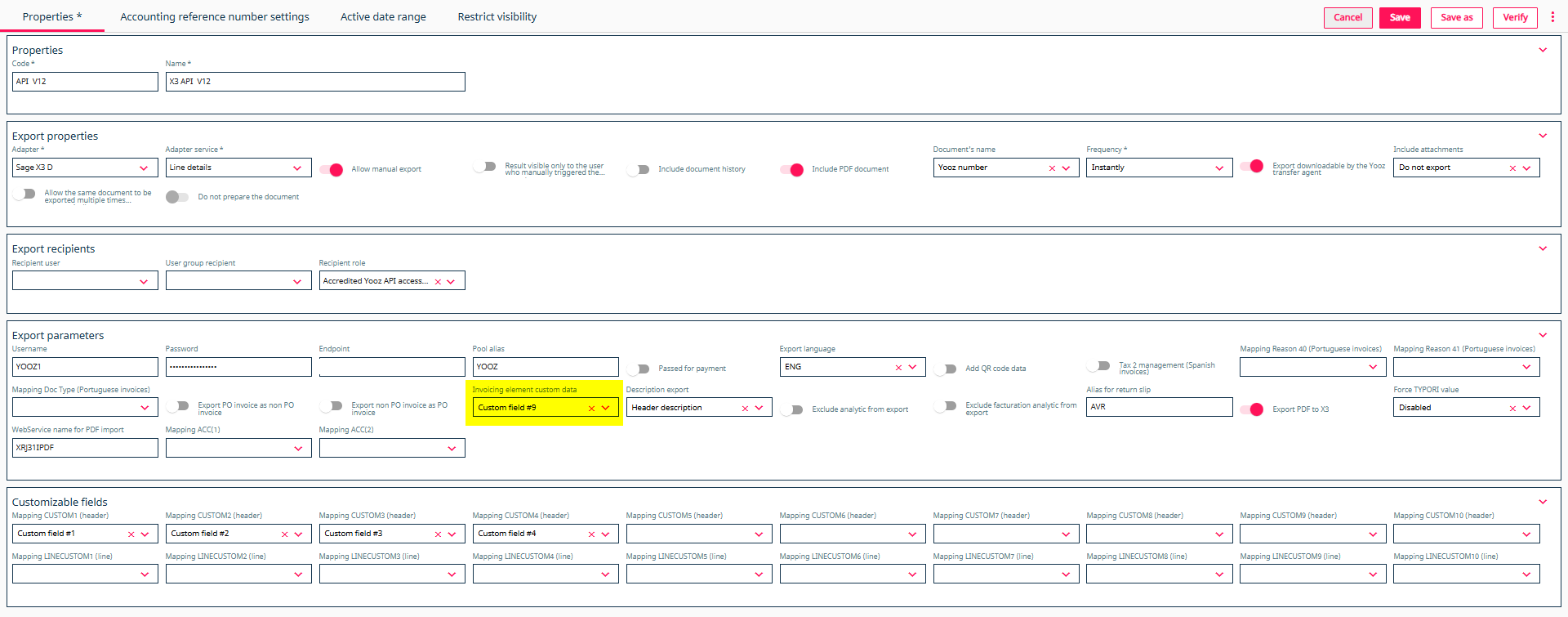 Export example from Yooz :


2 - Case B: Purchases managed in Yooz
In this scenario, Yooz is the primary application for entering purchases. This choice generally addresses the need for simplicity, cost savings (Sage X3 license fees), and is perfectly suited to relatively simple product flows.
Everything is initiated on the operational side in Yooz (purchase request ➔ order ➔ possible receipt), then replicated in Sage X3. The ERP remains the reference application for accounting, the payment authorization and the settlement.
The 3 implementation scenarios:
-
Orders in Yooz / Without delivery Basic workflow. The validated order is exported to X3, then the invoice is reconciled directly.
-
Orders in Yooz / Receipts in Sage X3 Classic and fully functional hybrid flow. Physical logistics are maintained within the ERP.
-
Orders and deliveries in Yooz Rare case. The receipt is entered in Yooz and then exported to X3. Each addition of quantity received in Yooz creates a receipt in X3. If the quantity is adjusted, a new receipt is created to account for the difference.
Case B is not simply the inverse of case A. Purchases involving advanced logistics (batch management, sub-batch management, serial numbers, locations) must absolutely remain managed in Sage X3.
Reminder of prerequisites:
-
The supplier, site, currency, items, units, taxes, and necessary analytical axes must exist or be properly synchronized before testing.
-
The X3 site must be consistent with the Yooz organization. An incorrectly configured organization will result in an incorrect order site or an import rejection.
-
The order number and line identifiers must remain stable so that the invoice and receipts can find the correct original document.
-
The order imported from Yooz must not be re-entered in X3, otherwise the flow may create duplicates or a reconciliation on the wrong document.
2.1 - General logic of the flow (Yooz master, Sage X3 replica)
The workflow is a continuous chain, from the purchase request in Yooz to the payment in Sage X3. Yooz handles the request, business validation, and invoice reconciliation. Sage X3 receives the validated data to create the documents in the ERP system and continue the accounting cycle.
Here is the breakdown of the steps:
| Stage | Master application | Object / function | Role in the flow |
|---|---|---|---|
| 1 | Yooz | Purchase Request (PR) | Creation of the purchase request and execution of the business validation workflow. |
| 2 | Yooz | Order (PO) | The order is created after the requirement has been validated. This document becomes the business reference for the workflow. |
| 3 | Sage X3 | Order (GESPOH) | Purchase order imported. Strict replica prohibiting any direct modification. Automatic read-only locking following import by the system user. |
| 4 | Yooz | Reception (GR) | Logistical receipt entry (if required by the item) directly on the Yooz order line. |
| 5 | Sage X3 | Reception (GESPTH) | Import of the receipt. Creation of an X3 document for each new quantity received and transmitted. |
| 6 | Yooz | Invoice | Capture, control, reconciliation (on order or receipt) and validation of the supplier invoice. |
| 7 | Sage X3 | Purchase invoice (GESPIH) | Import of the validated purchase invoice. Accounting management, payment approval and settlement then resume the standard cycle (see Finance section). |
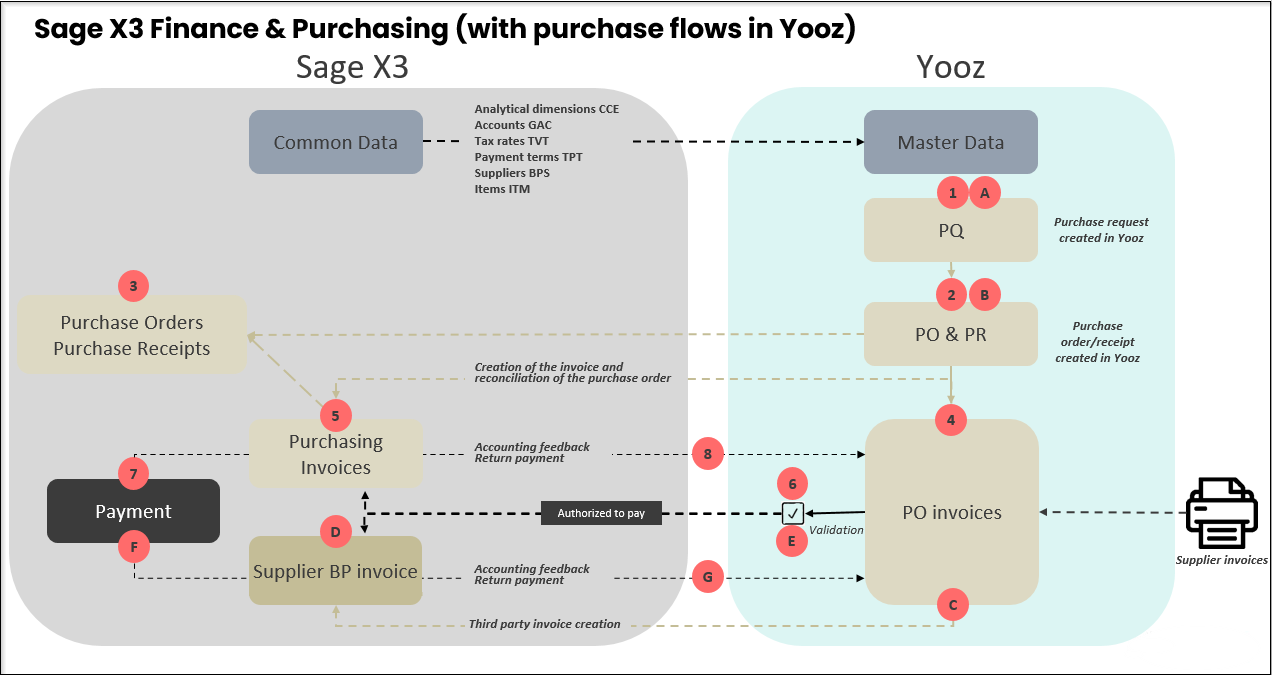
Automation The "Export" action in Yooz triggers a fully automated workflow to the ERP. The target import model receives and translates the data to create the document. No manual import is required in Sage X3. Rule of convergence The need for logistical receipt dictates the invoice reconciliation. Without expected receipt, the invoice is processed as soon as the order is available. With receipt, the invoice awaits validation of the delivered quantities. Note: Forcing an invoice before receipt belongs exclusively to the flow of Case A).
2.2 - Step 1: Creating and importing purchase orders
The purchase order originates in Yooz (usually from an approved purchase request). Its validation triggers transmission to Sage X3 (model XRJ31POH) to generate an exact replica in the function GESPOH. The ERP thus has the reference document for future invoice reconciliation.
- Creation of the purchase request
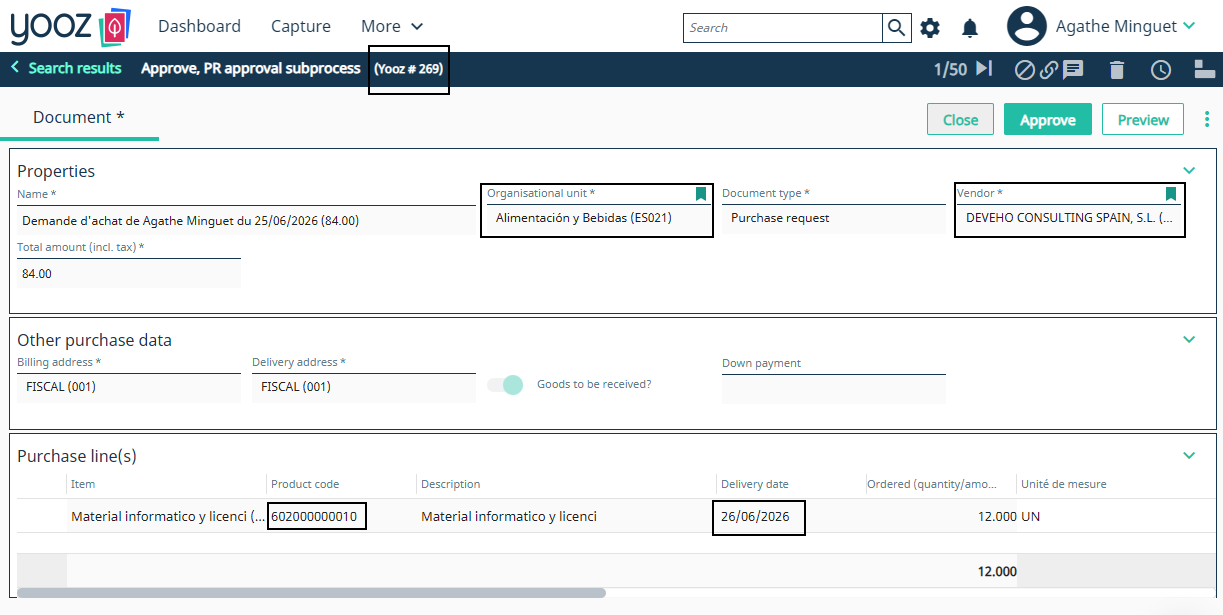
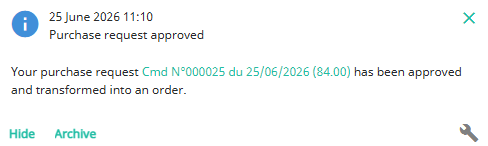
- Approbation: Validation of the purchase request automatically generates the order (PO) in Yooz.
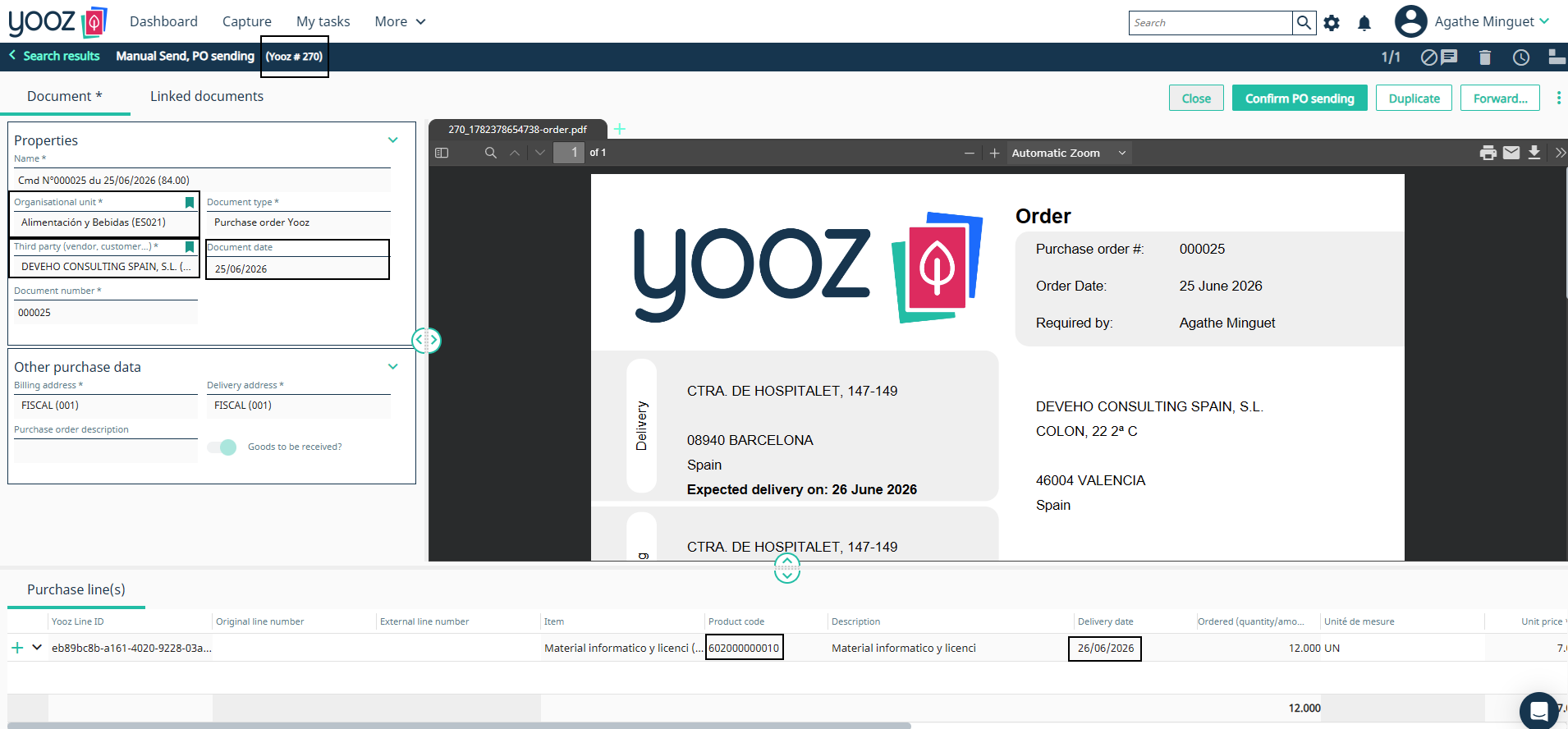
- Sending to the ERP The "Confirm PO sending" action closes the task on the Yooz side. The data is instantly pushed to Sage X3 via a SOAP web service call. The order is physically created in the ERP.
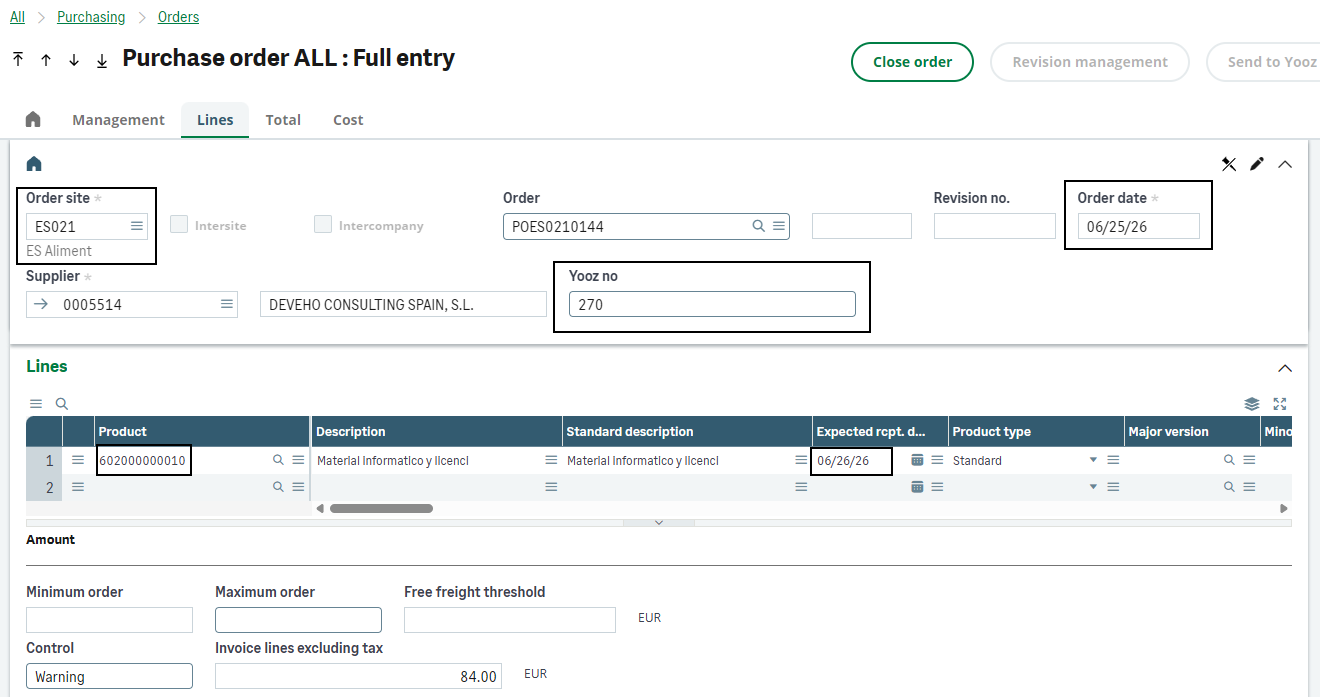
Once imported, the order remains managed exclusively by Yooz. Any direct manual modification in Sage X3 will result in desynchronization and invoice reconciliation failure. Corrections must be made in Yooz before being applied to the ERP system via the import process.
2.3 - Step 2: Reception Management
Case 1: Purchase not subject to receipt (general expenses, services, etc.)
For an item not subject to receipt (field ITMMASTER.RCPFLG Positioned at 1), the logistics step is ignored. The purchase order is sufficient to carry the flow.
-
Reconciliation: The supplier invoice is directly reconciled with the original order in Yooz.
-
Integration: The invoice is exported and integrated into Sage X3 as a purchase invoice (GESPIH function, XRJ31PIH model).
This flow excludes any physical validation in the ERP. To require a "service rendered" check (even on a non-stocked service), the item must be configured as "receivable" to switch to Case 2.
Case 2: Purchase subject to receipt (goods, stocked purchases...)
The receipt entered in Yooz is always executed on an existing command line. It is never an isolated document.
⚙️ Yooz configuration required:
In Settings and preferences > Document processing preferences > Purchase orders > Order receipt:
- Check "Enable default receipt on purchase request".
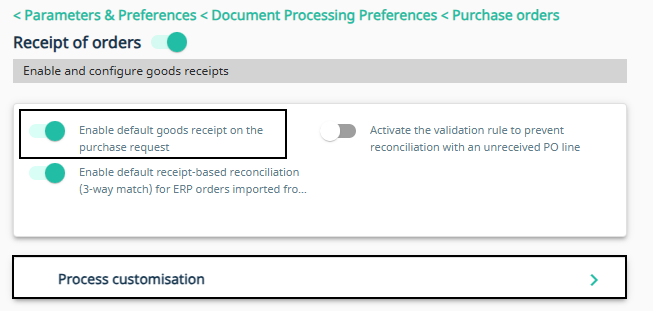
- In the Process Customization section, activate "Generate a receiving task on orders generated in Yooz" and "Generate a missing receiving blocking task on the invoice on order".
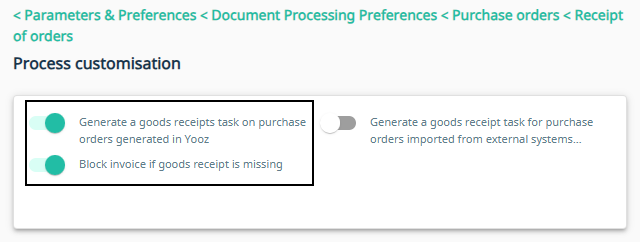
The ERP creates a receipt for each new quantity transmitted by Yooz via the import model XRJ31PTH.
Logistics management rules:
-
Prerequisite articles Strictly incompatible with items managed by batch, sub-batch, serial number or location.
-
Direct receptions These are completely prohibited in this scenario. The flow must retrieve the original command and line in X3.
-
Upward adjustment (Delta management): Any increase in the quantity received in Yooz only transmits the difference to the ERP. Sage X3 then creates a new receiving document for this additional quantity.
-
Downward adjustment The transmission of negative corrections requires strict supervision (risk of interpretation as supplier return or cancellation depending on the status of part X3).
Example: A line of 10 units is ordered. Entering a receipt of 4 units in Yooz ➔ Creating a receipt of 4 in X3. Subsequent adjustment of the receipt to 7 units in Yooz ➔ Transmission of the difference of 3 ➔ Creation of a new receipt of 3 in X3. The supplier invoice will then be reconciled with the 7 physically observed units.
2.4 - Modifications, corrections and deviation management
In case B, the master application is Yooz. All operational corrections must be initiated there. The ERP receives updates but should never be used as a direct correction area for an imported order.
Modification and return rules:
-
Control lock: An order imported via the technical user Yooz (e.g., YOOZ1) is automatically locked in read-only mode in Sage X3. The aim is to prevent any manual desynchronization between the two systems.
-
Quantity adjustments: In case of adjustment of quantities in Yooz, only the difference (the delta) is transmitted to Sage X3 to create a line or an additional part.
-
Supplier returns management: The Yooz workflow does not natively handle "Return" type documents. Managing a return or partial cancellation absolutely requires entering negative quantities or amounts (minus sign) in Yooz.
Security and invoice control (Anti-duplicate):
-
Strict import blockade A Yooz invoice that has already been imported cannot be imported twice. If an import or validation attempt occurs with a Yooz number (XRJ31NUMYOOZ) if the invoice is already present in the ERP system, the action is blocked. The following error message is returned: "This invoice from Yooz has already been imported into Sage X3. Import refused."
-
Manual duplication allowed (Workaround) If required by business needs, manual duplication of an invoice from Yooz directly into Sage X3 remains possible (for example, to create a template). During this action, the connector automatically clears the Yooz-specific identification fields (XRJ31NUMYOOZ, XRJ31URLFAC, XRJ31YOZDAT) on the newly generated document. The recording then proceeds without triggering the duplicate alert.
2.5 - Physical returns initiated in Yooz
Native handling of "Physical Return" type documents does not exist in the Yooz-driven purchasing flow (case B). Processing requires a strict distinction between the financial flow (credit note) and the logistical flow (inventory).
Financial processing (Credit note on order) in Yooz:
-
Negative amount method: Since the Yooz application does not have a "Purchase credit note on order" type, the operation requires the use of a classic "Purchase invoice on order".
-
Reverse entry: Amounts (header and lines) must be entered as negative (using the "-" sign). Note: the quantities entered must remain positive.
-
Automatic conversion: During export, the connector detects these negative amounts and automatically generates the appropriate document in Sage X3 (credit note of type AVO or AVR).
Using a negative invoice in Yooz does not replace or settle a physical transaction in the ERP system. If the supplier return has a logistical impact (stock, batch, location, traceability), the physical return must be entered and managed directly in Sage X3 (see case A).
2.6 - Standard Acceptance Cases
| Case | Objective | Synthetic roll | Expected result |
|---|---|---|---|
| B1 - Yooz Order ➔ X3 | Confirm the replication of the command. | Create and validate an order in Yooz. Export to Sage X3. Check GESPOH. | Order created via XRJ31POH template. Creator = API user (e.g., YOOZ1). Automatic read-only locking. |
| B2 - Reception Yooz ➔ X3 | Validate the import of receipts and the management of the delta. | Receive a partial quantity in Yooz. Export. Receive the balance. Export. Check GESPTH. | A separate receiving slip is created for each export (managed by delta). The cumulative X3 corresponds to the Yooz quantity. |
| B3 - Logistical limitations | Securing advanced logistics incompatibility. | Attempting to receive in Yooz an item managed by batch, serial number or strict location. | Integration blocked or failed.Validation is mandatory to maintain this type of article in the Case A flow. |
| B4 - Order Modification | Check for updates to the ERP commitment. | Modify a quantity or price on a Yooz order (not yet received). Re-export to Sage X3. | Update of the existing line in X3 via the XRJ31POH model. No manual intervention in the ERP. |
| B5 - Invoice on order (PIH) | Validate the continuity of the flow Procure-to-Pay. | Reconcile the invoice (order/receipt) in Yooz. Uncheck "Export as purchase invoice (non-PO)". Exporter. | Integration into GESPIH via XRJ31PIH. X3 receipt settlement. Population of Chrono (XRJ31NUMYOOZ) and URL fields. |
| B6 - Custom Incoming Fields | Control the mapping of additional data. | Configure the incoming mapping. Fill in the custom field in Yooz. Export to X3. | Correct feeding of the target field. Reminder: the X3 field must be visible on the screen and editable. A SOAP pool restart is required after modifying the mapping. |
3 - Common financial processing: PIH, BIS, BAP and feedback
This section factors out the financial processing common to both scenarios in the chapter. Sections 1 and 2 should continue to explain who is responsible for ordering and receiving. Section 3 begins when the invoice has been checked in Yooz and must generate a financial document in Sage X3, then follow its cycle until payment.
The reading principle is as follows: PIH for purchase invoices linked to an order or a receipt, BIS for supplier invoices excluding orders/general expenses, XRJ31BAP for updating the payment voucher, then Yooz feedback to inform Yooz of the accounting and payment.
| Treatment | Function X3 | Model / object | Functional role |
|---|---|---|---|
| Purchase invoice upon order or receipt | Purchasing > Invoices > GESPIH Invoices | PIH / XRJ31PIH | Create in X3 a purchase invoice linked to the original order or receipt. |
| Invoice outside of order / overhead costs | A/P-A/R accounting > Invoicing > GESBIS supplier invoices | BIS / XRJ31BIS | Create in X3 a third-party supplier invoice without linking it to a purchase document. |
| Attachment (PDF of the invoice) | Attachments (from GESPIH or GESBIS) | XRJ31IPDF | Physically import the validated PDF document into Yooz to attach it to the invoice in Sage X3. |
| Good to pay | A/P-A/R accounting > GESDUD invoice due dates (or via GESPIH/GESBIS) | XRJ31BAP / GACCDUDATE.FLGPAZ | Update the payment status without re-importing the entire invoice. |
| Accountant feedback | PIH or BIS validation/accounting | API: /yooz/v2/api/feedbacks | Return invoice number X3 to Yooz (YZ_POSTING_NUMBER) and the ERP import date (YZ_IMPORT_DATE_ERP). |
| Payment feedback | A/P-A/R accounting > Payments > Entering GESPAY payments | Objet PAY / Action PAYMENT | Inform Yooz that the invoice has been settled when the payment reaches the expected status ("In Bank") in X3. |
3.1 - Importing invoices into Sage X3 (Flow Yooz ➔ Sage X3)
3.1.1 - Reconciliation in Yooz and import of the purchase invoice
This flow only concerns supplier invoices linked to a purchase document (order or receipt). In Yooz, the expected document type for these items is strictly "purchase invoice on order".
The goal of the connector is to maintain end-to-end traceability: the invoice validated in Yooz is automatically imported into Sage X3 as a purchase invoice, without ever losing its link to the original document.
| Scenarios | Example | Close-up document in Yooz | Point of vigilance |
|---|---|---|---|
| Purchase not subject to receipt | General expenses, services | Purchase order | The invoice can be processed in Yooz as soon as the order is visible there. |
| Purchase subject to receipt | Goods, stock | Receipt or quantities received | The reconciliation must meticulously follow the quantities actually received and billed. |
| Order sent before receipt | Grand Import | Purchase order | The physical receipt of the goods can be entered later in Sage X3. |
| Additional unforeseen charges | Various line | Order/receipt completed in Yooz | The unit and article used must be framed; the unit can be forced to “ONE” if the line origin does not provide a unit. |
- Capture and matching in Yooz**.** The supplier invoice is received in Yooz. The recognized data (supplier, amounts, taxes, due dates) is verified. The document is then matched with the corresponding purchase order or receipt, ensuring that the line items correspond exactly.
(The invoice can arrive directly in the tool or be added manually).
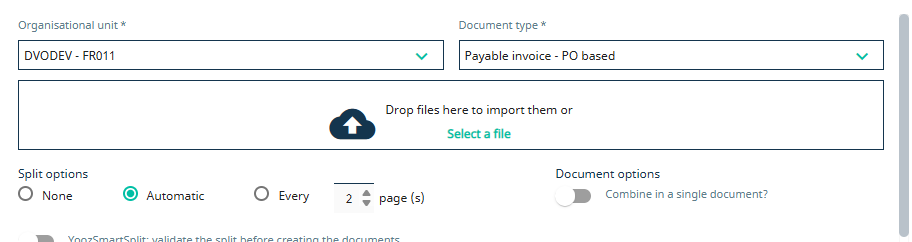
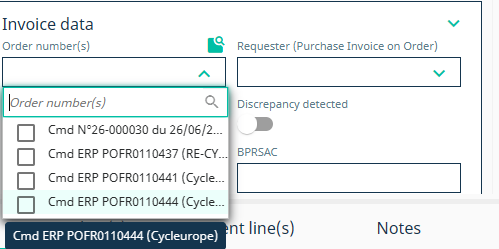
-
Discrepancy management and supplementary lines If additional costs not included in the order are incurred (shipping, customs), supplementary lines can be added directly in Yooz. These lines require precise allocation (generic item, unit, account, tax, analytical) to ensure error-free integration into the ERP system.
-
Yooz validation and export to Sage X3 After validation in the Yooz workflow, the invoice is exported to Sage X3 (according to the established workflow). The connector imports the invoice via the template XRJ31PIH. According to the legislation, the model can be adapted, for example XRJ31PIH3 for Portuguese legislation.
-
Invoice creation in GESPIH Exporting creates a purchase invoice PIH in X3. The connector populates the Yooz traceability information for part X3, including the Yooz number, the URL link to the Yooz image, and the information needed for subsequent feedback. The PDF can also be physically imported as an attachment via XRJ31IPDF.
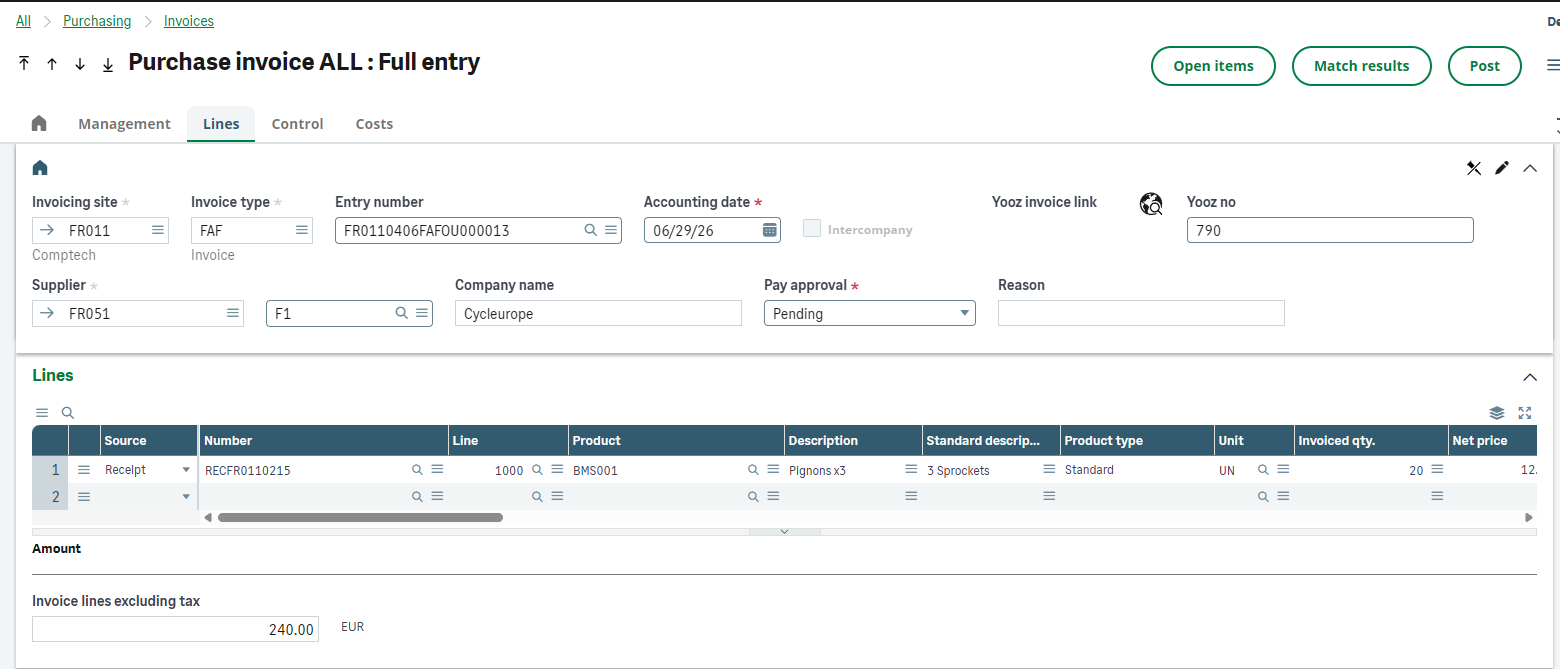
To ensure error-free integration of invoices into Sage X3, several business rules are automatically applied:
-
Date check The system can verify that the date of the purchase document (order or receipt) is not later than that of the invoice. This strict check can, however, be disabled during initial setup if needed.
-
Items of expenses and miscellaneous lines Additional costs manually added in Yooz (shipping, customs) must be based on "generic items" created in Sage X3, which must not be managed in inventory. If the unit of measure is not found during import, it is forced to default to "ONE" (Unit).
-
Billing elements In Yooz, a price increase must include a VAT code and amount. Conversely, a discount or reduction is transmitted without any VAT code or amount.
-
Fixed assets The system automatically distinguishes between standard purchases, services, and fixed assets based on the "Purchase Type" data entered on the lines. Additional information (such as the fixed asset collective account) is transmitted via custom fields.
-
Custom fields Up to 10 header fields and 10 line fields can be imported from Yooz to Sage X3. The target field in the ERP must be present on the screen and editable.
-
Attachments and PDF For optimal traceability, the invoice generated in Sage X3 includes a clickable URL link to the Yooz image and can also retrieve the PDF file physically as an attachment.
Purchase management in X3 (Case A) vs in Yooz (Case B) The major difference between these two modes of operation lies solely in the direction of synchronization of the original documents (Sage X3 sends the command/receipt to Yooz in case A; Yooz sends the command/receipt to Sage X3 in case B). The method of creating and importing the final purchase invoice in Sage X3 remains strictly identical for both scenarios.
Various lines and assets A line item entered in Yooz without an item code is imported into the ERP system as a "miscellaneous line item". The connector natively handles negative amounts on these lines for the creation of credit notes or deductions. Attachment (PDF) Exporting the invoice PDF from Yooz for automatic integration as an attachment in X3 is possible. Prerequisite: activate the Yooz XRJ31IPDF WebService and configure the XRJ31AIMMS destination with the value MESSPDF in the ERP.
3.1.2 - Third-party supplier invoices (invoices not linked to an order)
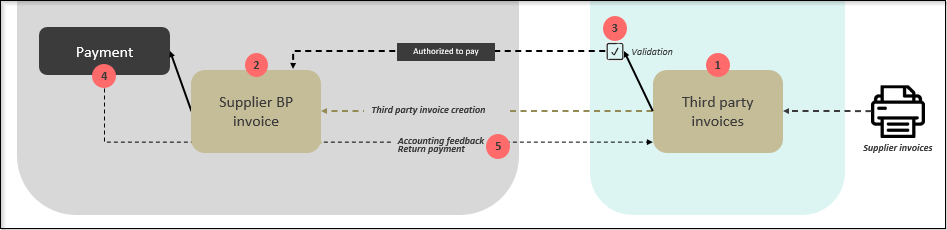
Invoices for overhead expenses, services not included in a purchase order, or supplier invoices not linked to a purchase document should not be treated as standard purchase invoices PIH. They fall under the Finance stream.
In Yooz, they are treated as "third-party invoices", and the connector will automatically create them in Sage X3 as "supplier third-party invoices" GESBIS.
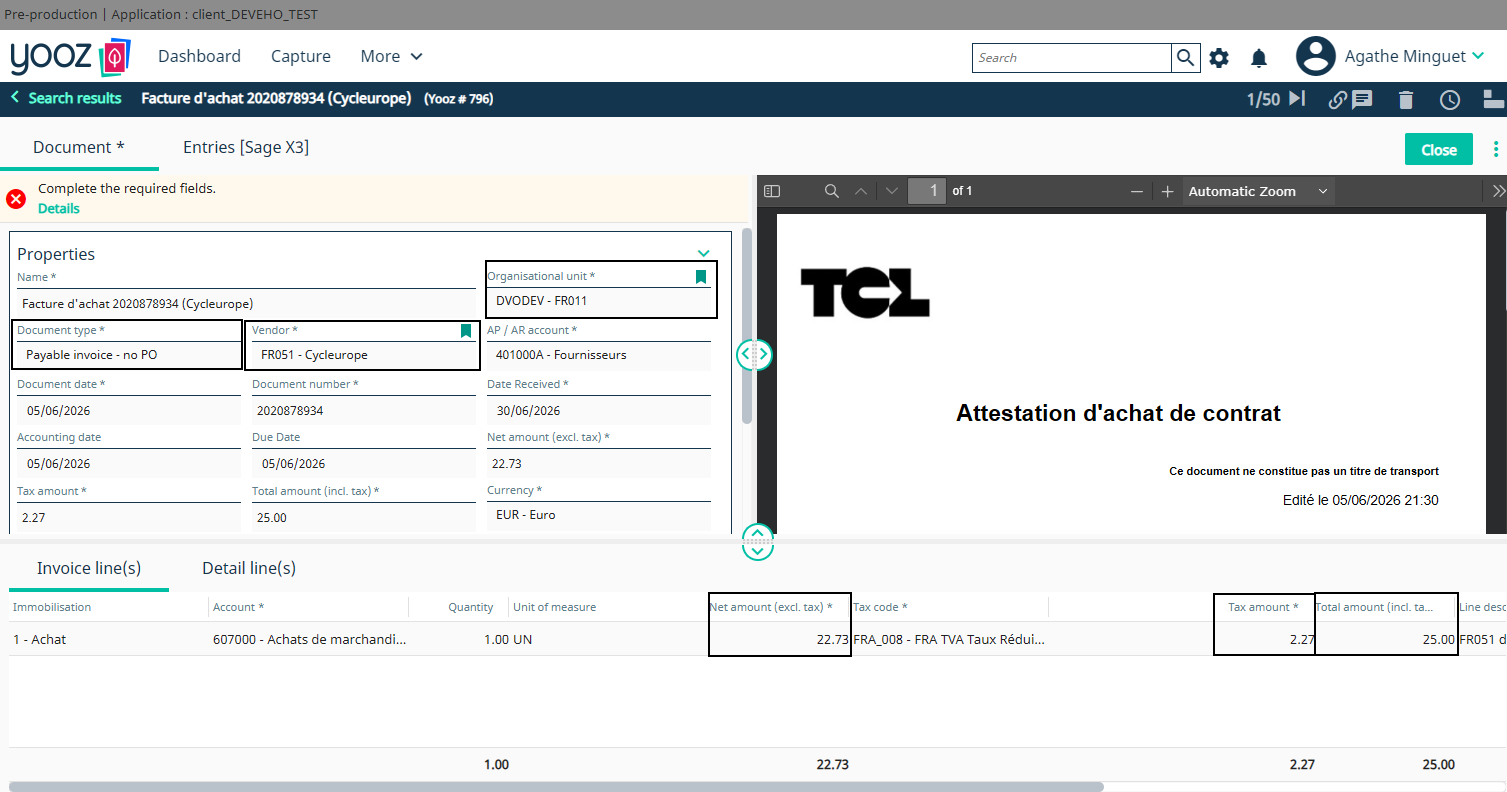
- Data entry and allocation in Yooz The invoice is captured in Yooz and processed as an "invoice without PO". The accountant manually allocates it based on the reference data synchronized with X3: choice of supplier, organization, general ledger account, taxes, analytics, etc.
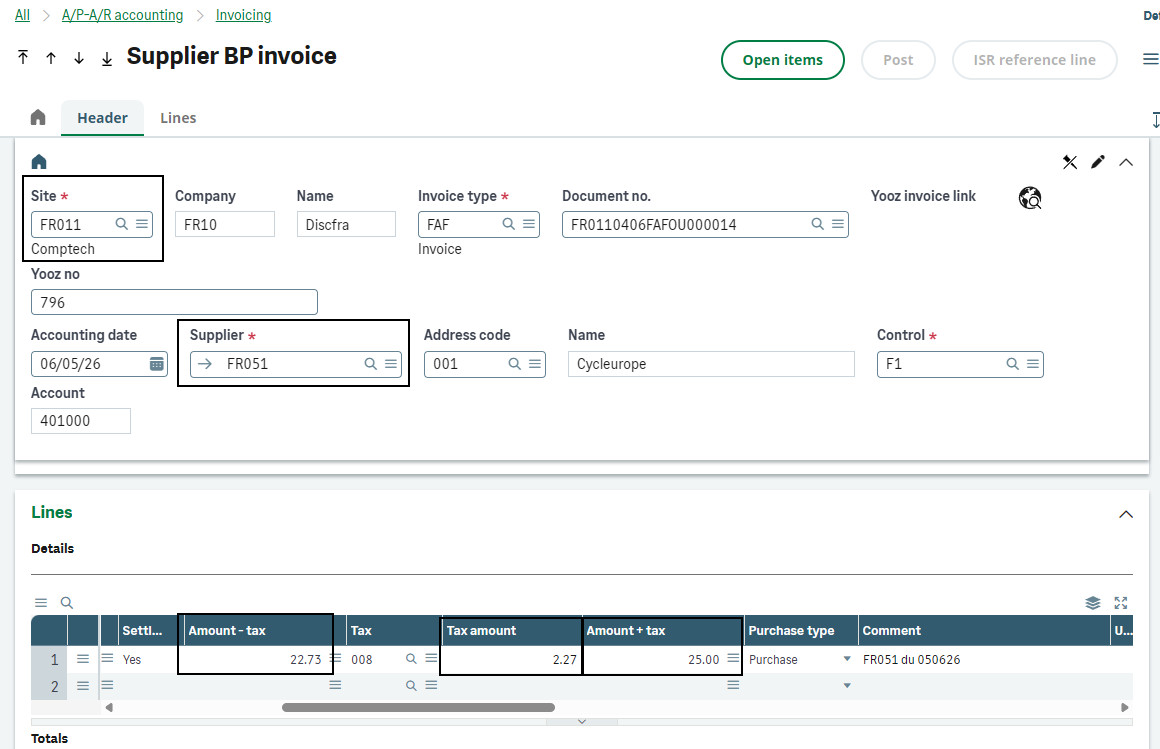
- Validation Yooz et export Finance After validation, Yooz exports the invoice to Sage X3. The connector calls the template XRJ31BIS in order to create a third-party supplier invoice in the function GESBIS. The document created is not linked to a POH order or a PTH receipt.
-
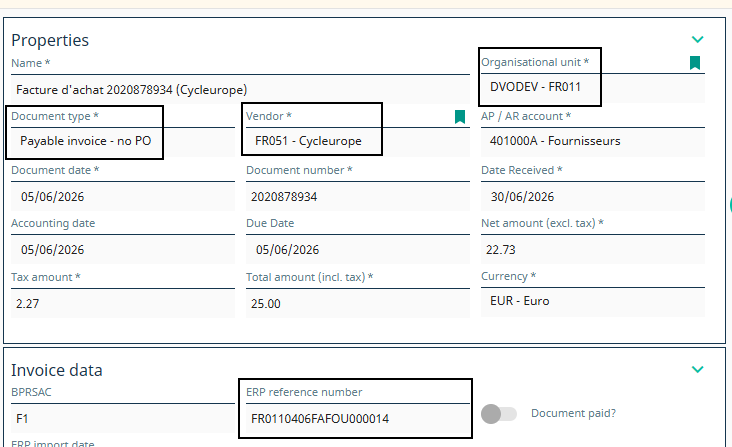
Traceability and PDF As with PIH, the object BIS must retain the Yooz number, the Yooz image URL and, if the feed is enabled, the physically attached PDF via XRJ31IPDF. This information is necessary for user control, duplicate detection, BAP, and feedback. (Note: If the part is manually duplicated in X3, these fields are automatically cleared).
-
Accounting validation in X3 The third-party invoice then follows its usual X3 validation cycle. The rest of the workflow is exactly the same as for invoices on order: the connector will update Yooz with the accounting feedback.
Do not create a dummy order in X3 to enter an overhead invoice into the PIH flow. If the invoice has no real purchase basis, the target flow is BIS.
When these invoices are entered into Yooz, the data is interpreted by Sage X3 as follows:
-
Payment terms The payment condition entered in Yooz takes precedence. It overrides the default condition set on the supplier's record in Sage X3.
-
Comments and Label The first comment entered in the header of the Yooz invoice is automatically retrieved by Sage X3 to become the "label" of the generated accounting document.
-
Fixed assets Fixed assets can be managed directly through this data flow. The "Purchase Type" field allows you to identify whether a specific line item relates to a fixed asset, so that Sage X3 can process it correctly.
-
Collective accounts If a posting line uses a collective account, Sage X3 requires that a third party be linked to it. If this third party is not specified on the line in Yooz, the connector automatically uses the header provider to force the line and prevent a block.
-
Specific adaptations The connector natively manages the injection of Yooz custom fields into Sage X3, as well as specific legal obligations.
3.2 - Accounting validation & feedbacks (Flow Sage X3 ➔ Yooz)
Feedback closes the loop between Sage X3 and Yooz. Once the invoice is integrated into the ERP, information known only after this integration (accounting document number, import date) is sent back to Yooz.
This feedback relies on the API***/yooz/v2/api/feedbacks*** and requires identification of the original document. Therefore, invoice X3 must include the Yooz number entered in the field PINVOICE.XRJ31NUMYOOZ (this field is filled in when the invoice is exported from Yooz to X3).
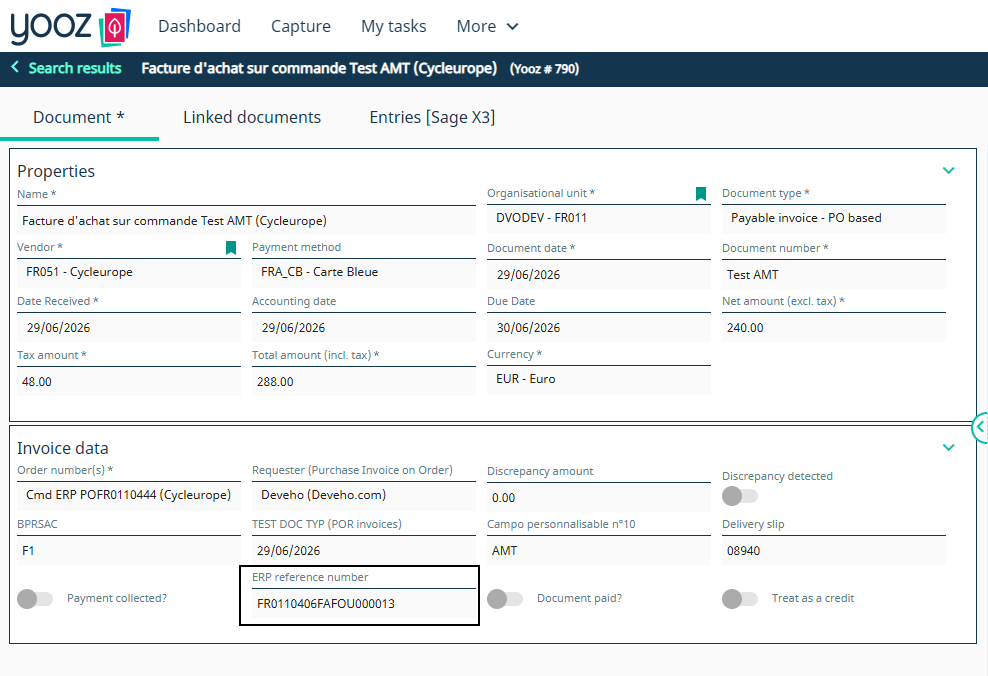
Accounting feedback is sent when the invoice from Yooz is validated in Sage X3. Validating the invoice creates the accounting entry. The following fields are then updated in the block YZ_INVOICE from Yooz:
| Field Yooz | Source Sage X3 | Role |
|---|---|---|
| YZ_POSTING_NUMBER | PINVOICE.NUM or X3 part number used as accounting reference | Allows Yooz to display the part/invoice number created in X3. |
| YZ_IMPORT_DATE_ERP | Validation or ERP import date, for example PINVOICE.UPDDAT depending on the processing | Allows Yooz to indicate that the invoice has been integrated and recorded in the ERP. |
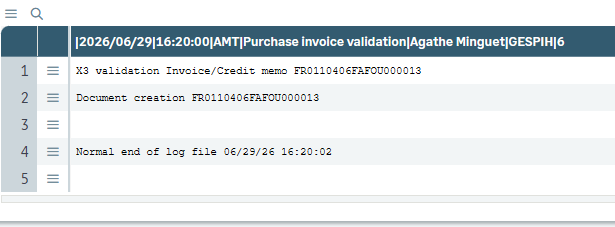
- Validation in X3 The invoice (PIH or BIS) is validated in the ERP. The field STA the status changes to 3 (validated or posted status) and the accounting document becomes available. This action generates a record in the tracking table XRJ31YOOZSUI.
-
Sending feedback The recurring task XRJ31EXE the process executes. It reads the tracking table and triggers the API call to Yooz. The data sent targets the exact document using its Yooz number.
-
Sending to Yooz The invoice in Yooz is updated with the X3 document number and the ERP validation date. As soon as the update is successful, the submission is tracked (status updated in the table XRJ31YOOZSUI) to avoid unnecessary repetition of feedback. Payment will be processed later (flow PAY).
3.3 - Synchronization of the payment voucher (Flow Yooz ➔ Sage X3)
The "Approved for Payment" (BAP) status authorizes the payment of an invoice. Please note, Sending this status from Yooz to X3 is not automatic by default. Its triggering depends strictly on the construction of the customer workflow in Yooz. The export is linked to a specific step chosen during setup (for example, during final approval by a manager).
⚙️ Prerequisites: Invoices must be created in Sage X3 with an initial status of "Pending" (user setting NEWBONPAYE set to "Pending").
-
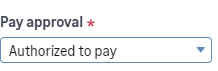
Update (Template XRJ31BAP) The information is transmitted to Sage X3 via a dedicated export. This model simply updates the due date status of the existing invoice (GACCDUDATE.FLGPAZ), without re-importing the rest of the document.
-
Payment release The invoice status changes to "Approved for Payment" in the ERP system. The supplier payment can then be processed in Sage X3. Any invoice without this status remains strictly blocked for payment.
The payment authorization (BAP) issued by Yooz is completely independent of the accounting validation performed in Sage X3 (which generates the journal entry). Therefore, the BAP status can be applied before or after the accounting validation.
The model XRJ31BAP is strictly for modifying the payment authorization. It cannot be used to correct amounts, taxes, or charges.
3.4 - Payment settlement and feedback (Flow Sage X3 ➔ Yooz)
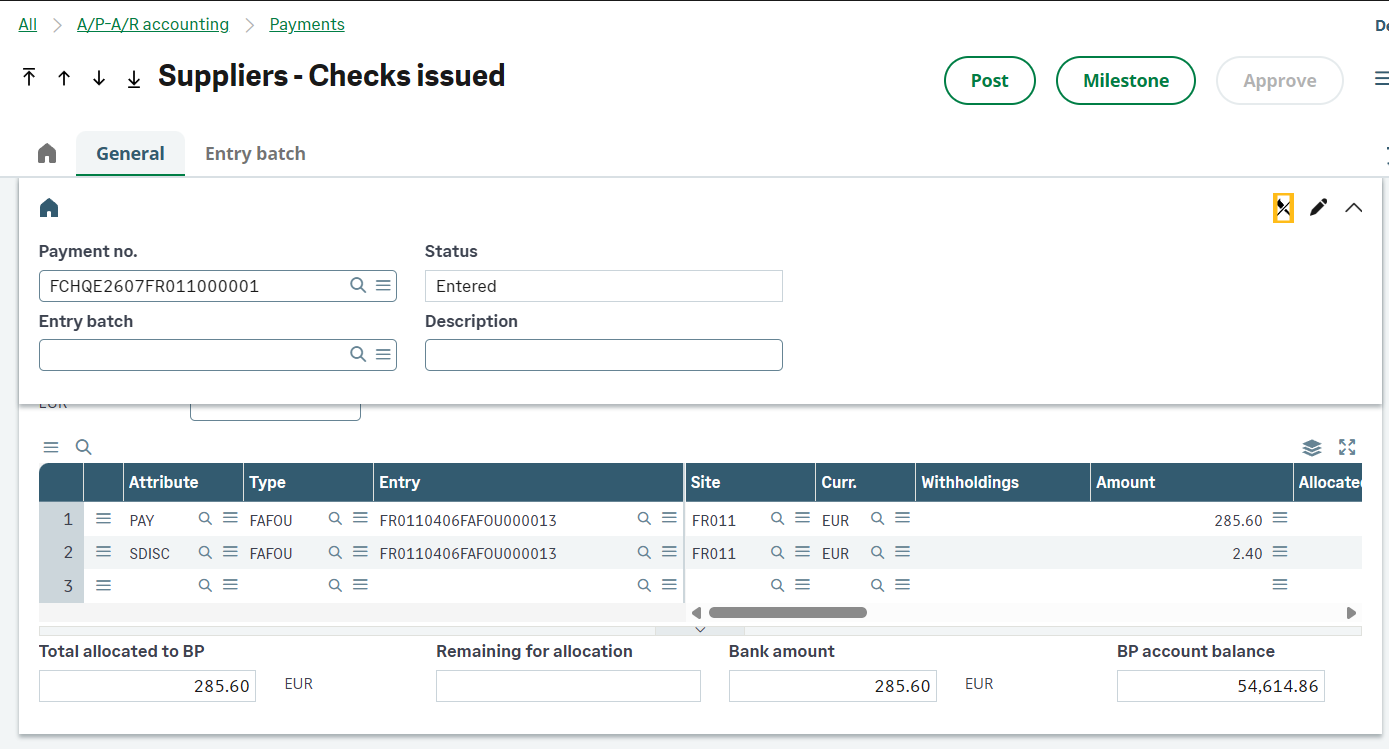
The supplier payment flow follows the standard Sage X3 logic. Sending the feedback to Yooz is no longer based on the "In bank" status of a payment, but is triggered exclusively by the matching (lettering) of the accounting document originating from the initial invoice.
- Input in X3: Use of payment functions (GESPAY, GESFRM) generating a match, manual matching transactions (LETTRAGE) or automatic matching (LETTRAUTO), or functions handling unpaid/reversed transactions.
- "Matching" trigger: Any accounting action (payment, compensation, miscellaneous operation/OD) updating the paid amount on the invoice open items (GACCDUDATE.PAYCUR).
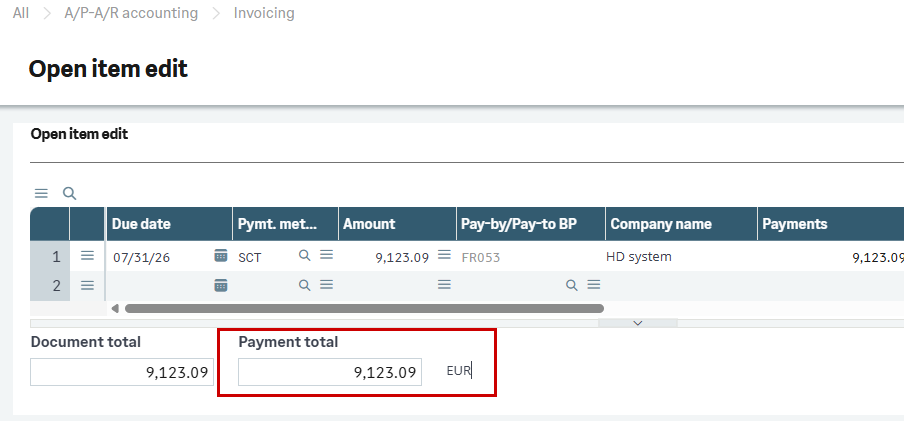
- Yooz Update: Transmission of the amount (YZ_AMOUNT_PAID, corresponding to the new matched total minus the amounts already sent) and the most recent payment date (YZ_DATE_OF_PAYMENT deduced from GACCDUDATE.PAYDAT) via the Yooz export task XRJ31EXE. The invoice status in Yooz changes from "Awaiting payment return" to "Paid" (or remains pending in the case of a partial payment).
Partial payments : Natively managed. In the event of successive matchings, the connector calculates the difference between the new matched total and the amounts already transmitted to send only the delta (the partial payment amount) to Yooz. The Yooz workflow remains pending.
Cancellation (Negative Flows) : In case of an error in X3 (unmatching or payment cancellation), a feedback with a negative amount is sent to restore the remaining amount to be paid in Yooz. Warning: sending this negative amount (unmatching) is strictly impossible if the invoice has already been fully matched (as the invoice has reached the end of the Yooz workflow, it is no longer "listening" for new statuses).
Compensations (Credit notes / OD) : Matching a Yooz invoice with another accounting document (such as a supplier credit note or a miscellaneous operation) updates the open item. This compensation therefore flows back into Yooz in exactly the same way as a standard payment and settles the remaining balance.
Grouped payments (Yooz / non-Yooz mix) : Now supported. Since the system is based on the matching of open items, it natively filters the records and only sends the feedback for the entries having a Yooz identification number (XRJ31NUMYOOZ), silently ignoring the rest of the batch.
3.5 - Special case: Import & management of assets
Credit notes must be documented separately, as Yooz and Sage X3 do not share the same functional logic. In X3, a credit note can be represented by an invoice type expected in the purchasing or accounts payable module. In Yooz, the document can be reconciled with the original purchase using negative entries, particularly for returned credit notes.
| Case | Functional origin | Yooz Treatment | Import X3 expected |
|---|---|---|---|
| Having to return to the supplier | Supplier return validated on a receipt already invoiced | The return is sent to Yooz as a negative line item attached to the original order. The supplier then transmits the credit note to Yooz. | Import via PIH / XRJ31PIH with expected type in X3, according to PIVTYP and TYPORI settings. |
| Discount or reduction | Trade difference, discount, or billing element that reduces the amount | The discount is recorded as a negative line item or invoice element. The tax rules must be defined. | Import into the invoice or credit note depending on the business case. Discounts must be transmitted without a VAT code or VAT amount when the billing elements rule applies. |
| Having out of order | Finance correction without purchase document | No order or receipt matching. | Processing via BIS if the document falls under third-party supplier accounting. |
| Credit note on invoice already processed | Correction of an invoice that has already been integrated and validated | To be framed as a corrective document. Yooz links the credit note to the purchase and not to the X3 invoice already recorded. | Do not re-import the original invoice. Use a credit note or accounting correction according to the chosen process. |
-
Step 1 - Identify the nature of the asset. Before importing, a distinction must be made between a credit note on a return, a discount, or a corrective overhead document. The choice determines whether the target flow is PIH or BIS.
-
Step 2 - Maintain the functional connection. For a credit note on a return, the return does not create a new, independent purchase in Yooz. It adds negative entries to the original purchase. Therefore, linking it to the original order remains essential.
-
Step 3 - Import with the correct sign and type. The import model follows the logic of the purchase invoice, with adjustments to the document type fields. Negative amounts or quantities entered in Yooz must be converted to the format expected by Sage X3 in order to generate a credit note and not a new positive invoice.
-
Step 4 - Continue the financial cycle. Once the credit note is imported, the BAP, accounting feedback, and, if applicable, payment rules follow the same principle as other documents. Note that for a credit note, Yooz will systematically transmit the value "3" (Credit Note Pending) for the approval status, unlike standard invoices (1 or 4).
The 2 golden rules for entering assets in Yooz Yooz cannot natively link a "purchase credit note" document to an order. Therefore, the behavior differs depending on the workflow: Having out-of-order items (flow BIS): The user uses the "Purchase Credit Note" document type and enters the amounts as positive. The X3 import will create a third-party supplier credit note. Available on order/return (flow PIH): The user must use the "Purchase Order Invoice" document type with negative amounts (header AND lines) for the template XRJ31PIH to work and create the credit note. Important: quantities must remain positive. When reconciling in Yooz, the user must click on the "orange square" to disable the default search filters; otherwise, the original order will not appear (the filters hide positive orders when a negative entry is made).
Importing a credit note directly linked to an already recorded invoice should not be presented as a standard automated workflow. The documented case is the credit note linked to the purchase or return. Post-accounting corrections must be framed as credit notes or corrective documents.
3.6 - Standard Acceptance Cases
| Case | Objective | Synthetic roll | Expected result |
|---|---|---|---|
| F1 - PIH invoice on order | Confirm the import of a purchase invoice linked to an order. | Match the invoice in Yooz with the order, validate, then export. | A purchase invoice (GESPIH) is created via XRJ31PIH, with the correct supplier, lines, taxes, and axes. The Yooz number (XRJ31NUMYOOZ) and URL fields are populated. |
| F2 - PIH invoice upon receipt | Confirm the import of a purchase invoice linked to a receipt. | Reconcile the invoice with the quantities received, validate and export. | The GESPIH invoice matches the original receipt. The tester verifies that X3 did not require manual entry of any items. |
| F3 - BIS invoice not ordered | Validate the Finance (overhead) flow. | Process a Yooz invoice without an order. Verify that the option "Export as invoice on request" is definitely unchecked. | A third-party invoice (GESBIS) is created via XRJ31BIS. The settings (taxes, analytical accounting) are correctly updated without a fictitious purchase document. |
| F4 - Miscellaneous lines / billing elements | Check the fees (shipping) and discounts at the bottom of the invoice. | Add in Yooz a line with an article code corresponding to the billing element code X3. | X3 imports the line into the billing elements table (and not into the item lines). Note: Surcharges carry a VAT code, discounts (rebates) are exported without a code. |
| F5 - Have on return or Finance | Validate the correct document type (AVO/AVR). | Finance Credit Note: Use the Yooz "credit note" type (amounts > 0). Credit Note on Order: Use the Yooz "Invoice on Order" type with negative amounts. | X3 creates the correct corrective document according to the workflow. Importing negative amounts correctly generates an X3 purchase credit note. |
| F6 - BAP (Good to Pay) | Check the deadline update. | Validate the final approval in Yooz, trigger the BAP export. | The GACCDUDATE.FLGPAZ field of the X3 due date changes to "4" (Approved to pay) without recreating or blocking the existing invoice. |
| F7 - Accounting Feedback | Inform Yooz of the accounting. | Validate (account for) the imported invoice in X3. Check the return via XRJ31EXE. | Yooz receives the X3 invoice number (YZ_POSTING_NUMBER) and the ERP import date. |
| F8 - Payment Feedback | Inform Yooz of the settlement (cash-out). | Settle the invoice via Payment Entry (GESPAY) only. Change the status to "In Bank". | Yooz receives the amount paid and the date. The Yooz status changes to "Paid" (Warning: Manual matching or mixed payments do not trigger the flow by default). |
| F9 - PDF and URL Yooz | Control access to the supporting document from the ERP. | Import an invoice. Click on the Yooz icon in X3. If the "Export PDF to X3" option is active in Yooz, check the attachments. | Invoice X3 contains the clickable Yooz link (XRJ31URLFAC) and the PDF attachment is attached to document X3. |
| F10 - Non-duplicate | Securing the uniqueness of the integration. | Attempting a voluntary re-import of an invoice that has already been integrated into Sage X3. | The connector rejects the import. Expected message in the trace: "This invoice from Yooz has already been imported into Sage X3. Import refused." |
4 - Interface monitoring and error handling
This section is the reference guide for technical support and system administration. It explains how to manage data flows, diagnose rejections, and restart interfaces in case of errors.
The connector's architecture requires a clear distinction between the direction of the flow, as the monitoring tools differ:
-
For outgoing flows (Sage X3 ➔ Yooz): Monitoring is done via the specific Yooz Interfaces dashboard (XRJ31YOOZINT) and reading the traces of the processing XRJ31EXE.
-
For incoming data flows (Yooz ➔ Sage X3): Monitoring is carried out on the Yooz side (export reports) and on the Sage X3 side via the reading of standard traces (LECTRACE) import templates.
4.1 - Outgoing Interface Dashboard (XRJ31YOOZINT)
The Yooz Interfaces function (XRJ31YOOZINT) is the main monitoring screen for controlling outgoing interface flows between Sage X3 and Yooz. It must be used during acceptance testing, error analysis, and in production when documents are pending or fail to send.
Step 1 - Check the synthesis of interfaced objects
The first block of the function presents a summary by Sage X3 entity interfaced with Yooz (columns: Number of records to be transmitted, transmitted, in error). For chapter 5, here is what the key object counters represent:
| Object / function | Usage in Chapter 5 | Expected control in XRJ31YOOZINT |
|---|---|---|
| POQ | Sending purchase orders and receipts (case A). | The number of headers or order/receipt lines waiting to be sent to Yooz, transmitted, or blocked in error. |
| PND | Sending supplier returns related to the original purchase. | The number of validated return vouchers that need to be pushed to Yooz. |
| PIH | Sending accounting feedback for purchase invoices. | The number of accounting validation confirmations (return of document number X3) to be sent to Yooz following the validation of a GESPIH invoice. |
| BIS | Sending accounting feedback for third-party invoices. | The number of accounting validation confirmations to be sent to Yooz following the validation of a GESBIS invoice. |
| PAY | Sending payment feedback. | The number of settlement statuses ("In Bank") that must be sent back to Yooz to settle the invoice. |
Step 2 - Analyze the details in XRJ31YOOZSUI
The second block lists the tracking records from the XRJ31YOOZSUI table. It serves to understand precisely which document is involved, which event triggered the interface, and what the technical result of the processing is.
| Information to be checked | Role in the analysis |
|---|---|
| Chrono | Unique identifier of the interface line. Essential for retrieving the details of an error in the trace file (.tra) of the XRJ31EXE processing. |
| Object | Allows identification of the relevant outgoing flow: POQ, PND, PIH, BIS, PAY, etc. |
| Key | This allows you to retrieve the source document in Sage X3 (e.g., order number or invoice number). This is the starting point for user analysis. |
| Event code | Allows you to distinguish the triggered action. The standard codes are C (Create), M (Modify) or A (Cancel/Delete). |
| Status | Internal execution status X3. Indicates whether the record is "To be executed" (0), "Executed successfully" (1), or "Executed with error" (-1). |
| Code | HTTP return code returned by the Yooz API. A 2xx code (200, 201, 202, 204) indicates success. A 4xx code (400, 403, 404) or 5xx code (500, 502, 504) indicates an error (invalid data, insufficient permissions, timeout, etc.). |
| Date and time | Timestamp of the line creation or its last execution attempt to Yooz. |
| [Action] Error message | Accessible via the action icon (three dots) at the beginning of the line. Allows you to display the complete JSON message returned by Yooz detailing the reason for the rejection (e.g., invalid SIRET, unknown analytical axis). |
| [Action] Download the file | If the XRJ31FILGN parameter value is set to "Yes", the JSON file containing the payload sent to the API can be downloaded via the row's action icon for analysis. |
Case study:
In the case of a 403 error in a purchase order export
Creation in Yooz: Purchase order POFR0120078 1000 1
Ligne 2 : 403 {"code":"INSUFFICIENT_PERMISSION","message":"You do not have the necessary permissions.","technicalDetails":{},"isFormattedError":true}*
This concerns a limitation of your rights in Yooz; you must contact your Yooz representative.
4.2 - Execution and error handling
Step 3 - Launch or restart the processes
Outgoing data flows (X3 ➔ Yooz) are processed by the Yooz Web Services (XRJ31EXE). In case of rejection by the Yooz API, analysis and individual retries are performed from the Yooz Interfaces dashboard (XRJ31YOOZINT).
Prerequisite: In order to download and analyze JSON call files, the XRJ31FILGN parameter value (File generation) must be set to "Yes" at the folder level.
| Action | X3 Screen | Time of use | Expected result |
|---|---|---|---|
| Manual execution | Web service Yooz (XRJ31EXE) | During the recipe or to immediately force the sending of a blocked feed. | The "To be executed" recordings are sent to Yooz. The "Download all call files" option allows you to obtain an immediate ZIP file. |
| Batch execution | Subscription Management (GESABA) | In normal operation (XRJ31EXE_T subscription). | Synchronization runs automatically in the background according to the selected frequency (e.g., every 2 minutes). |
| Download the file / all files | Interfaces Yooz (XRJ31YOOZINT) | Technical analysis of an error returned by Yooz. | Retrieving the generated JSON on the line or in a ZIP to compare the sent data with the expected mapping. |
| Retry the request / all requests | Interfaces Yooz (XRJ31YOOZINT) | After correcting in X3 a piece of data that had been rejected by Yooz. | The internal status of the line reverts to 0 ("To be executed") to be returned on the next pass of XRJ31EXE. |
The queue only handles outgoing flows. Therefore, there is no risk of creating a duplicate purchase invoice in Sage X3 by sending a reminder. Similarly, on the Yooz side, resubmitting a purchase order (POQ) updates the document if it already exists. The real concern is with payment feedback (PAY) and repository changes: do not blindly resubmit a payment feedback if the target invoice workflow is already closed on the Yooz side. Always analyze the JSON error message before resubmitting.
Step 4 - Read the errors according to the direction of the flow
The analysis process differs slightly depending on the interface direction. X3 to Yooz flows are primarily analyzed from the XRJ31YOOZINT dashboard and the XRJ31EXE processing unit. Yooz to X3 flows (which utilize SOAP web services) must first be checked on the Yooz side in the export report, and then on the X3 side in the import logs.
In Sage X3 trace screens, text display is limited by default. If an error message is displayed in a truncated form, click the action icon (the three dots ⋮) on the relevant line, then select Comment to view the full message.
| Direction of flow | Examples from Chapter 5 | Where to check first | Common mistakes |
|---|---|---|---|
| Sage X3 ➔ Yooz (Sortant - API REST) | Orders, receipts, returns, accounting feedback, payment feedback. | 1. XRJ31YOOZINT screen (Block 2: Error message) 2. Reading traces (LECTRACE) for the XRJ31EXE batch 3. JSON call file (if XRJ31FILGN is active). | Business issue: Yooz organization not in the mapping, repository not synchronized, line not billable, payment already transmitted. Technical issue: Invalid API/token (error 401), network timeout. |
| Yooz ➔ Sage X3 (Entrant - API SOAP) | Yooz orders, Yooz receipts, PIH invoices, BIS invoices, BAP. | 1. Yooz export report (indicates the raw HTTP or X3 error) 2. Reading traces (LECTRACE) in X3 for imports (e.g., error on XRJ31PIH) 3. Documents created (GESPIH, GESBIS, GESDUD). | Business: Missing supplier or item, incorrect site, invalid tax or account, unusable custom field, invoice already imported (Yooz timer rejected), inconsistent date (XRJ31CTLDO). Technical: Inactive/non-existent SOAP pool ("Error 146" or "Machine inaccessible"), error 403 (IP not whitelisted). |
Step 5 - Correct and then check the business result
The correction must always address the root cause: missing reference, incorrect mapping, inconsistent parameter, or workflow error.
-
Identify the document. Search for the object, key and status in the tracking interface (XRJ31YOOZINT) for sending, or in the import trace (LECTRACE) for receiving.
-
Download the call file if available. Download the call file. Note: If the file is empty or missing, set the XRJ31FILGN parameter value to "Yes", restart the process to generate the JSON, then analyze it.
-
Correct the source data. The correction is made on the X3 side, on the Yooz side or in the connector settings.
-
Restart the flow.
-
Outgoing stream (X3 ➔ Yooz): Restart from XRJ31YOOZINT to limit the scope, then execute XRJ31EXE.
-
Incoming feed (Yooz ➔ X3): Return to the Yooz application, find the failed document and trigger the "Re-export" action.
-
-
Check the result. Check the timestamp (XRJ31YOOZDAT), the Yooz Number field (XRJ31NUMYOOZ), the creation of document X3, or the correct update of the status in Yooz.
| Type of errors | Concrete example | Recommended corrective action |
|---|---|---|
| Reference frame not available | Supplier, account, or item not available in the target application. | Use the Yooz Data Recovery function (XRJ31YOOZREP) to force synchronization of the missing repository, then relaunch the document. |
| X3 settings inconsistent | PTHDIR (allowing direct reception) is active, or XRJ31CTLDO is blocking dates. | Correct the parameter value in the ADPVAL function, then retest on a clean document. |
| Case A / Case B flow poorly chosen | Attempt to manage a reception in Yooz requiring lots or locations. | Switch the receiving process to Sage X3 (case A) or define this logistical limit with the client. |
| Duplicate | X3 rejected because the Yooz invoice already exists (XRJ31NUMYOOZ already present in the database). | Do not persist. Cancel or close the failed export document on the Yooz side to clear the queue. |
| Workflow Yooz | Payment feedback sent even though the Yooz invoice is not at the "Awaiting payment" stage. | Advance the invoice in the Yooz workflow, then retest the matching/payment in X3. |
| Custom fields | Custom field Yooz missing, incorrectly mapped, or not taken into account in an X3 import. | Modify the mapping in the function Customized inbound fields. Imperative: Republish the Web Service (GESAWE) and restart the SOAP pool to apply the change. |
5 - Final validation criteria (Go-Live)
At the end of the execution of the business scenarios, the following criteria confirm the success of the integration and authorize the transition to production:
-
Documents created: Orders, receipts, purchase invoices (PIH), third-party invoices (BIS), BAP due dates and expected payments exist in the target application and comply with the standard mapping.
-
Traceability: Yooz timecode numbers (XRJ31NUMYOOZ), clickable URLs to Yooz (XRJ31URLFAC), and transmission timestamps (XRJ31YOOZDAT) are present.
-
Financial Consistency: The amounts excluding tax / including tax, taxes, currencies, payment terms, accounts and analytical dimensions are strictly identical between Yooz and Sage X3.
-
Technical stability: The monitoring dashboard (XRJ31YOOZINT) contains no unexplained errors. Retries (after data correction) are successful without creating duplicates.
-
Acceptable framing limits: The inherent limitations of the connector (physical returns, stored purchases in case B, additional invoices/approach fees) have been tested, understood and validated by key users.
-
Editor's Checklist: Test completion aligns with the standard validation checklist provided by the connector vendor to secure deployment.
The recipe scenarios below should only be executed if the X3 environment is technically ready (open network flows, service user equipped with an ERPFULL badge) and if the Test folder is strictly frozen (no overwriting by production data is allowed under penalty of deleting the connector installation).