6-Sales Invoices Flow
Context and objective
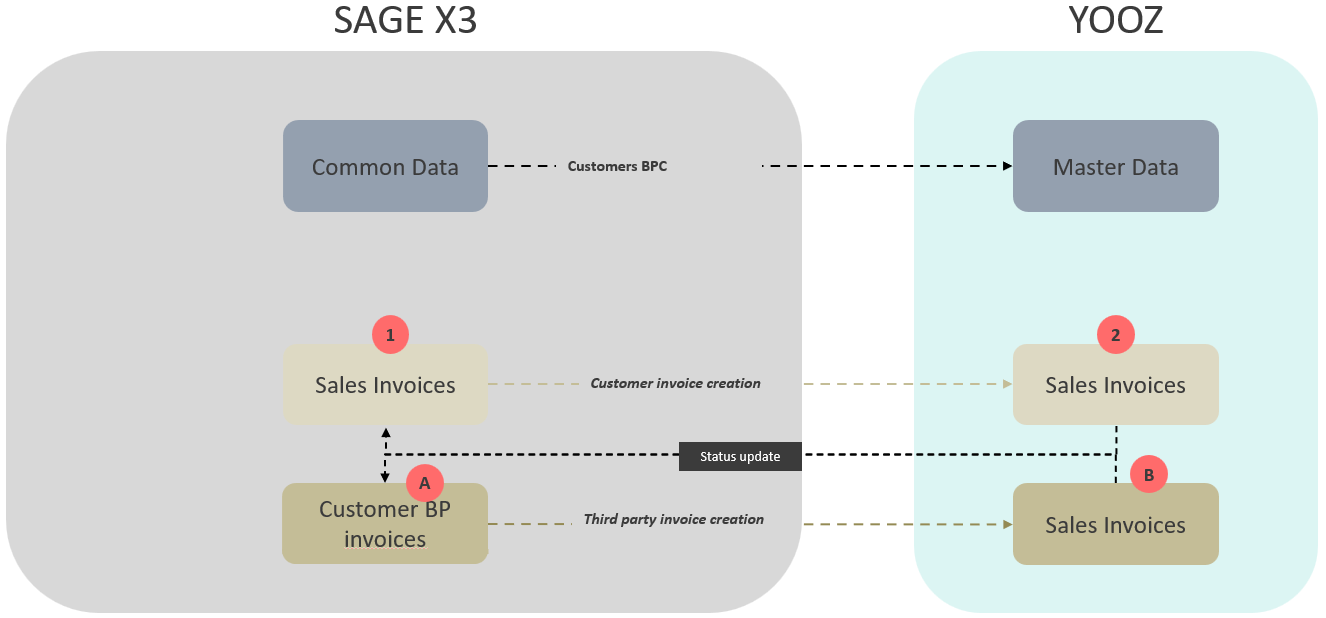
Integration of sales invoices (SIH) and third-party customer invoices (BIC). Compliance concepts related to the approved platform / Yooz PDP.
This document addresses these phases of implementation:
| ▼ | ▼ | |||||
|---|---|---|---|---|---|---|
| Pre-sales | Initialization | Framing | Installation | Setting | Recipe | Production launch |
Scope of application
Prerequisites and preparation
To ensure the transmission of sales invoices from Sage X3 to Yooz, standard e-invoicing information must be available. Therefore, two scenarios are possible:
- Case 1: E-invoicing is activated on the Sage X3 solution
- Case 2: E-invoicing is not enabled on the Sage X3 solution or e-invoicing is not available for the version of Sage X3
In case 1, you can proceed to the next step in this chapter.
For case 2, you must go through this preliminary step: 9-RFE Management of incompatible Sage X3 versions
Parameter values
The parameter values are in the EXAPP chapter and the YOOZ group.
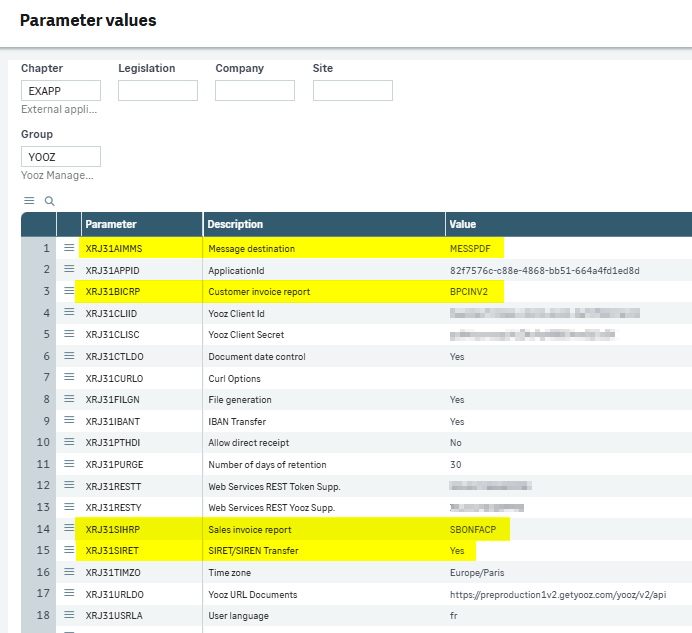
The parameter value XRJ31AIMMS is used to define a "Message" type print destination in Sage X3. Its role is to enable the generation and printing of PDF files (particularly for sales invoices) so that they can be automatically sent to the Yooz application.
The XRJ31BICRP parameter (Customer Invoice Report): This parameter defines the print state to use for customer invoices (invoices entered directly into third-party accounting). The standard value typically entered is the code BPCINV2.
The XRJ31SIHRP parameter value (Sales Invoice Report): This parameter defines the print state to be used for sales invoices (invoices generated by the sales management module). The standard value is usually the code SBONFACP (or sometimes SBONFACP2).
The XRJ31SDMET parameter value (Yooz Invoicing Sending Method): This parameter is used to define the Sending method for sales invoices that appear in Yooz. The available values are predefined: CHORUS_PRO, YOOZ_PA, VERIFACTU, PEPPOL, YOOZ_PARTNER, EMAIL, OTHER
Important details:
You need to enter the codes of the Crystal Reports states that are actually used by the client to print their invoices.
These settings offer some flexibility: they can be configured globally at the folder level, or broken down more precisely at the company or site level.
Site
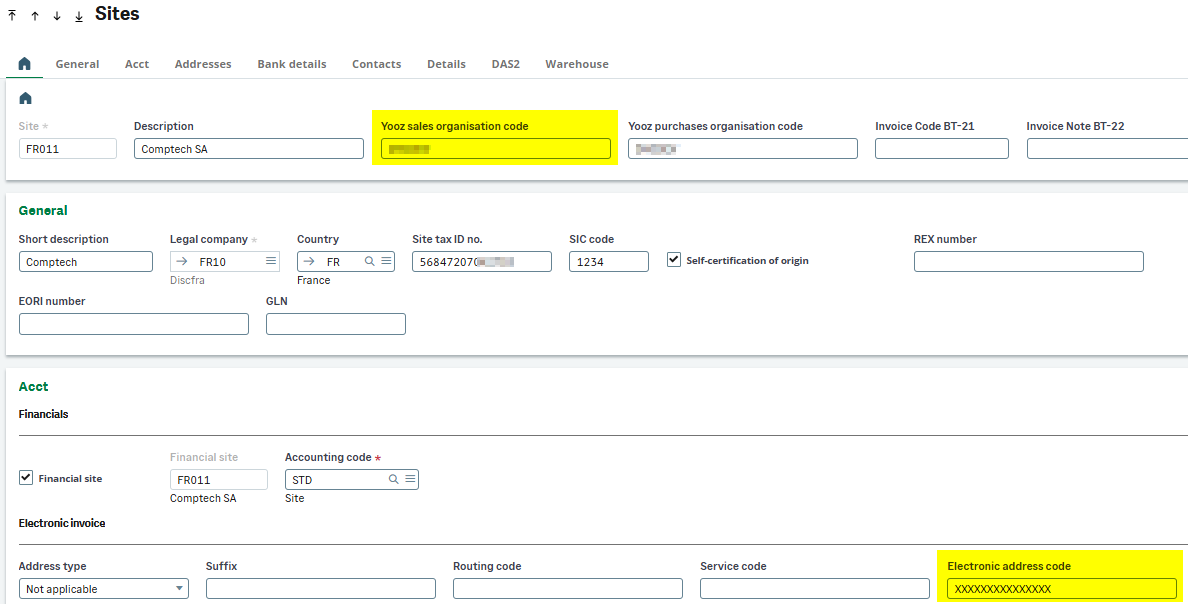
For each X3 site that issues sales invoices, you must provide the following information:
the Yooz organization code (only on the Financial website)
the email address as the sender
Invoice type
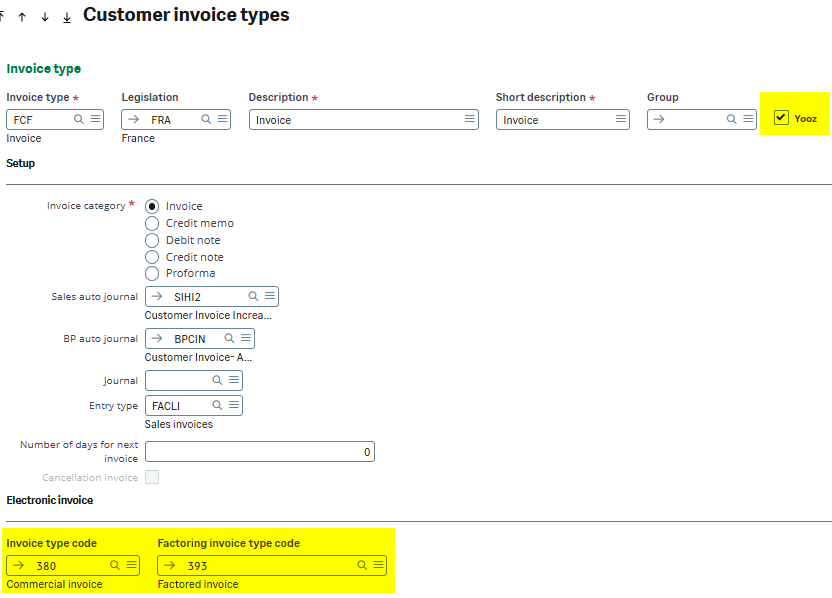
You need to check the Yooz box for the types of invoices that need to be sent.
Awaiting confirmation of e-invoice type code information
Customer categories
In the Yooz organizational code you need to provide the following information:
- either a Yooz organization code that will receive customers in this category
- either several Yooz organization codes (separated by a semicolon ';')
- either the value ‘YZ_CUSTOMER’ for a globalized reference
Check the box Yooz to activate sending to Yooz for customers in this category.
The area Yooz Formula allows you to enter a formula that will be evaluated in order to restrict which customers can transmit.
The check box Third Party/Company Reference manages multi-company configuration exceptions when sending customer repositories from Sage X3 to Yooz. Specifically, it determines the data source (such as payment terms, discounts, tax regime, or accounting code) that will be sent to Yooz:
- If the box is unchecked: The connector sends the standard global information entered on the main customer record
- If the box is checked: The connector will read the exceptions table of the Third Party/Company function. This allows you to create a customer record in Yooz containing specific values applicable only to a given X3 company.
Therefore, if a specific Third Party/Company rule exists for company X3, these exception data will be sent to the corresponding Yooz organization. For all other Yooz organizations listed in the customer category that do not have a configured exception, the connector will send the standard values from the customer record.

Customers
On the customer records, you must check and, if necessary, complete this data:
- SIRET code and intra-community VAT number ('Identity' section)
- email address code ('Identity' block)
- Local menu ‘RFE Selection’ (block ‘Commercials’ which can take the values ‘E-Invoicing’, ‘E-Reporting’ or ‘Out of Scope’).
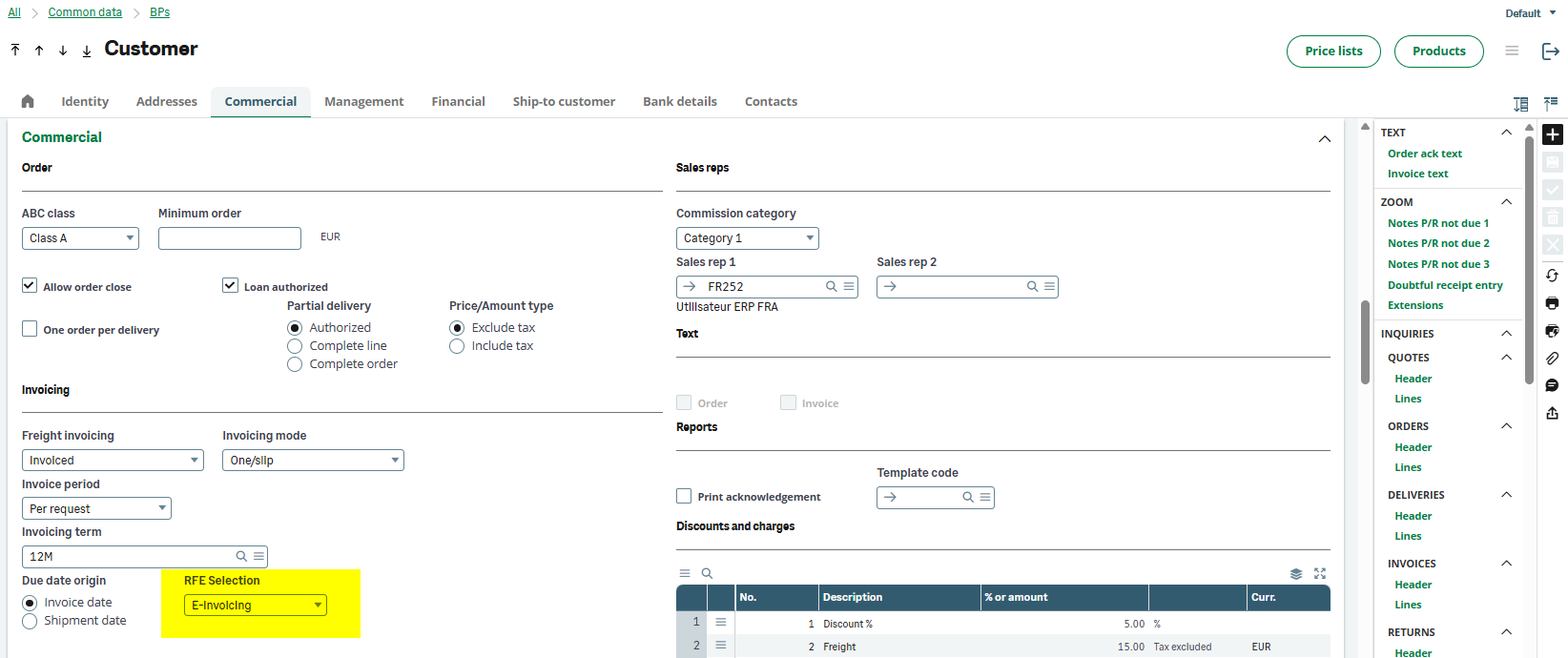
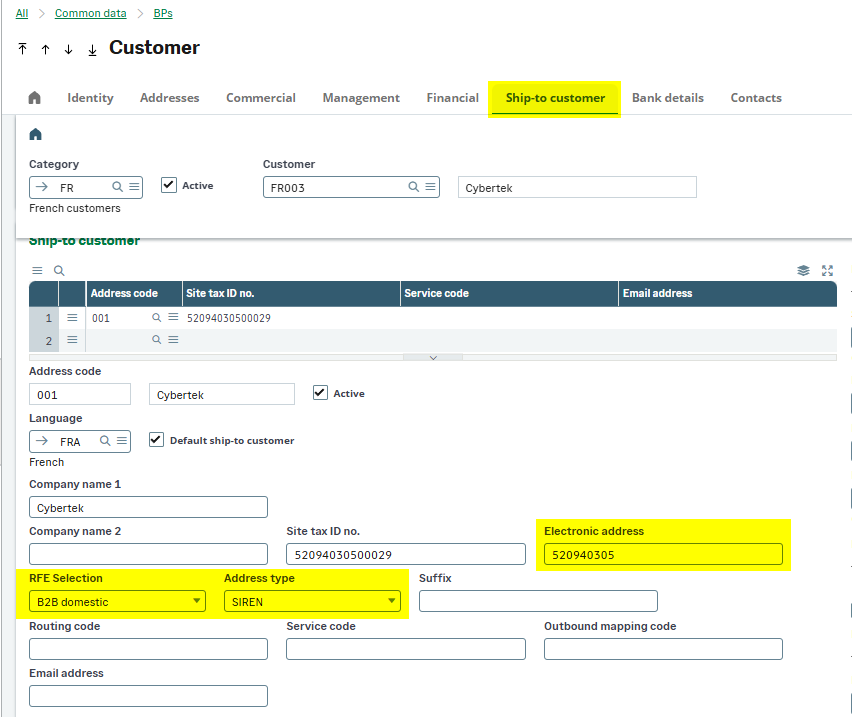
Payment methods
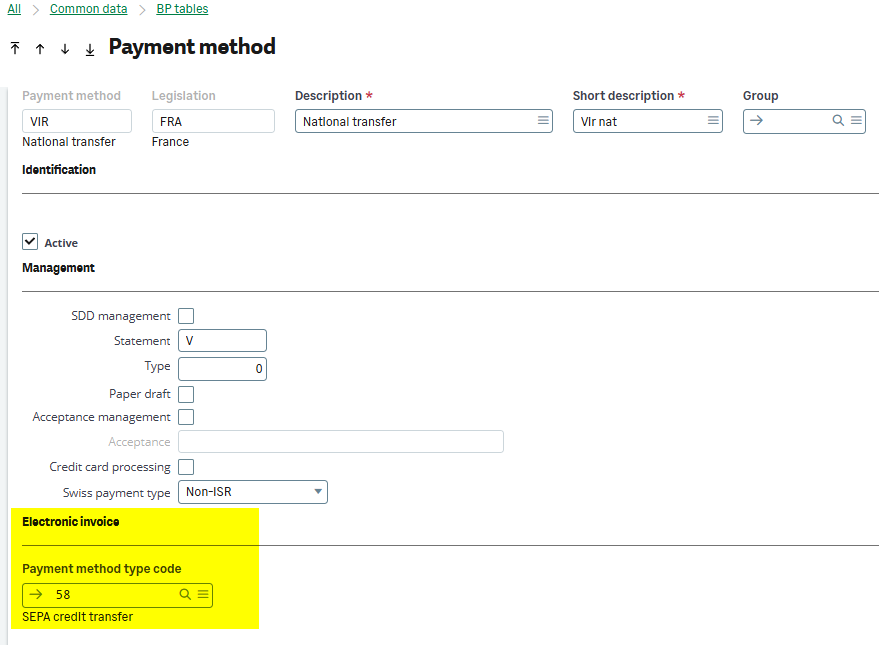
On the payment method sheets, add the AFNOR code
Tax rates
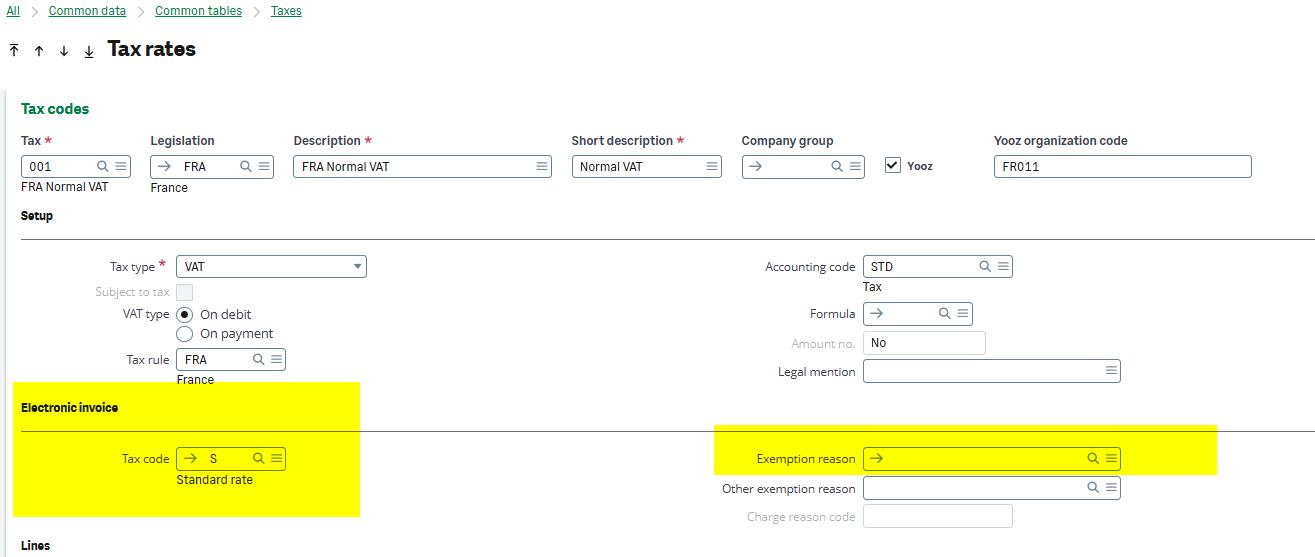
On the tax rate sheets, enter the AFNOR codes for each value. If the code is exempt, specify the reason for exemption.
Units
The CEE-ONU codes must be entered in the GESTUN function

Other parameters dedicated to e-invoicing
You can consult this section ‘Configuration tasks’ in the chapter 9-RFE Management of incompatible Sage X3 versions.
Operating procedure
This flow concerns the 2 functions invoice module (GESSIH) sales and third-party accounting (GESBIC).
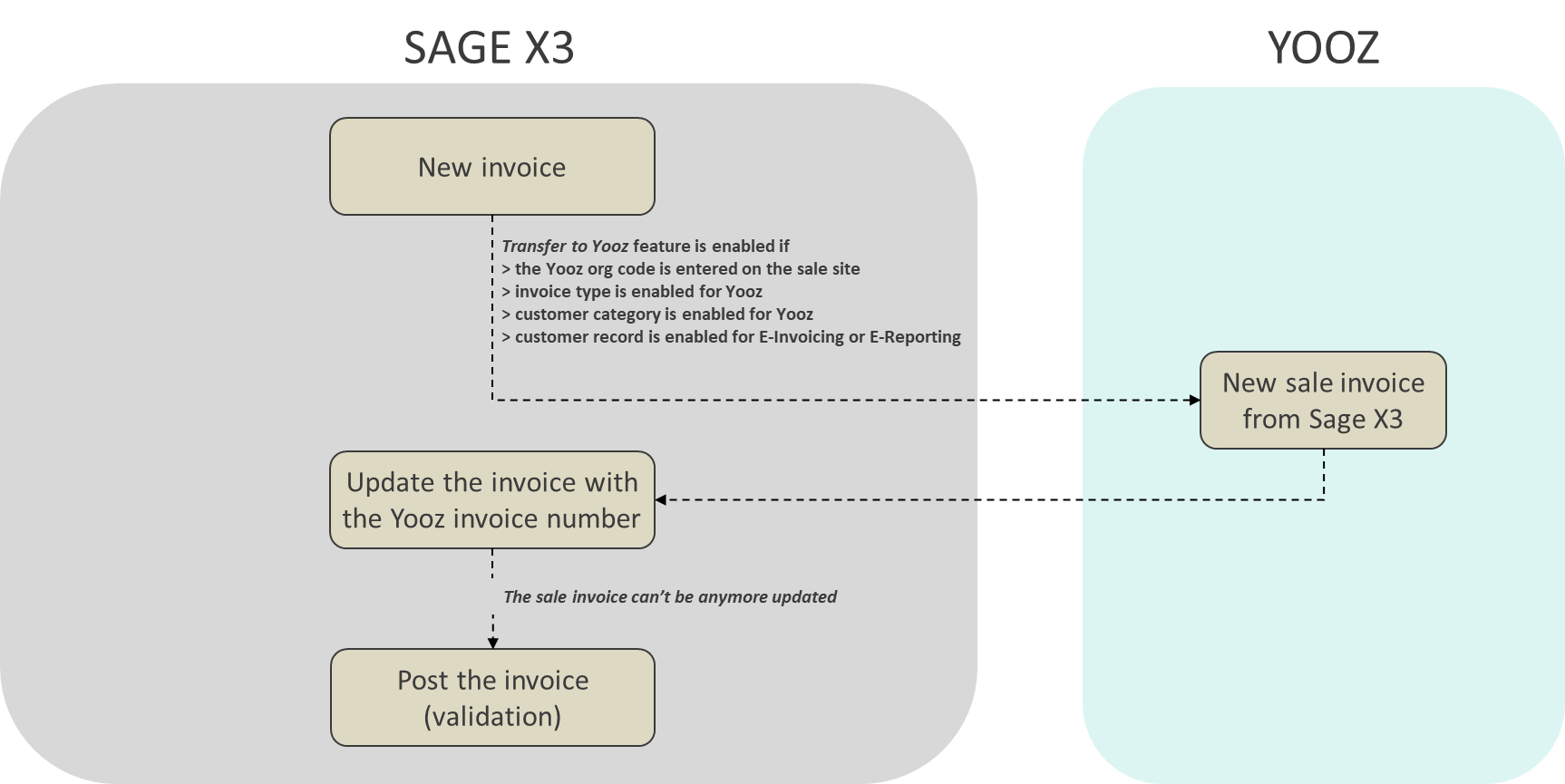
From the invoices (sales and third-party accounting module), the ‘Transmit to Yooz’ button is active if
- The sales site has a Yooz organization code
- The invoice type is selected Yooz
- The customer category is activated for Yooz.
- The client is configured with the value ‘E-Invoicing’ or ‘E-Reporting’ for ‘RFE Selection’.
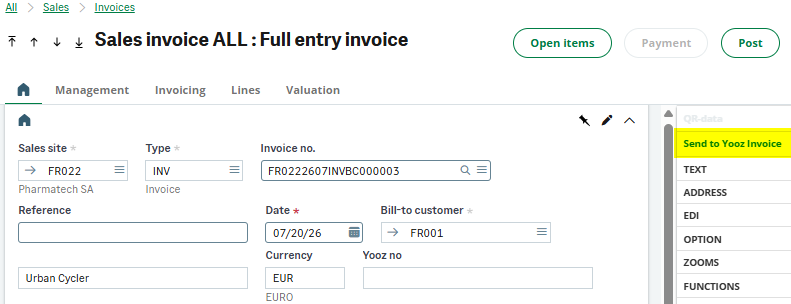
The invoice can be recorded in the tracking table individually using this button.
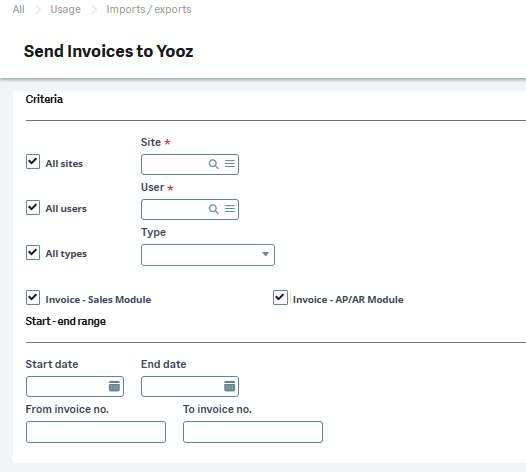
And also in bulk via the function Send invoices to Yooz (XRJ31INVSD).
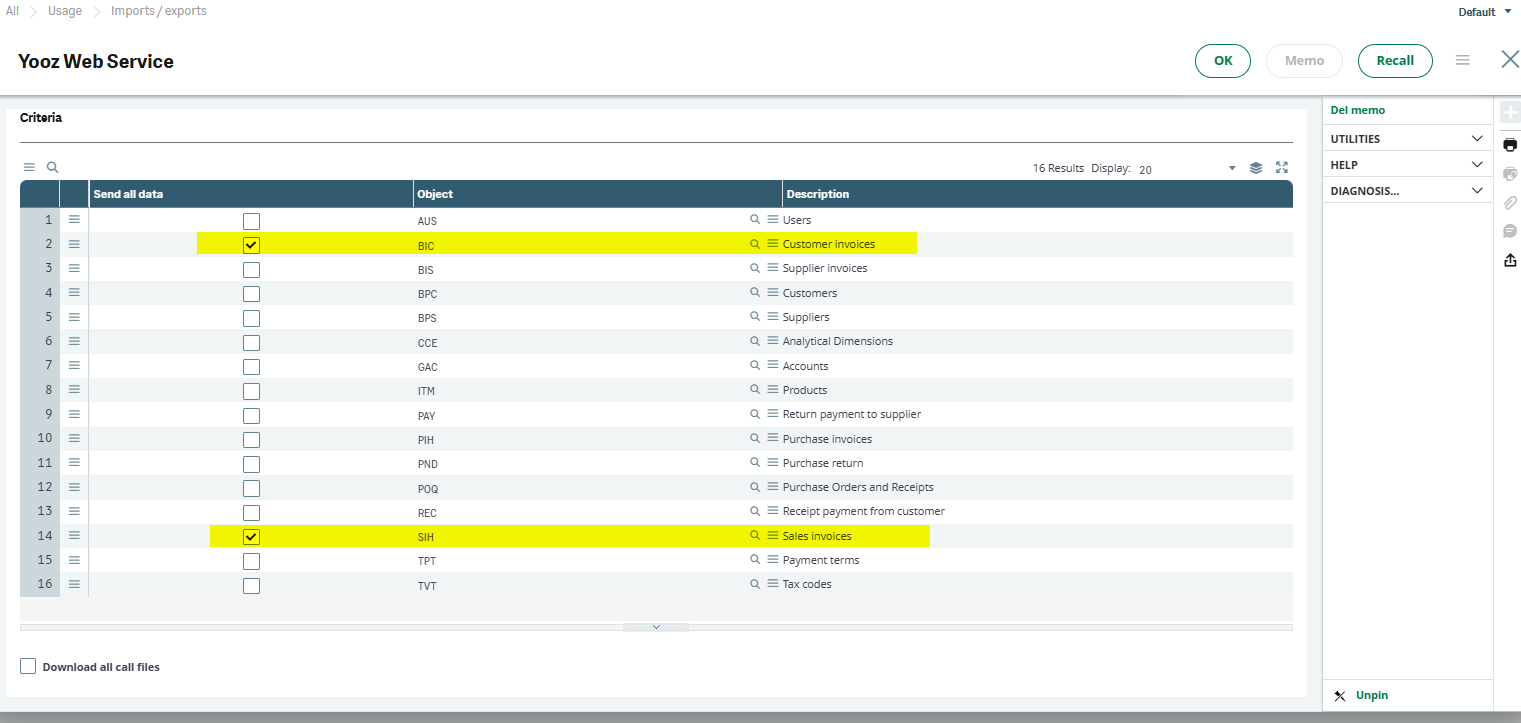
The invoice is transmitted to Yooz when the Yooz Web Service function (XRJ31EXE) is executed.
The transfer of the Sage X3 invoice to Yooz therefore takes place BEFORE the validation step.
This allows for invoice modifications in the event that sending to Yooz fails.
A failure is indicated by an error message in the tracking table and also by the absence of an assigned Yooz invoice number.

Customer receipt and payment feedback (Sage X3 ➔ Yooz flow)
The customer receipt flow follows the same logic as the supplier flow in Sage X3. Sending the feedback to Yooz is triggered exclusively by the matching (lettering) of the accounting document originating from the initial sales invoice. Data entry in X3: Use of payment functions (GESPAY, GESFRM) generating a match, or manual matching transactions (LETTRAGE) or automatic matching (LETTRAUTO).
"Matching" Trigger: Any accounting action (receipt, compensation, miscellaneous operation/OD) updating the paid amount on the customer invoice open items (GACCDUDATE.PAYCUR).
Yooz Update: Transmission of the collected amount (YZ_AMOUNT_PAID, corresponding to the new matched total minus the amounts already sent) and the most recent receipt date (YZ_DATE_OF_PAYMENT deduced from GACCDUDATE.PAYDAT) via the Yooz export task XRJ31EXE. The API action transmitted to Yooz is PAYMENT_RECEIVED.
Partial receipts and matchings: Natively managed. In the event of successive matchings, the connector calculates the difference between the new matched total and the amounts already transmitted to send only the delta (the partial receipt amount) to Yooz.
Compensations (Credit notes / OD): Matching a Yooz sales invoice with another accounting document (such as a customer credit note or a miscellaneous operation) updates the open item. This compensation therefore flows back into Yooz in exactly the same way as a standard receipt and settles the remaining balance to be recovered.
Grouped receipts (Yooz / non-Yooz mix): Supported. Since the system is based on the matching of open items, it natively filters the records and only sends the feedback for the sales entries having a Yooz identification number (XRJ31NUMYOOZ), silently ignoring the rest of the batch.
🚨 Unsupported cases (Inbound flow limits): Unlike the supplier flow, the cancellation of a customer receipt is not managed by the connector. Due to a technical limitation on the Yooz side regarding sales flows, it is impossible to send a feedback with a negative amount to restore the remaining balance. Any matching or receipt error corrected in Sage X3 will not flow back into Yooz.