8-Advanced Customization
Context and objective
The use of outbound (to Yooz) and inbound (to X3) custom fields. The use of entry points for specific adaptations (e.g., forcing a tax code, modifying the central account).
This chapter addresses these phases of implementation:
| ▼ | ▼ | |||||
|---|---|---|---|---|---|---|
| Pre-sales | Initialization | Framing | Installation | Setting | Recipe | Production launch |
1. Custom Yooz Fields
The Sage X3 connector for Yooz supports the custom fields functionality of Yooz, for both outbound and inbound flows.
- For the outbout flows (Sage X3 > Yooz), you can fill in up to 10 custom Yooz fields for each of the following objects/documents:
- Suppliers (GESBPS)
- Customers (GESBPC)
- Analytical dimensions (GESCCE)
- Accounts (GESGAC)
- Users (GESAUS)
- Tax rates (GESTVT)
- Payment terms (GESTPT)
- Products (GESITM)
- Purchase/receipt orders (GESPOH/GESPTH) – up to 10 Yooz custom fields for header and lines.
- Supplier returns (GESPNH) – up to 10 Yooz custom fields for header and lines.
- For the inbound flows (Yooz > Sage X3), you can send up to 10 Yooz custom fields to Sage X3 for the following invoices:
- Purchase invoices (GESPIH)
- Accounts payable invoices (GESBIS)
- Purchase orders (GESPOH)
- Receptions (GESPTH)
Custom fields are subject to constraints imposed by Sage X3 standards or by the specific context of the application.
Yooz custom fields outbound feed
Setup > Usage > Imports/Exports > Yooz custom fields out flows
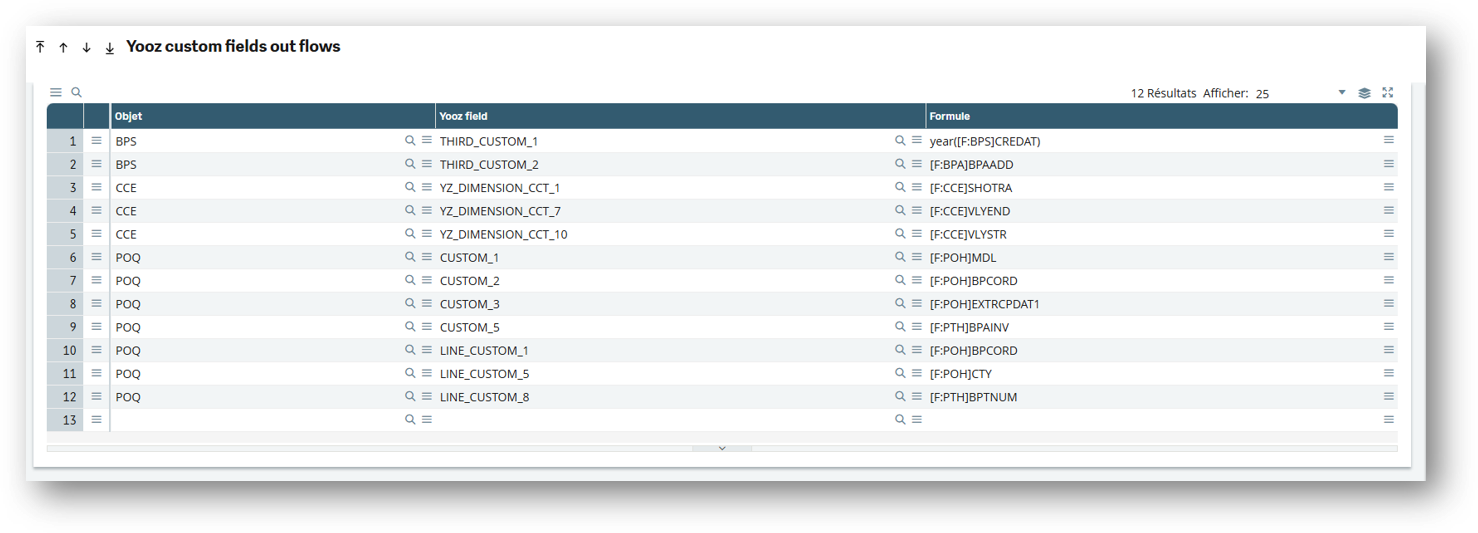
- Add the object on which you want to configure a custom field.
- Select a location between 1 and 10.
- Enter a formula that will return a string (You can use the formula wizard to help you if needed).
Example of how to indicate the year of creation in custom field #1 of the "Supplier" form in Yooz (cf: line 1 of the screenshot above)
Once the Yooz custom fields are configured, changes made to these fields will be transmitted to Yooz during the next submission (recurring task or manually via the web service).

Yooz custom fields inbound feed
Setup > Usage > Imports/Exports > Yooz custom fields in
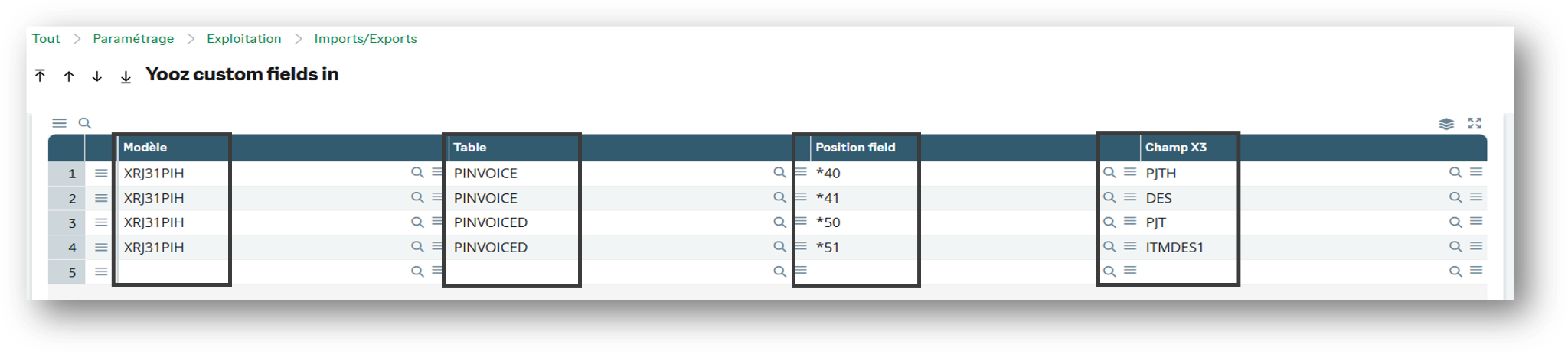
- Select the corresponding model, for example XRJ31PIH for invoices, XRJ31BIS for third-party invoices, etc.
- Select the X3 table that you want to enrich with data from Yooz.
- Select the position field present in the import; there are 10 positions available for each table.
- Select the X3 field that you want to fill with data from Yooz.
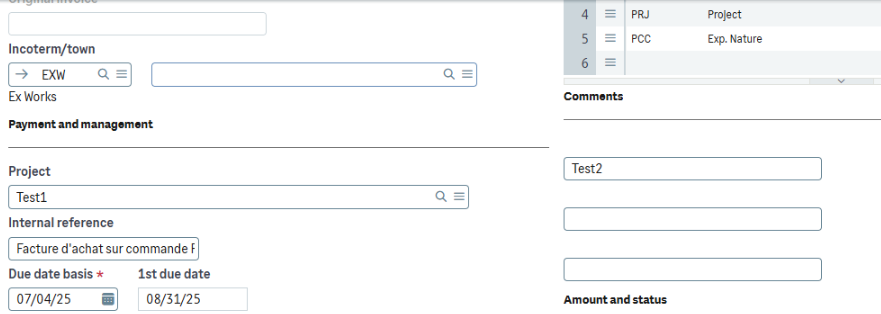
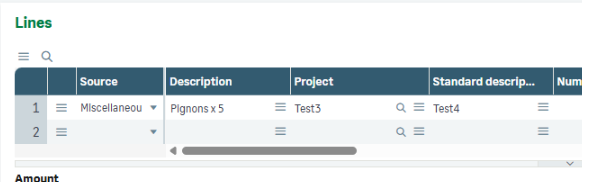
Example of indicating designations and business codes in both the header and the line
(see: lines 1 to 4 of the screenshot above)
By importing this file:

The header clearly shows:
And in line:
2. Entry Points
Several entry points have been put in place to allow specific development via the Yooz connector.
XRJ31BICLIB
PARAM_ETAT
This entry point is called just before printing the PDF of the supplier invoice to be sent to Yooz.
If you wish to add a new parameter to the printout:
[L]NBPAR += 1 : [L]TBPAR([L]NBPAR) = 'societe' : [L]TBVAL([L]NBPAR) = [F:SIH]CPY
Tables populated with significant values:
- COMPANY [F:CPY]
- FACILITY [F:FCY]
- GACCDUDATE [F:DUD]
- SINVOICE [F:SIH]
- XRJ31YOOZSUI [F:XRJ31YS]
---
PE_CHANGEBIC
This entry point allows modification of the content of the third-party customer invoice.
Here is the list of variables you can modify
- [L]YZ_PURCHASE_ORDER_NUMBER - BT-13
- [L]YZ_MARKET_NUMBER - BT-12
---
XRJ31IMPBIS
=ACTION
This script is called specifically for importing supplier invoices from Yooz. For each action in this import process (IMPORT, IMP_ZONE, etc.), an entry point with the same name is called.
---
XRJ31IMPPIH
=ACTION
This script is called specifically for importing purchase invoices from Yooz. For each action in this import (IMPORT, IMP_ZONE, etc.), an entry point with the same name is called.
DEF_UOM
This entry point allows you to modify [M:PIH3]UOM(nolign-1) of a miscellaneous line which is filled with 'ONE' by default.
---
XRJ31IMPPOH
=ACTION
This script is called specifically for importing purchase orders from Yooz. For each action in this import (IMPORT, IMP_ZONE, etc.), an entry point with the same name is called.
---
XRJ31IMPPTH
=ACTION
This script is called specifically for importing purchase receipts from Yooz. For each action in this import (IMPORT, IMP_ZONE, etc.), an entry point with the same name is called.
---
XRJ31PNDLIB
SPEFLD
This entry point allows modification of the content of purchase returns.
Here is the list of variables you can modify
- [L]YBPSNUM - The supplier
---
XRJ31SIHLIB
PARAM_ETAT
This entry point is called just before printing the PDF of the sales invoice to be sent to Yooz.
Si vous souhaitez ajouter un nouveau paramètre à l'impression :
[L]NBPAR += 1 : [L]TBPAR([L]NBPAR) = 'sitedeb' : [L]TBVAL([L]NBPAR) = [F:SIV]SALFCY
Tables populated with significant values:
- COMPANY [F:CPY]
- FACILITY [F:FCY]
- SINVOICE [F:SIH]
- SINVOICEV [F:SIV]
- GACCDUDATE [F:DUD]
- XRJ31YOOZSUI [F:XRJ31YS]
---
PE_CHANGESIH
This entry point allows you to modify the content of the sales invoice.
Here is the list of variables you can modify
- [L]YZ_PURCHASE_ORDER_NUMBER - BT-13
- [L]YZ_MARKET_NUMBER - BT-12
---
XRJ31YOOZLIB
BEFNEWSUI
The connector uses a queue to list all items to be sent to Yooz, and these items will be sent when the XRJ31EXE function is executed (usually as a recurring task).
This entry point is called before adding a record to the queue.
A transaction is opened, the entry point is called just before the write *write [F:XRJ31YS]*.
If you wish to ignore this creation:
[L]XRJ31SKIP = 1
If you wish to generate a new timer:
Call NUMERO('YOOZ','',date$,'',[F:XRJ31YS]CHRONO,WRET) From SUBANM
Tables populated with significant values:
- XRJ31YOOZSUI [F:XRJ31YS]
PE_CHANGEPO
This entry point allows modification of the purchase order content.
Here is the list of variables you can modify
- [L]YBPSNUM - The supplier
- [L]YFCY - The site
- [L]YITMDES - The description of the product
- [L]XRJ31WTRAIT - contains the calling script
3. Specific Developments
Some specific developments are common to many clients; here are some easy-to-implement examples.
Orders sent without a receipt
If you wish to send orders without waiting for a receipt, set the value 2 for the field XRJ31SKPRCP in PORDER.
For example, if you want to send all default commands, you can use/add the following script to the script SPEPOH. This allows you to filter the behavior if necessary.
$ACTION
  Case ACTION
    When "INICRE" : Gosub INICRE
  Endcase
Return

$INICRE
  [F:POH]XRJ31SKPRCP=2
Return
Don't worry: the order won't be sent immediately. It will follow the standard process, which means you'll still need to sign and print the order form.
---
Force the tax code (VAT) when importing an invoice based on a purchase order
When you want to import purchase invoices linked to a purchase order and you want to force the imported VAT code (PINVOICED.VAT field) rather than letting the standard system recalculate it, you can:
- Create an entry point on the standard process TRTX3 (Contact your integrator if you need help with this).
- Use the following script to call the standard entry point ALIVATCOD
# Script : YTRTX3PE
# 2026-08-24 JAT : YOOZX3-1109 : check that the value is not empty

$ACTION
  Case ACTION
    When "ALIVATCOD" : Gosub ALIVATCOD
  Endcase
Return

$ALIVATCOD
  If GIMPORT & dim([F:AOE]OBJ)>0 & find([F:AOE]OBJ,"PIH")
    If !clalev([F:XRJ31FI]) : Local File XRJ31SPEFLDI [F:XRJ31FI] : Endif
    Filter [XRJ31FI] Where TEMPLATE=[F:AOE]EXT & TABLE="PINVOICED"
    For [F:XRJ31FI]
      If find([F:XRJ31FI]FLD,"VAT","VAT(0)")
        If evalue("GIMP("+right$([F:XRJ31FI]POSITION,2)+")") <> ''  # 2026-08-24 JAT
          [L]TAXES(0) = evalue("GIMP("+right$([F:XRJ31FI]POSITION,2)+")")
          GPE=1
        Endif
      Endif
    Next
  Endif
Return
Then, configure the "Yooz custom fields in" connector function as follows (code: GESXRJ31FI):

Add the product's accounting code during export
When transferring items from Sage X3 to Yooz, if you wish to retrieve the purchase accounts defined on the product's accounting code, the following elements must be configured:
- Check that the XRJ31YOOZLIB treatment is up to date.
- In the "Yooz custom fields out flows" function (code: GESXRJ31FO), add a line for the ITM object.
- Select the Yooz destination field to which the purchase account should be transferred.
- Enter the following formula in the processing field:
func XRJ31YOOZLIB.GETACCOUNT([F:ITM]ACCCOD,"FRA")
In this formula, the FRA value corresponds to the used accounting plan code. It must therefore be adjusted if a different accounting plan has to be used.
This configuration allows the purchase account associated with the product's accounting code to be automatically retrieved and transmitted to Yooz.
